Print Language
Last Updated: September 25, 2026
The PrinterLogic Output service automatically converts documents to a print-ready file format before sending them to the printer. However, some printers work better with specific file formats. This option allows you to configure which file formats your print jobs convert to via a dropdown menu at a printer-specific or default level. To make changes to existing settings in bulk, see Quick Config Tool.
Configuration
Default Settings
- In your Admin Console go to Tools
 Settings Output.
 - Go to the Output Print Language section.
- Use the dropdown to select the desired print language you want to apply globally.
- Auto-Detect (Passthrough): Direct to printer.
- PS: PostScript.
- XPS: XML Paper Specification.
- PDF: Portable Document Format.
- PCL5: Printer Command Language 5.
- PCLXL: Printer Command Language XL (PCL6).
- ZPL: Zebra Programming Language.
- ESC/POS: Epson Standard Code for Point of Sale.
- Select Save in the upper-right corner.
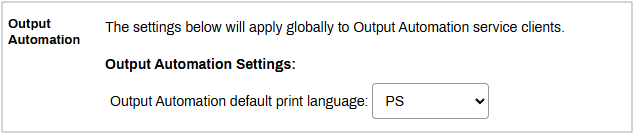
The selection option is the default print language for all Output Automation printers.
Printer-Specific Settings
To adjust the print language for specific printers:
- In your Admin Console go to the desired printer object in your tree structure.
- Select the Port tab.
- Scroll down to the Output Automation Print Language section.
- Select Use printer-specific print language.
- Use the dropdown to select the print language.
- Auto-Detect (Passthrough): Direct to printer.
- PS: PostScript.
- XPS: XML Paper Specification.
- PDF: Portable Document Format.
- PCL5: Printer Command Language 5.
- PCLXL: Printer Command Language XL (PCL6).
- ZPL: Zebra Programming Language.
- ESC/POS: Epson Standard Code for Point of Sale.
- Select Save in the upper-right corner.
- Repeat as needed for additional printers.

The selection option is the default print language for the adjusted Output Automation printers.
In this topic: