Configure API Cloud Link
Last Updated: October 02, 2026
Here are the steps to configure API Cloud Link in your environment.
Key Points
- Review the Requirements before configuring this feature.
- API Cloud Link supports RESTful API requests and IPP printing requests.
- API Tokens support both request types.
- OAuth 2.0 supports RESTful API requests.
- API Cloud Link only requires an API Token or OAuth 2.0 Client ID and Secret.
- Select from one option or the other depending on your environment's security guidelines.
API Requests
The endpoint structure used for API requests depends on whether you are using a RESTful API or IPP printing. Use the appropriate endpoint below when configuring this service.
RESTful API Requests
RESTful API requests support API Tokens
IPP Printing Requests
IPP Printing requests require an API Token to authenticate requests from external applications or tools. Use the API Token steps in the 2. Configure Authentication section when setting up your authentication method. API requests require the following HTTP header.
If you are configuring API Cloud Link using IPP print jobs request for Oracle Fusion, complete the Turn On API Cloud Link and API Tokens sections below, then proceed to Connect Oracle Fusion.
1. Turn On API Cloud Link
Follow these steps to turn on API Cloud Link:
- In the Admin Console, go to the API Cloud Link section on Tools
 Settings Output.
 - Select API Cloud Link Enabled.
- Select Save in the upper-right corner.

2. Configure Authentication
Follow the steps in the
API Cloud Link requires only an API Token or OAuth 2.0 Client ID and Secret. Select the appropriate option based on your environment's security guidelines.
API Tokens
- Go to Tools Tokens API Keys.
- Select the API Keys tab.
-
Select the Generate button in the upper-left.
Newly generated API Keys appear at the bottom of the Active API Keys list.
- Copy the token for the newly created API Key.

Add the API key into the request HTTP header to authenticate requests from external applications and tools. For more details refer to API Cloud Link Schemas.
OAuth 2 Authentication
- Go to Tools Tokens API Keys.
- Select the OAuth 2.0 tab.
- Select the Register Client button in the upper-right.
- Enter a Display Name and Integration Purpose (Description).
-
Use the dropdown to select the Client Secret Expiration.
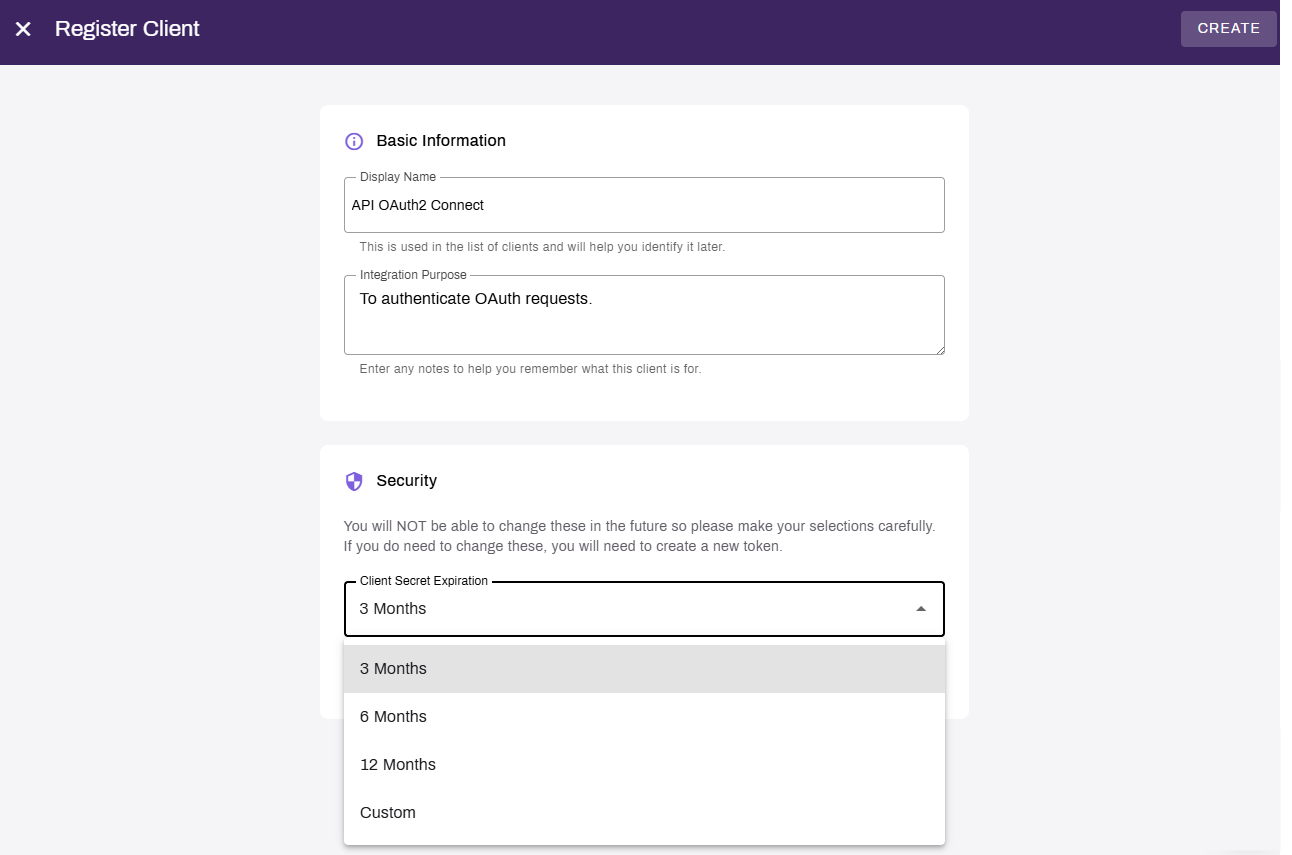
- Select Create.
-
On the Register Client modal, copy the Client ID and Client Secret or download / copy the JSON format.
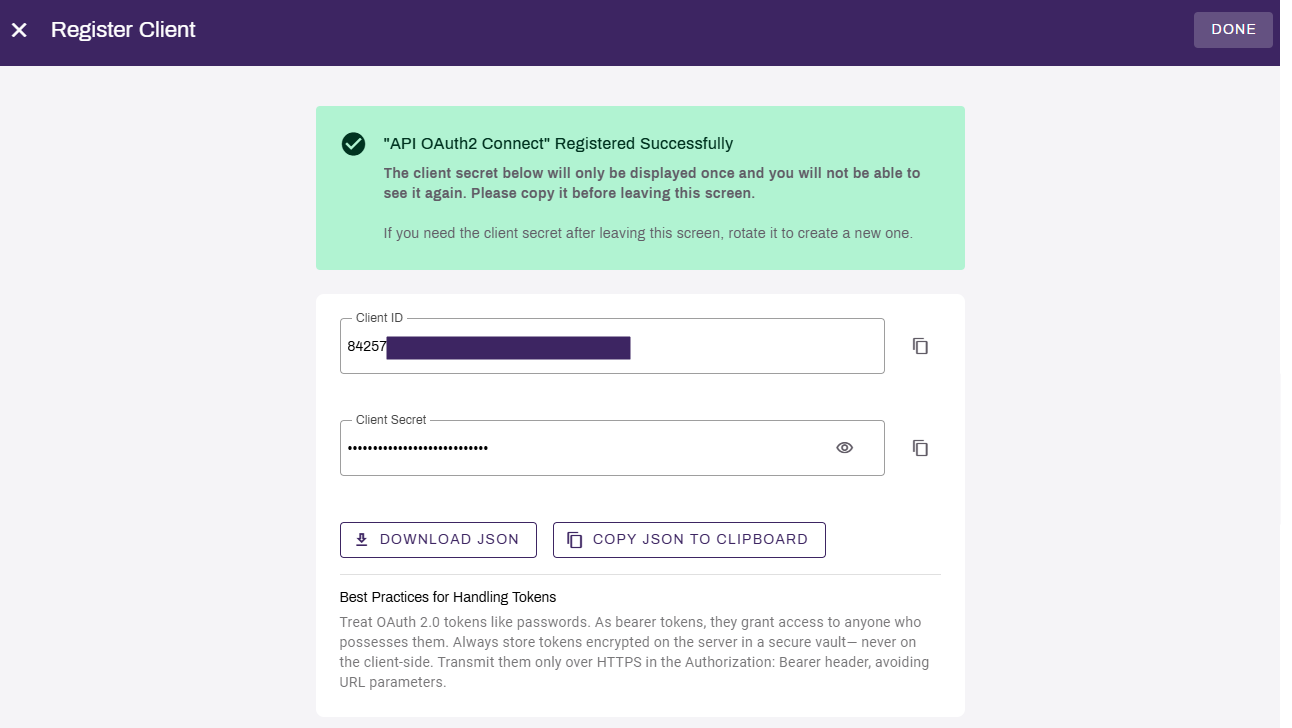
The client secret will be displayed only once and will not be visible again. If you lose the secret, you will need to either rotate the existing secret or create a new one.
-
Send a POST request to the validate client endpoint with the Client ID, Client Secret, and audience in the request body to obtain an access token.
- The response contains a JSON Web Token (JWT) that serves as your access token.
The endpoint must be adjusted for your region. - Include the following headers when sending the POST request.
- Content-Type: Application/json
X-Site-ID: The subdomain of your Vasion instance. For example, acmeco.printercloud.com would be "acmeco."
Copy CodeContent-Type: application/json
X-Site-ID: "<Instance_Subdomain>"
{
"client_uuid": "<Your_Client_ID>",
"client_secret": "<Your_Client_Secret>",
"audience": "all"
}The audience value is from the JSON token.
Response example:
Copy Code{
"access_token": "eyJhbGciOiJSUzI1NiIs...",
"token_type": "Bearer",
"expires_in": 1800
}
- Select Done in the Admin Console when finished.
Rotate Client Secrets
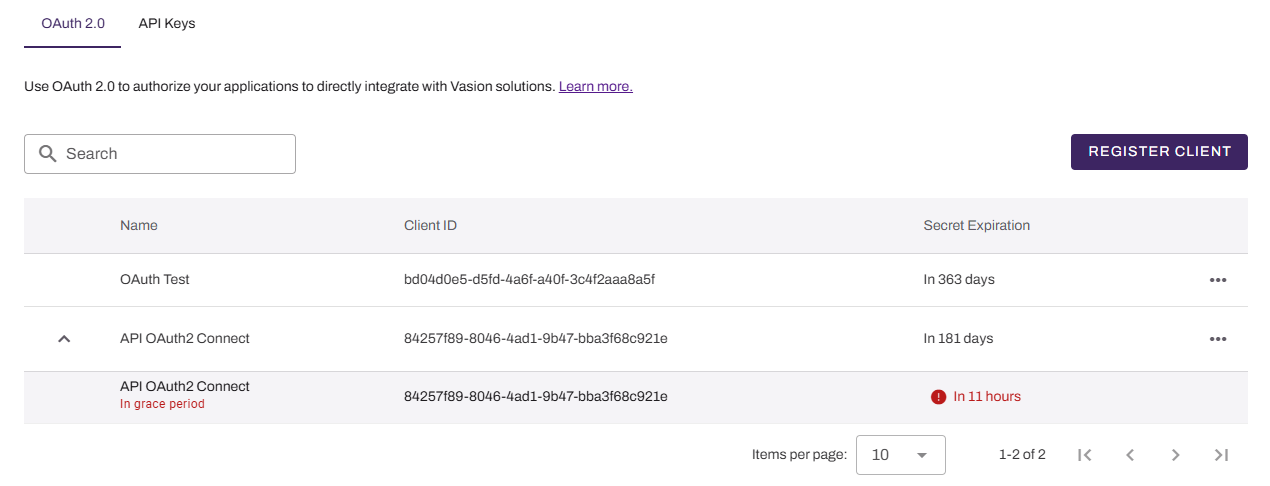
If you lose your OAuth 2.0 client secret or the existing one is expiring, use the steps below to rotate the secret and set the Grace Period. The Grace Period is the time during which both secrets are valid, allowing a buffer while updating your configuration with the new secret.
- Go to Tools Tokens API Keys.
- Select the OAuth 2.0 tab.
-
Select the three dots to the right of the OAuth 2.0 line item.

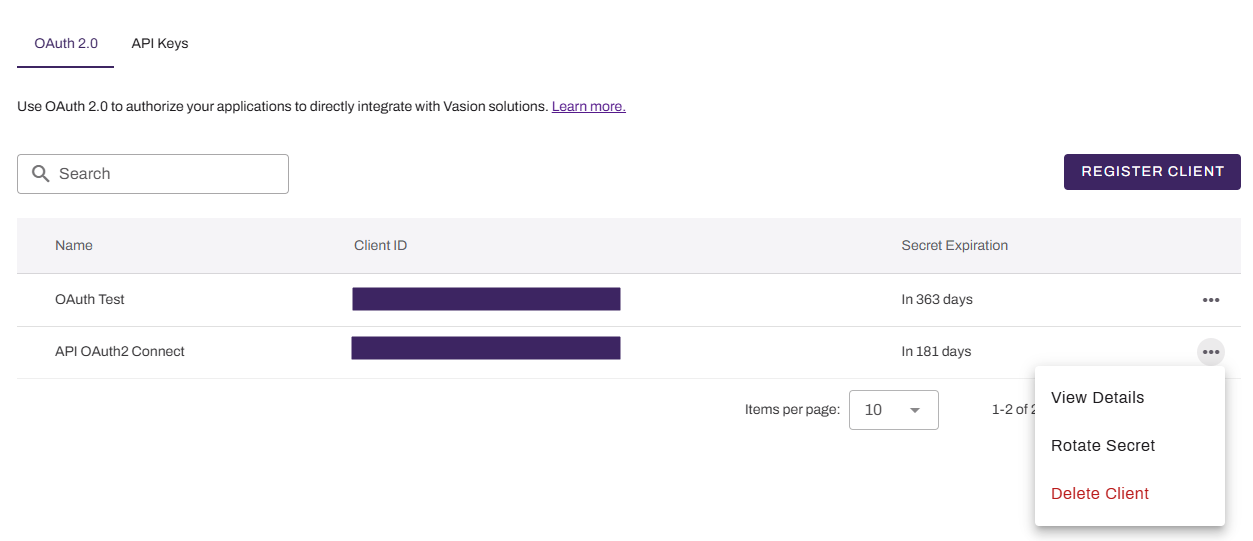
- Select Rotate Secret.
-
In the Rotate client secret for... modal, use the dropdowns to select:
- Client Secret Expiration for the secret.
- Grace Period where both secrets are active.
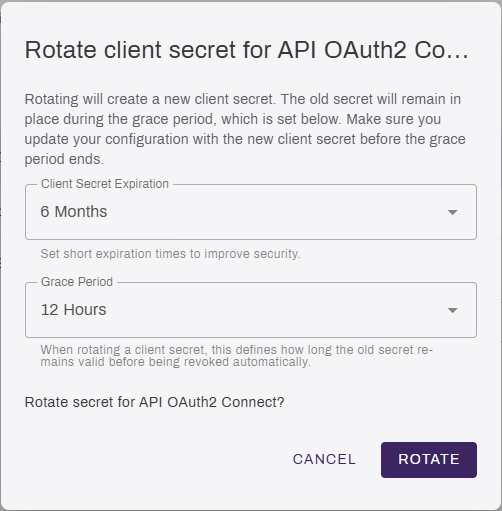
- Select Rotate.
-
On the Rotate Secret modal, copy the Client ID and Client Secret or download / copy the JSON format.
The client secret will be displayed only once and will not be visible again. If you lose the secret, you will need to either rotate the existing secret or create a new one.
- Paste these values into your application's OAuth 2.0 Client configuration section. The location differs depending on the tool used.
- Select Done when finished.
During an active grace period, you can monitor the expiration by selecting the arrow next to the Name to expand and show the previous client secret information.
Next Steps
Troubleshooting Help
Confirm the following:
- You have generated an API Key via ToolsTokensAPI Keys.
- Ensure you have a header called "Authorization" with a value of the API Key.
Check the body of the response. If it mentions your queue is not configured for Off-Network, ensure your instance and print queue(s) is configured to use Off-Network Print, including an assigned External Gateway and Internal Routing Service.
If you submit a print job and received a 202 success response, but the print job was never printed, check the following:
- The Output Console to make sure the job was received and check its status.
- If the job has failed, ensure the Off-Network Internal Routing Service is up and running. If not, check the general health of Off-Network Print.
- The Internal Routing Service log for print job activity to determine whether the print job is being routed to the customer's network. Jobs may be getting downloaded to the routing service, but the printer may be offline.
- The Printers tab of the Output Console to check on the SNMP health of the destination.
In this topic:
For print jobs from Epic or our API Service, the Batch Printing functionality lets you collect batches of documents and print them in a specific order every time, ensuring complex processes remain standardized and efficient.