Send To Workflow
Last Updated: September 08, 2026
Use this procedure to add the Send to Vasion Automate action to a rule in PrinterLogic Output. When the rule matches a document job, PrinterLogic Output converts the document to PDF and submits it to the selected workflow automatically.
Requirements
Review the Requirements before configuring this feature.
Create Output Rules Workflow
- In the Vasion Automate console, select Workflow, then Business Process.
- Select + New Workflow.
-
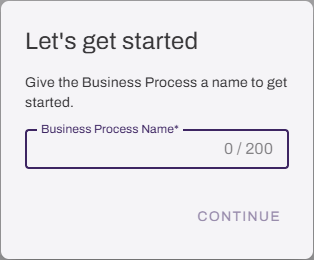
On the Let's get started modal, enter a name for the new workflow.
-
Select Document Event trigger option, then Output Rules.
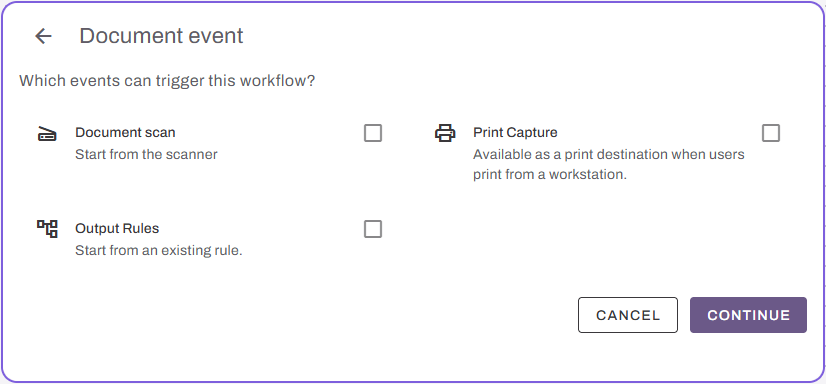
- Select Continue.
- Add the remaining desired workflow steps.
The workflow can be any of the supported features within the workflow builder. For more information on the available options, refer to Build a Workflow. The Send to Vasion Automate action in Output Rules requires a workflow with the Output Rules Document Event trigger before it shows as an option in the next set of steps.
Configure a Send to Vasion Automate Action
- In Vasion Automate, select Workflow in the left-side menu, then select Output Rules.
- Select + New Rule or edit an existing rule using the more icon.

- Select the desired trigger.
- Configure the rule conditions for the trigger.
-
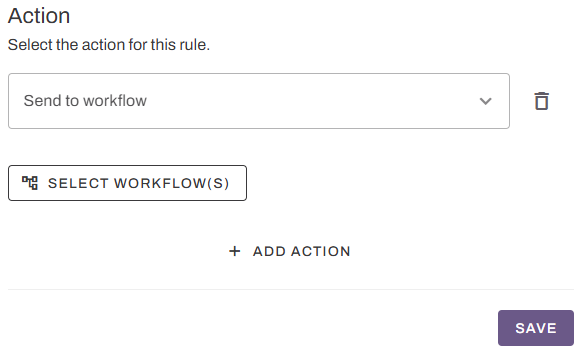
In the Actions section, select Send to Vasion Automate.
-
Use the Select Workflow(s) button to select the Document Event Output Rules triggered workflow.
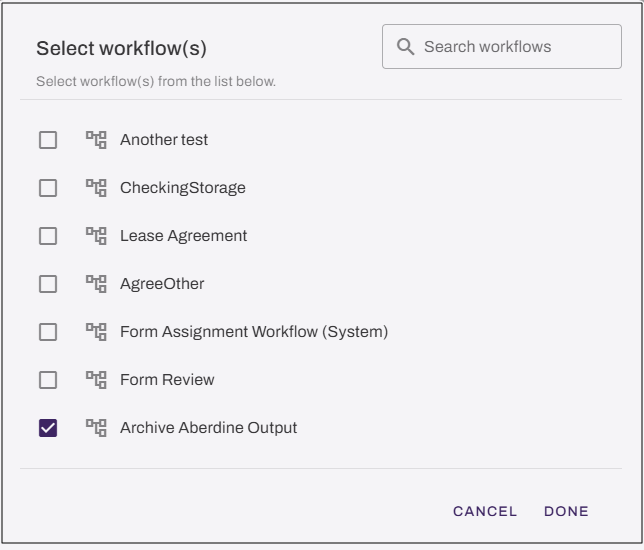
- Select Done.
- Select Save.
When the rule matches a document job, Output converts the document to PDF and submits it to the selected workflow. The workflow begins processing the document using the Output Rules event variables.
In this topic: