Form Builder
Last Updated: September 22, 2026
The Form Builder lets you design and create forms with a variety of data capture fields, configure access to forms, and save your progress as you build forms. Create PDF and web forms to capture data from internal or external users in a streamlined digital process.
Key Points
Review the following key points:
- After you publish a form, you cannot unpublish it.
- You can edit forms in Draft mode only .
- Deleting a form also deletes all submitted results.
- Forms shared externally are completed anonymously.
How Form Builder Works
Vasion Forms lets you capture data with a variety of configurable fields and form-design components:
-
Use drag-and-drop components: Create a form using intuitive placement mechanics. Add text, number, time, date, and other fields.
-
Collaborate on form creation: Add other Vasion Automate users as form creators, and work together to build a form.
-
Configure form access for internal users: Limit form access to certain users in Vasion Automate. Configure user and group access to control who can complete forms.
-
Create PDF and web forms: Create a new web form using layout and field components, or add digital fields to an existing PDF document.
-
Share forms with external users: Turn on external link sharing to share a form with customers. Gather data from external sources digitally, quickly, and without paper processes.
-
View and export results: View form results in a web browser, or export them as a CSV to be analyzed or imported into other software.
Requirements
To create forms you need the following:
-
The Form Creator role assigned to your user in Vasion Automate.
For details on granting the Form Creator role to a user, refer to Roles.
Main Components
The main components of the Form Builder are the following:
-
Header.
-
Builder tab.
-
Settings tab.
-
Results tab.
Header
The header consists of the following:
- Close: Use this button to close the form and return to the Forms page.
- Form Name: Use this field to name the form.
- Tabs
- Builder: This tab is the default; use it to access form fields, design, and properties.
- Settings: Use this tab to configure form sharing and access options.
- Results: Use this tab to view data that is collected when users complete the form. The data appears in a table. This tab is available on only published forms.
-
Save: Use this button to save your work. The form saves with the Draft status.
Regularly save your form as you build it.
- Publish: Use this button to make this form available to users.

Builder
The Builder tab consists of the following:
- Fields area.
- Design area.
- Properties area.
- Design toolbar.
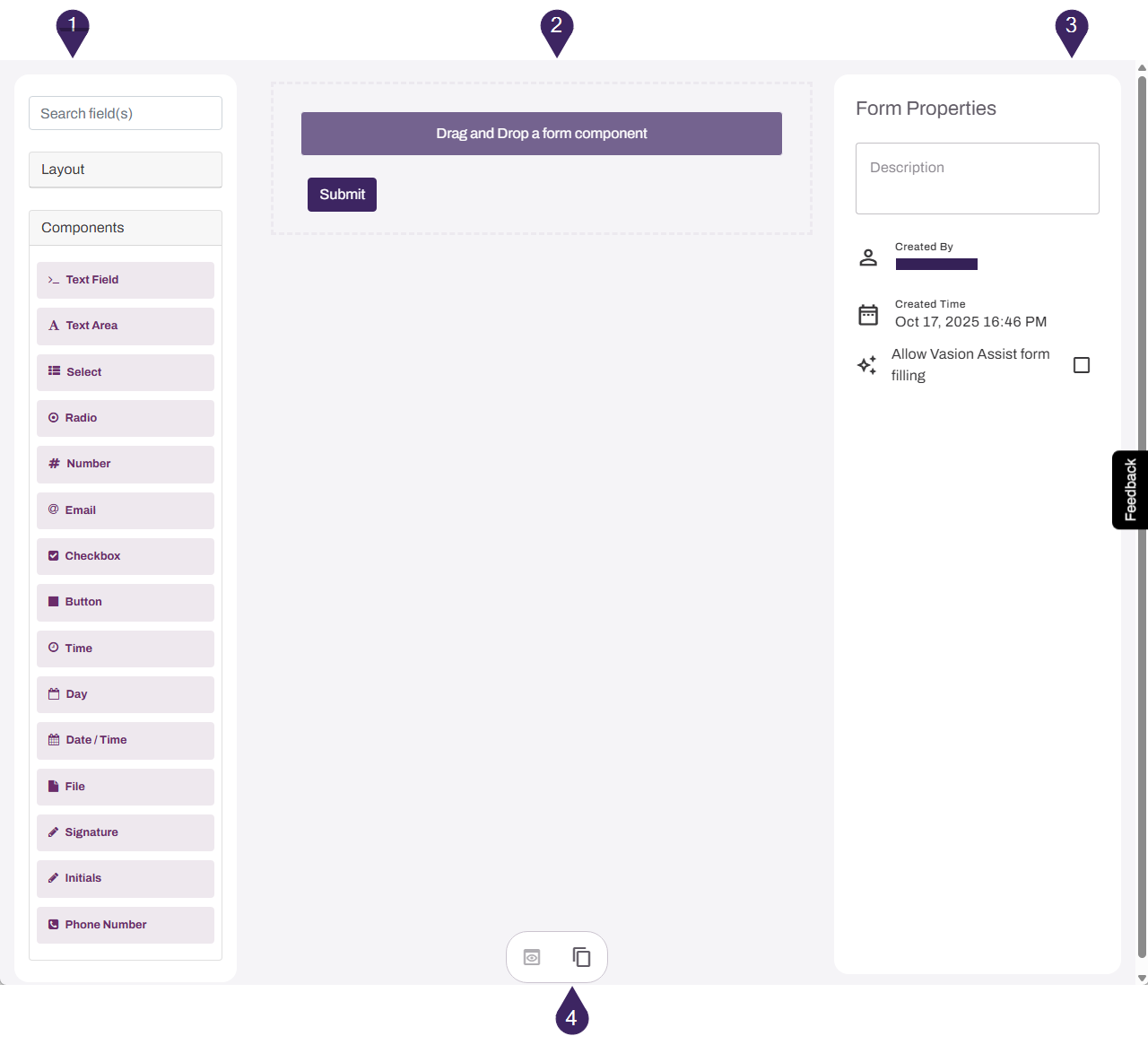
The following is a brief overview of these areas:
- Fields area
Layout: This section lists components that you can use to organize form fields. For more details refer to Layout Fields.
The Layout section appears only when building a web form.
- Components: This section lists field types. Each type has specific properties designed to accurately capture and show the data entered in the field. By default this section is expanded and shows all fields. For more details refer to Layout Fields.
- Design area
- Form designer
- Drop components into this area to configure the form.
- Design toolbar
- Preview: After you add fields to your form, you can select this button to view a preview of the form.
- Copy: Select this button to make a copy of the form. This button opens the copy in a new tab.
- Form designer
- Properties area
- Form: When the form is blank or you do not have a field selected, Form Properties appears. You can enter a form description to explain to the user why this data is being collected. You can also view who created the form and when.
Field: When a field is selected, you can enter a label, which appears next to the field. Depending on the type of field, you can also add placeholder text, selection values, etc.
To change configurations some fields require you to use the Edit button
 , which appears when you hover over the field.
Settings
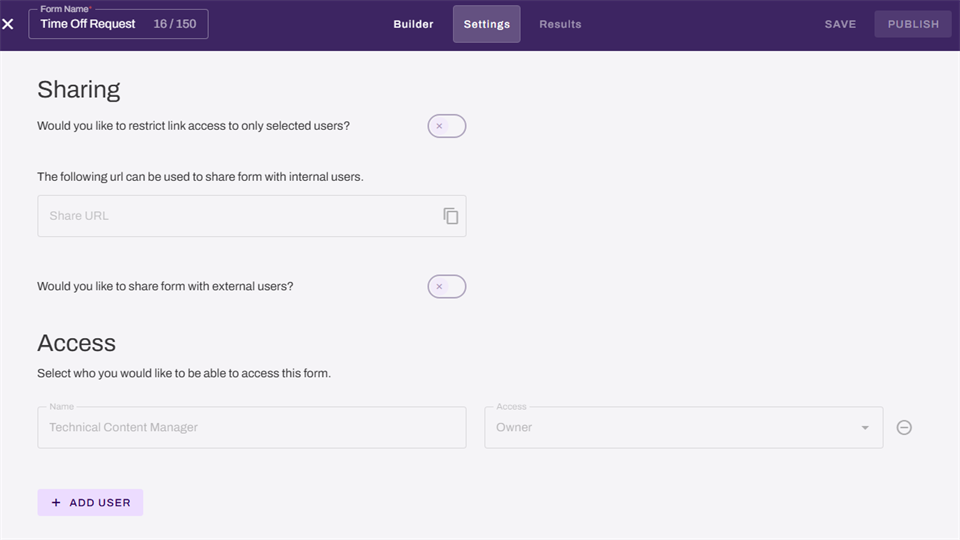
The Settings tab consists of the following sections:
- Sharing: Configure internal sharing options for the form.
- Access: Control which users can access the form.
Next Steps
Refer to the following to learn more about Forms:
In this topic: