Assign & Send a Form
Last Updated: October 02, 2026
Form assignment provides an intuitive and efficient way to assign a form to individual or multiple users. Form assignment simplifies data collection by making it easy to gather input from users. You can track assignment status in real time and reassign the form if needed. You can also resend the form link to an assignee to ensure you receive the information you need when you need it.
Requirements
In addition to the general requirements, you need the following:
-
The Edit role assigned to your user for the form.
For details on granting the Edit role to a user, refer to 3. Configure Settings.
Assign a Form
You can assign a form to internal and external users.
Assign a Form to an Internal User
Follow these steps:
- In Vasion Automate select Forms from the left-side navigation.
- Select the More menu
 next to the form you want to assign, or right-click the form to view the menu.
 - Select Assign & Send.
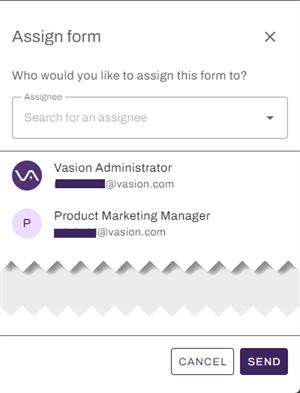
- In the Assign form panel, do the following:
- Enter a user in the Assignee field, and then select the user from the list.
- Select Add.
- When you finish adding users, select Send.
Assign a Form to an External User
Follow these steps:
- In Vasion Automate select Forms from the left-side navigation.
- Select the More menu next to the form you want to assign, or right-click the form to view the menu.
- Select Assign & Send.
-
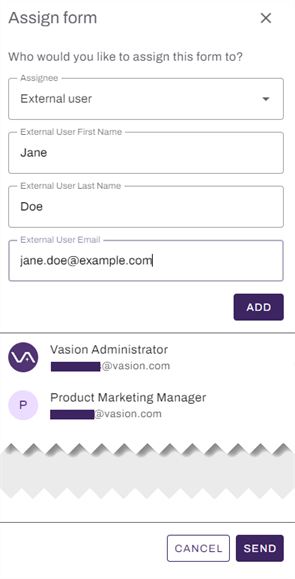
In the Assign form panel, do the following:
- Click the Assignee field.
- Select Add external user.
- Complete the external user fields.
- Select Add.
- When you finish adding users, select Send.
Manage Assignments
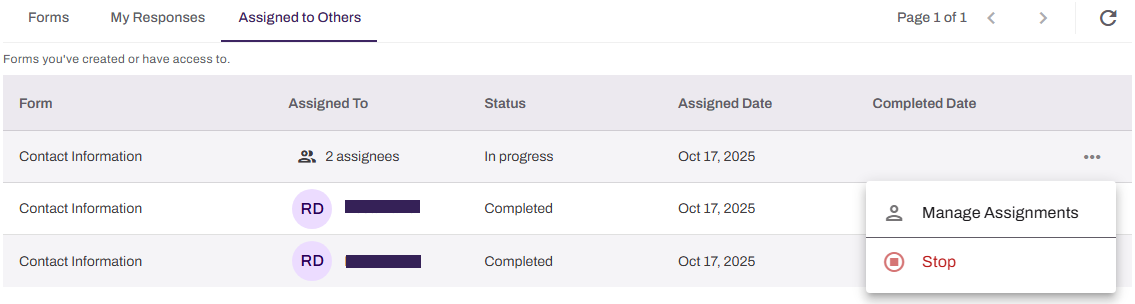
Select the Assigned to Others tab to view forms with current assignments. If you need to resend the form link to someone, reassign the form to another user, or remove users from the form assignment, select the Manage Assignments option from the More menu .
Resend a Link
Follow these steps:
- Select the More menu next to the form, or right-click the form to view the menu.
- Select Manage Assignments.
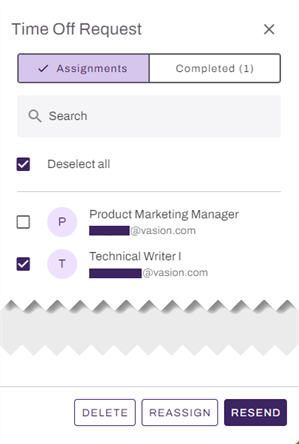
- On the Assignments tab, select the checkbox next to the user you want to resend the link to.
- Select Resend.
Reassign a Form
Follow these steps:
- Select the More menu next to the form, or right-click the form to view the menu.
- Select Manage Assignments.
- On the Assignments tab, select the checkbox next to the user you want to reassign.
- Select Reassign.
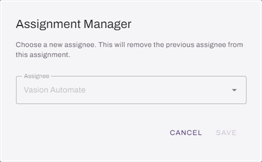
- In the Assignment Manager modal, do the following:
- Enter a user in the Assignee field, and then select the user from the list.
Select Save.
- Close the side panel.
You can reassign only one user at a time.
Remove an Assignment
Follow these steps:
- Select the More menu next to the form, or right-click the form to view the menu.
- Select Manage Assignments.
- On the Assignments tab, select the checkbox next to the user you want to remove from the assignment.
- Select Delete.
-
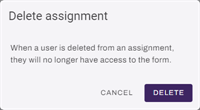
In the Delete assignment modal, select Delete.
- Close the side panel.
Cancel All Assignments
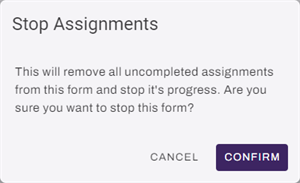
If you no longer need to collect form data or if some users have not submitted their responses by the deadline, you can cancel all active form assignments by selecting Stop from the More menu .
When you select this option, the Stop Assignments modal requires you to select Confirm to remove incomplete, active assignments.
Next Steps
Refer to the following to learn more about Forms:
In this topic: