Complete a Form
Last Updated: September 22, 2026
Forms helps you complete and submit digital forms as part of a business process. Forms replaces manual paperwork with a guided experience that you can complete in a browser.
Key Points
Review the following key points:
- Forms guides you through required information so that you submit complete, accurate responses.
- Some forms include validation to help prevent errors before submission.
- Submitted forms route to the next step in a process, such as review or approval.
Access a Form
When someone assigns a form to you, you receive an email notification at the email associated with your Vasion Automate account.
Follow these steps:
- Locate the email notification from Vasion Automate.
- Select the Go to Task button.
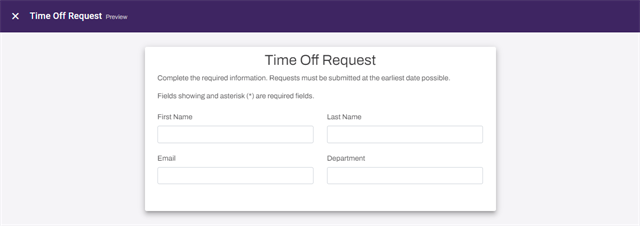
- Complete the fields.
- Select Submit.
Additional Details
Consider the following when completing a form:
- Required fields: You must complete fields marked with an asterisk (*) before submitting the form.
- Field validation: A form might validate entries, such as ensuring dates and numbers use the expected format.
- Attachments: A form might let you upload files if the process requires supporting documentation.
- Privacy and data handling: Enter only information that you are authorized to share. Your organization's policies determine which data to include.
Next Steps
Refer to the following:
In this topic: