Create a New Form
Last Updated: October 08, 2026
You might need to collect information from internal Vasion Automate users or external users, such as customers. Use the Form Builder to create digital forms that streamline data collection.
Requirements
This feature requires the following:
- The Creator role assigned to your user to create and manage forms. To learn more about roles and assigning roles to a user, refer to Roles & Permissions.
Create a New Form
Use the Form Builder to complete the following process:
- Create a Form.
- Preview the Form.
- Configure Settings.
- Publish the Form.
1. Create a Form
You can create forms if you have the correct permissions. Follow these steps:
-
Select the + New Form button.
-
Select PDF or Web Form.
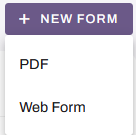
For more information on the types of forms, refer to Types of Forms.
Follow the relevant instructions below.
Build a PDF Form
Use an existing PDF form as the layout for a new digital form. This method is a quick way to digitize paper forms while maintaining the same look and feel. Follow these steps:
- In the Form Name field, enter the name of the form.
- Drag a PDF file to the design area, or upload a PDF file.
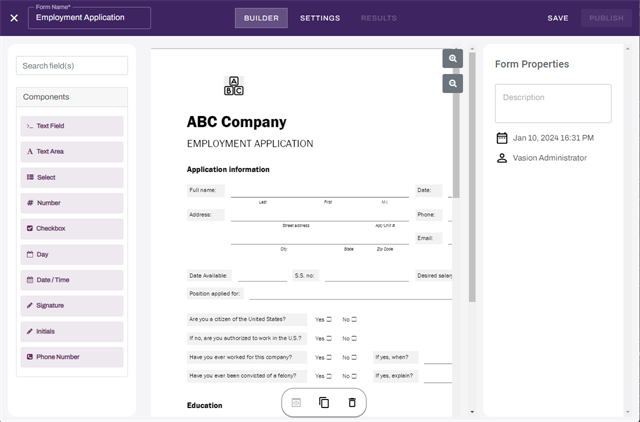
- Drag components from the Components section onto the form.
- Edit the field components. The Label field is used as the column title in the results table.
- Select Save.
Regularly save your form as you build it.
Build a Web Form
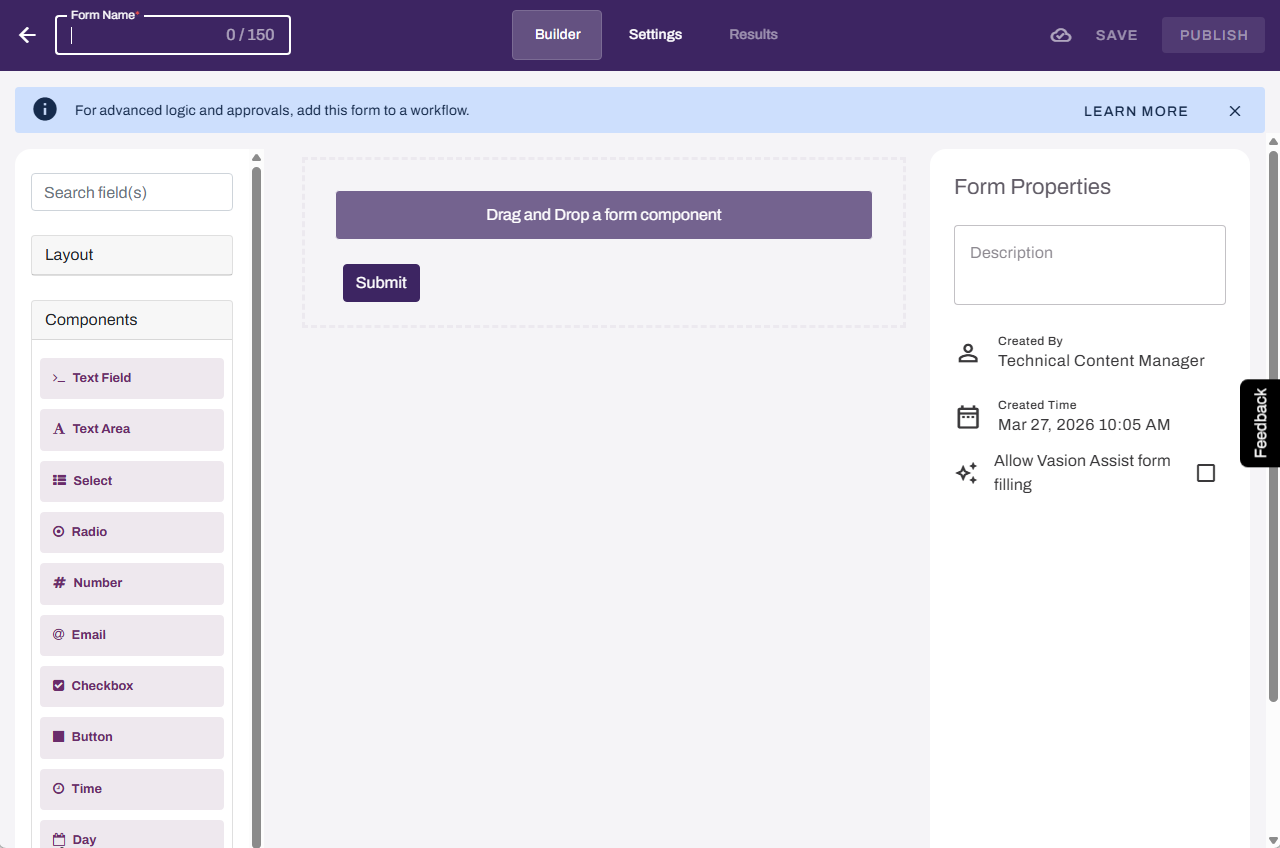
Build an entirely new web form, and configure the layout and fields however you want.
- In the Form Name field, enter the name of the form.
2. Add a Form Title & Instructions
Follow these steps:
- In the fields area, select Layout.
- Drag the Content component to the top of the form.
- Select the Edit button
 .
. - In the Content Component modal, enter the text to use as the title and instructions.
- Format your text accordingly.
- Select Save.
3. Add Layouts and Fields
Add relevant components to the form. For example, to add columns, do the following:
- Drag the Columns component below the form title.
- Select Components in the field area, and drag the Text Field component to the left column.
- Drag another Text Field component to the right column.
4. (Optional) Signature Fields
Use a Signature field when the form requires one or more signers as part of a workflow Signature Approval Step. Each Signature field requires a unique Assignee Label that the workflow engine uses to identify and associate the correct signer. To learn more about Signature approval steps in a workflow, refer to Build a Workflow.
- Select Components in the field area, and drag the Signature Field component to the appropriate location.
- In the Signature Properties, use the Assignee Label field to select Manage Assignee Labels.
- In the Manage Assignee Labels modal, select Add Assignee Label.
- Enter the name of the assignee label in the field and select Done.
- Use the Assignee Label field to select the label for the current Signature field.
Use a descriptive label that reflects the signer's role, such as "Form Submitter," "Form Approver," or "Manager." A descriptive label helps you identify and map the correct signer when you build the workflow. This is especially helpful when the form has more than one Signature field.
5. (Optional) Add Conditional Logic
Use conditional logic to show or hide fields based on a submitter's input. This reduces unnecessary fields and streamlines the form completion experience. For more details refer to Conditional Display.
Follow these steps:
- After you add a field to the form, hover over the field, and select the Edit button
 .
. - Select the Conditional tab.
- In the This component should Display field, select one of the following:
- True: Shows the field when the input meets the condition.
- False: Hides the field when the input meets the condition.
- In the When the form component field, select the component that creates the condition.
- In the Has the value field, enter the value that triggers the condition.
- Select Save.
After you finish adding layouts and fields, select Save.
2. Preview the Form
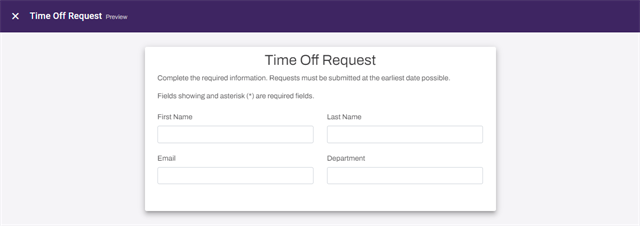
To preview the form at any time, select the Preview button  in the design toolbar.
3. Configure Settings
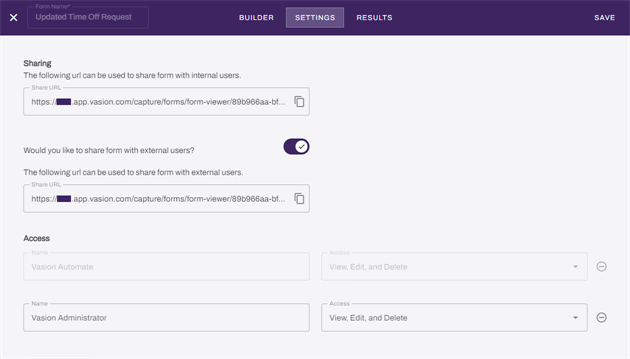
If you want other users to view, edit, or delete this form, do the following:
- Select the Settings tab.
- In the Access section, select Add User.
- In the Name field, search for and select the user.
- From the Access dropdown menu, select one of the following:
- View: The user can view the form in the list, preview the form, and view result data.
- Edit: The user can view and edit the form in the Form Builder before it is published.
- View, Edit, and Delete: The user can preview the form, make edits, and delete the form before it is published.
A user who needs access to view or edit the form must have the Forms Creator role assigned to their account. For more details refer to Roles.
4. Publish the Form
After you finish creating your form, select the Publish button in the header. When the form is published, it can collect data in several ways:
- Share a link to the form by email or with a messaging app.
- Publish the link to the form on a website.
- Include the form in a workflow step in which the form is assigned to a specific user to complete.
- Include the form in a workflow step in which the form initiates the workflow after it is submitted.
Share Links
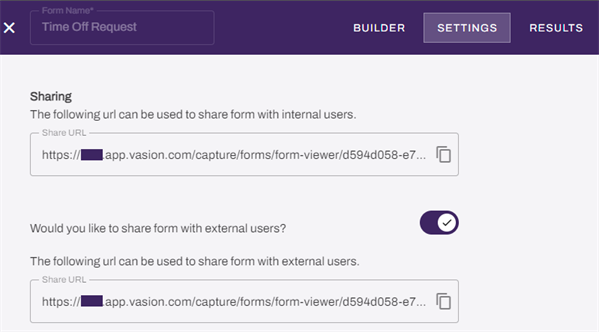
After you publish a form, you can copy the share URL and send it by email or with a messaging app. If you configured the form for internal users, the user must sign in to Vasion Automate to view and complete the form.
To make the form available externally, select the option to share it externally, and select Save. Anyone who accesses the form using the external URL does not need an active Vasion Automate account.
Because users are not required to sign in to complete the form, responses are saved anonymously. If you need contact information, add those fields and make them required when building your form.
Restrict Sharing
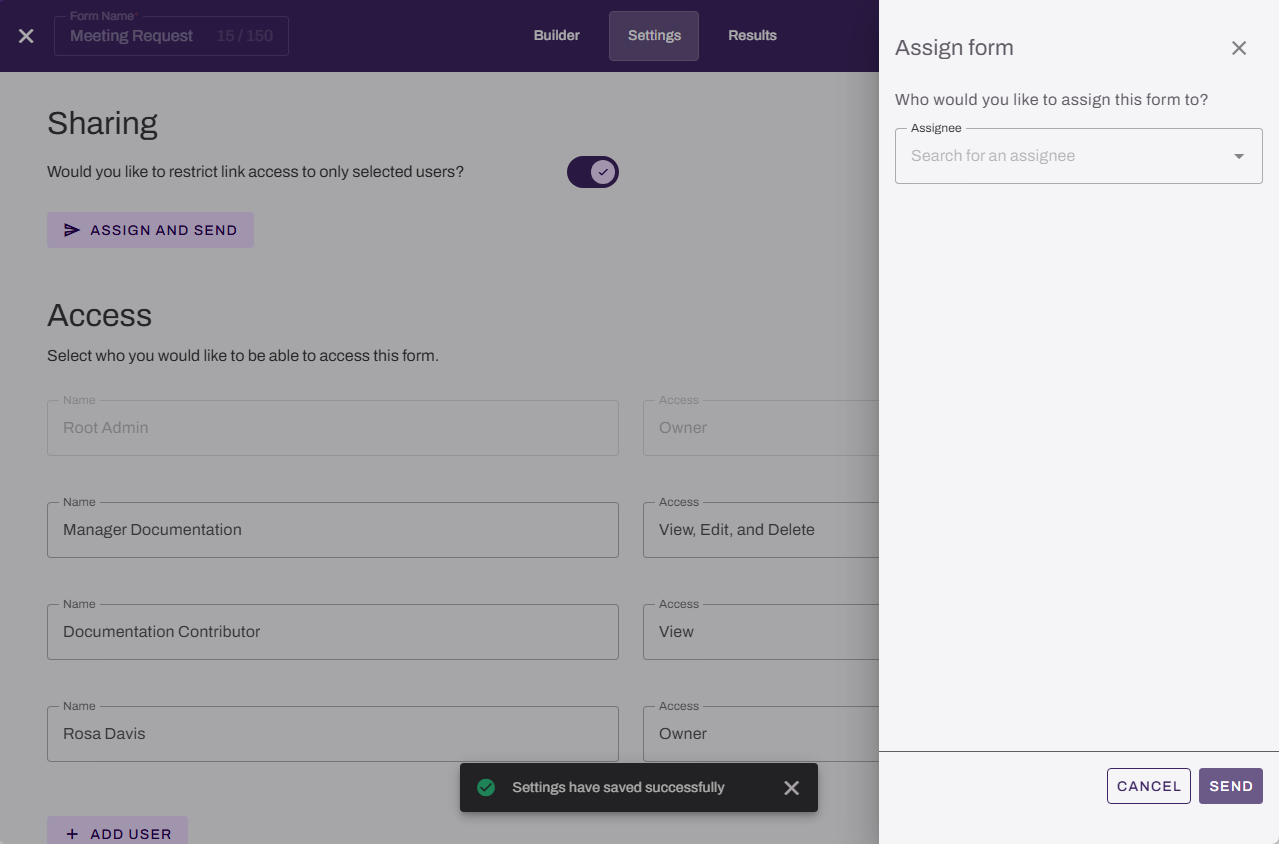
Turn on the option to restrict access to limit form access to only assigned users, whether they are internal or external.
When the option is on, only the Assign and Send option appears. The internal share URL becomes unavailable.
Next Steps
Refer to the following:
In this topic: