Form Actions
Last Updated: October 02, 2026
Use this reference to identify the actions available to you in the Forms application based on your form-level permission. Form-level permissions apply to form creators, administrators, and collaborators. Permissions are cumulative, meaning each level includes all actions from the previous level, plus additional ones. To learn more about roles and assigning permissions, refer to Roles & Permissions.
Requirements
To view and manage forms, you need the following system-level role:
-
The Form Creator role assigned to your user in Vasion Automate.
For details on granting the Form Creator role to a user, refer to Roles.
Depending on what you need to do with available forms, you also need the following form-level permissions:
- View: You can view the form in the list, preview the form, and view result data.
- Edit: You can view and edit the form in the Form Builder before it is published.
-
View, Edit, and Delete: You can preview the form, make edits, and delete the form before it is published.
If you delete a form after it is published, all result data is also deleted.
- Owner: You have full control over the form, including the ability to manage permissions and user access. Use this permission when transferring form responsibility to another user or when someone needs complete administrative control over form settings and data.
View an Existing Form
Select a form from the list to preview it. Select the More menu  to perform additional actions. The available options depend on the form's status and your form-level permission.
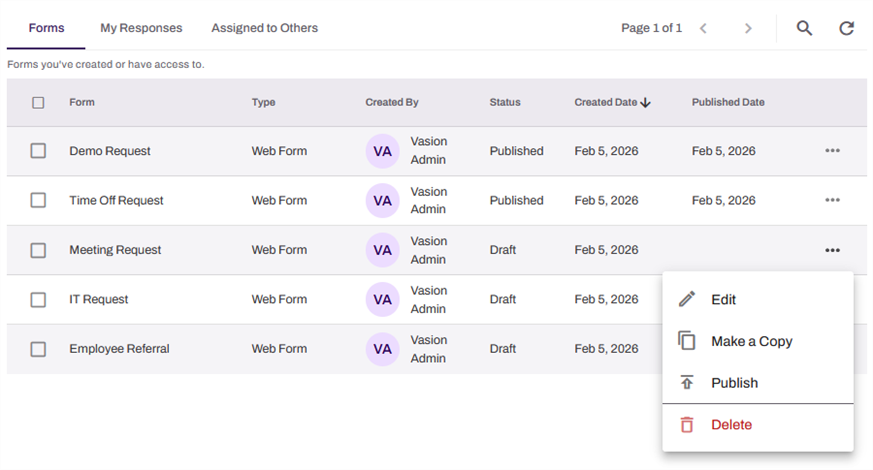
Draft Forms
With the View permission, you can use the Edit option to view a form in the Form Builder but cannot make any changes.
With the Edit permission, you can do the following:
- Edit: Open the form in the Form Builder and make any necessary changes.
- Make a Copy: Make a copy of the existing form to modify form fields and create a new form.
- Publish: Publish the form to make it available to collect data. For more details refer to Published Forms.
With the View, Edit, and Delete permission, you can perform the same actions as with the Edit permission, plus the following:
- Delete: Delete the selected form draft.
With the Owner permission, you can perform the same actions as with the View, Edit, and Delete permission, plus the following:
- Full control over the form, including the ability to manage permissions and user access in the Settings section.
Published Forms
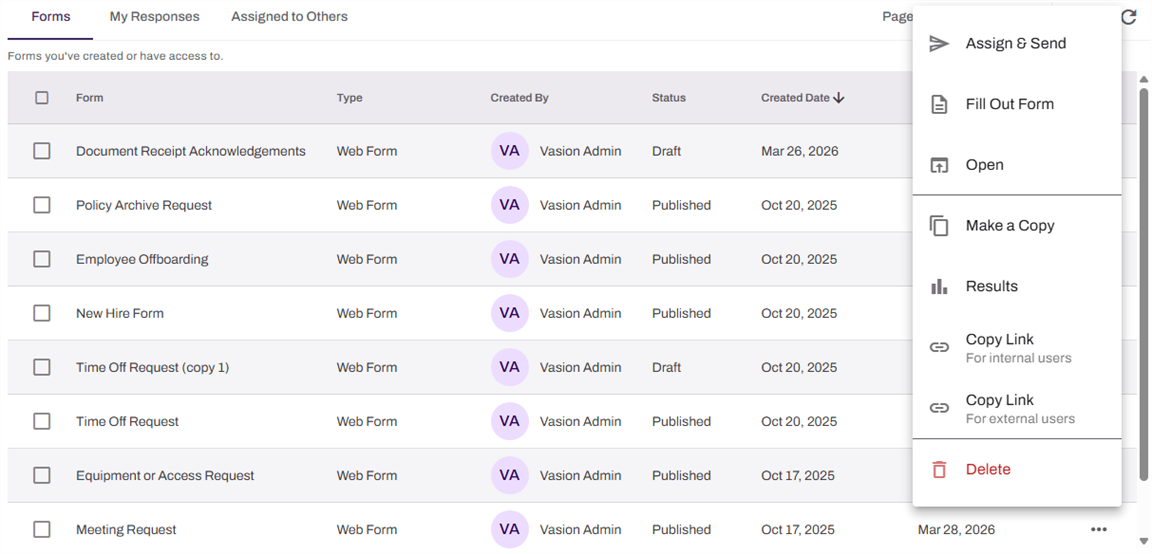
With the View permission, you can do the following:
- Fill Out Form: Fill out and submit the form.
- Open: Open the form preview.
- Results: View the data captured in the form. You can also use the Ask VAI option to analyze the form data.
- Copy Link for internal users: Copy and send the link to someone with an existing Vasion Automate user account to fill out and submit a form.
- Copy Link (or external users: Copy and send the link to someone outside the organization or who does not have a Vasion Automate user account.
The Copy Link options available depend on the form's Sharing settings.
With the Edit permission, you can perform the same actions as with the View permission, plus the following:
- Assign & Send: Assign the form to internal or external users to complete and submit.
- Make a Copy: Make a copy of the existing form to modify form fields and create a new form.
With the View, Edit, and Delete permission, you can perform the same actions as with the Edit permission, plus the following:
- Delete: Delete the selected form.
If you delete a form that is assigned to someone or that already has data collected, you remove access and delete all existing data.
With the Owner permission, you can perform the same actions as with the View, Edit, and Delete permission, plus the following:
- Full control of the form, including the ability to manage permissions and user access in the Settings section.
My Responses Tab
The My Responses tab shows the forms you filled out and submitted.
You can select the form or use the More menu to view your response.

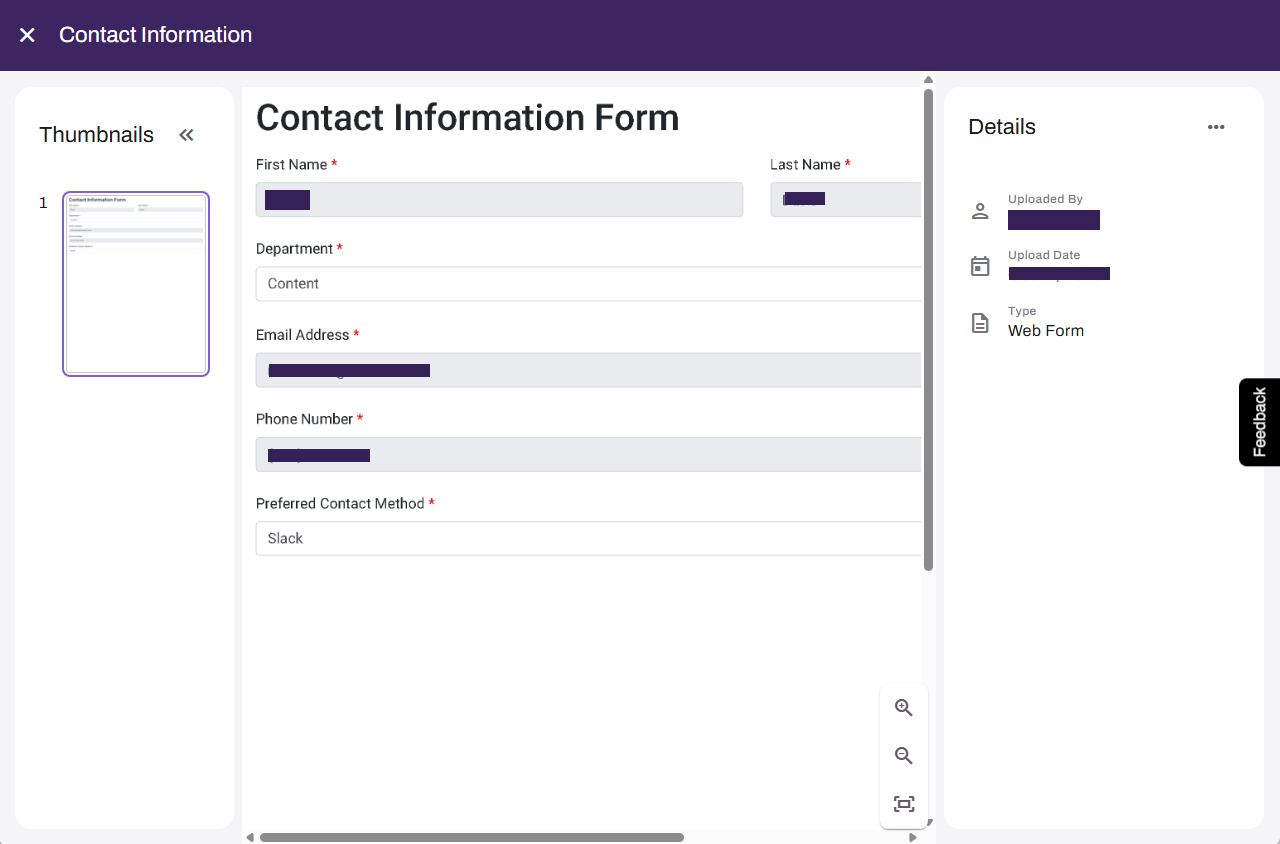
For web forms the system shows your submitted information as field labels with the data that you provided in a clean, organized layout. For PDF forms the system shows your submitted information directly on the PDF.
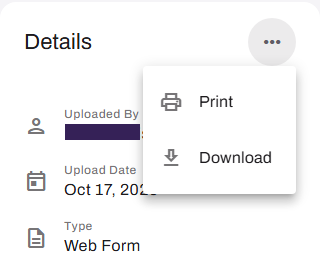
The Details section shows your name, the submission date, and the form type. You can use the More menu to print or download the document.
Assigned to Others Tab
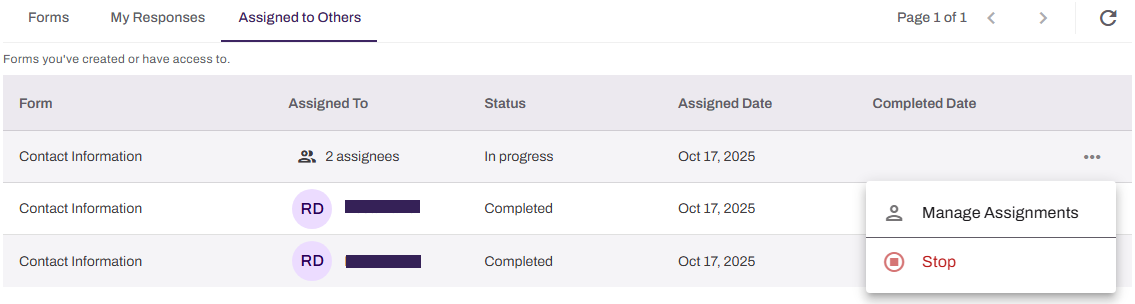
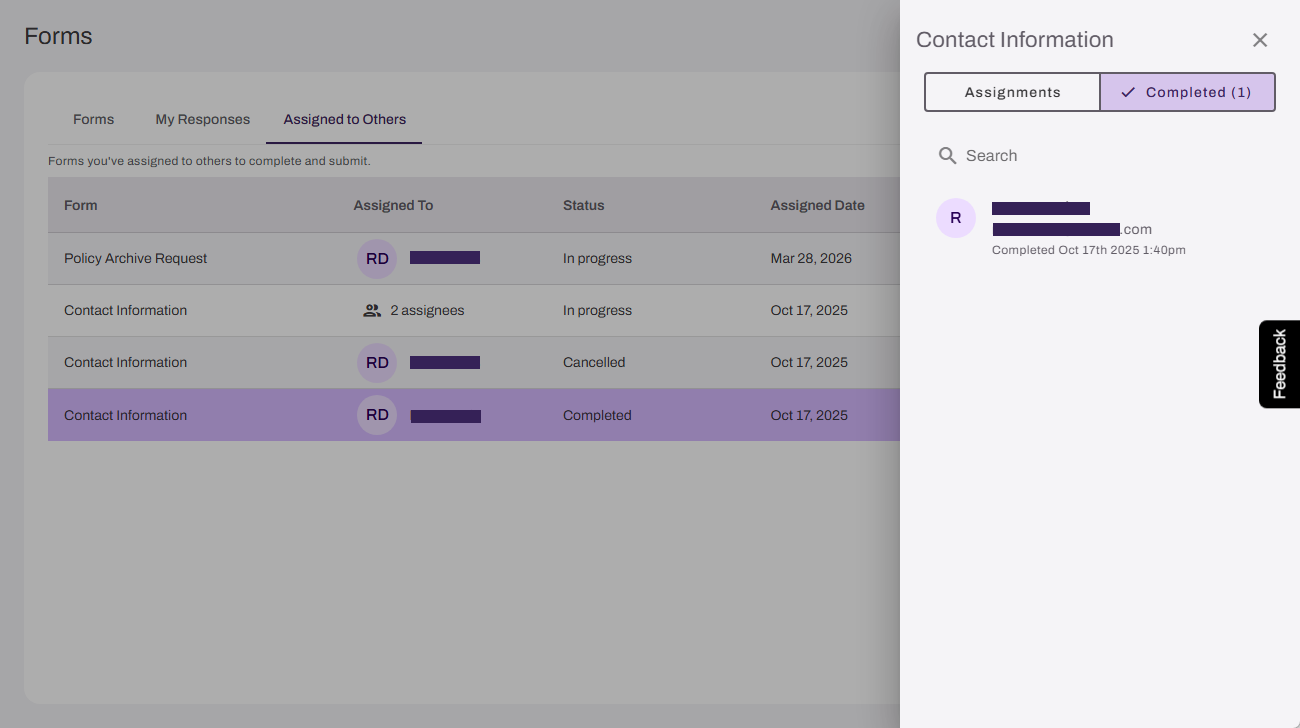
The Assigned to Others tab shows forms currently assigned to other users and forms that they completed. The available options depend on the form's status and your form-level permission.
In Progress Forms
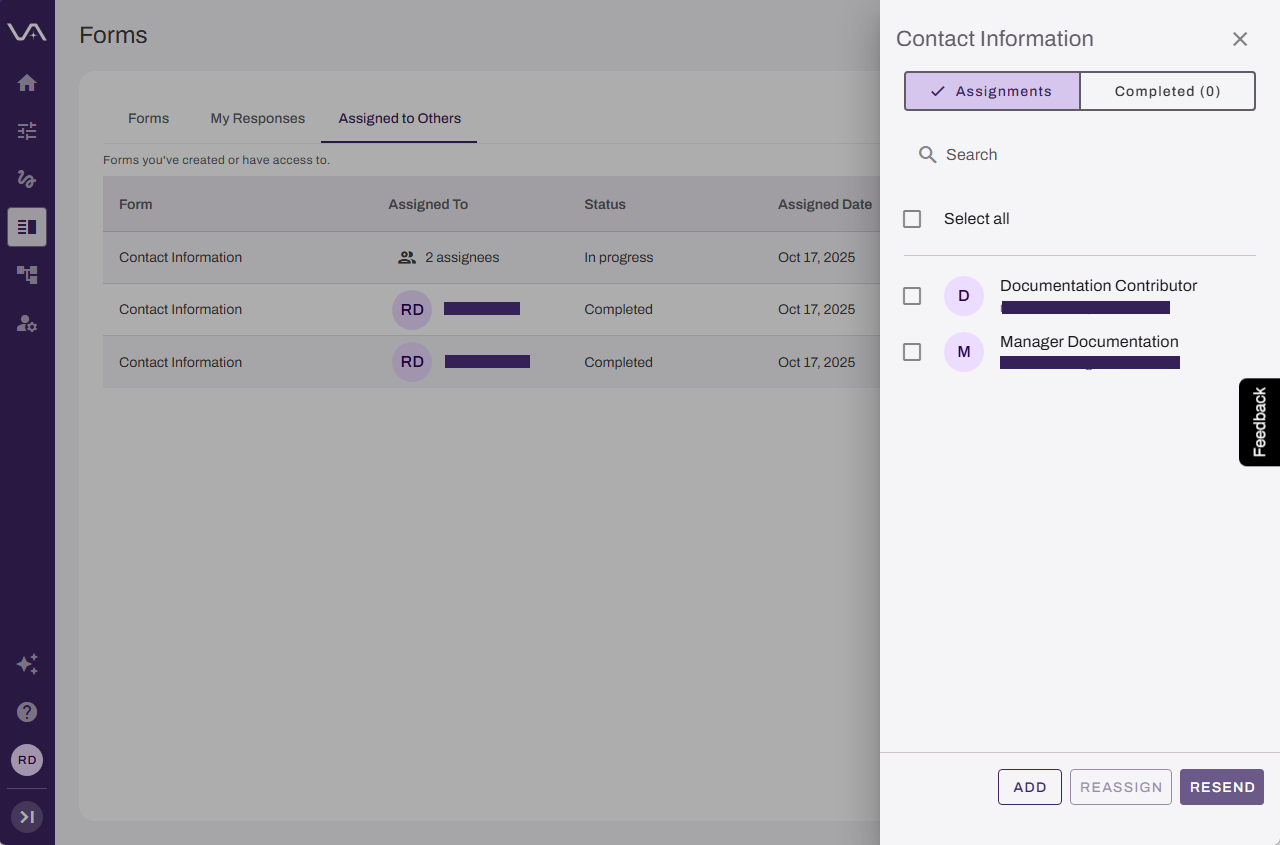
With the View permission, you can view the users who are assigned to fill out and submit the form in the Assignments tab of the form assignment panel, and the users who have submitted the form in the Completed tab.
You cannot take any actions on the form when you have only the View permission.
With the Edit, View, Edit, and Delete, and Owner permissions, you can do the following:
-
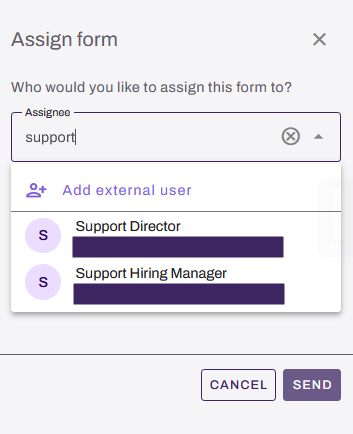
Add: Select this button to add a user to the form assignment. Enter a user in the Assignee field, and then select the user from the list.
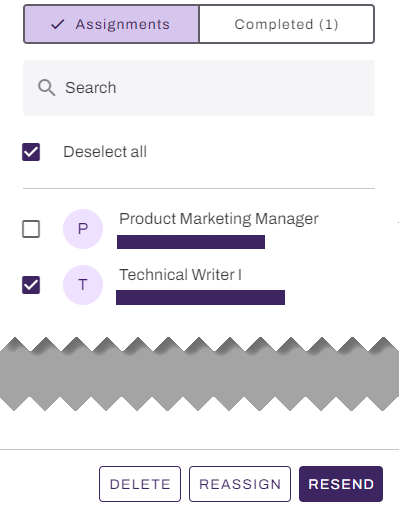
- Delete: Select this button to delete the form assignment for a selected user.
- Reassign: Select this button to remove the selected user and select a different user.
-
Resend: Select this button to resend the notification email with the link to the form.
Completed Forms
All users with View permission or more can view the users who have submitted the form in the Completed tab of the form assignment panel.
VAI-Assisted Form Generation
Vasion Automate has an AI agent, VAI, that can help you build and modify forms. All users who have Edit permission or more can use VAI to help create and edit forms. For more details refer to Form Agent Prompts.
Next Steps
Refer to the following:
In this topic: