View Results
Last Updated: September 24, 2026
The Results tab shows collected responses in a table. Use this tab to sort through data, analyze data with AI, view individual responses, and export results for external analysis.
Requirements
To view and manage forms, you need the following system-level role:
-
The Form Creator role assigned to your user in Vasion Automate.
For details on granting the Form Creator role to a user, refer to Roles.
View Results
The Results tab shows form responses.
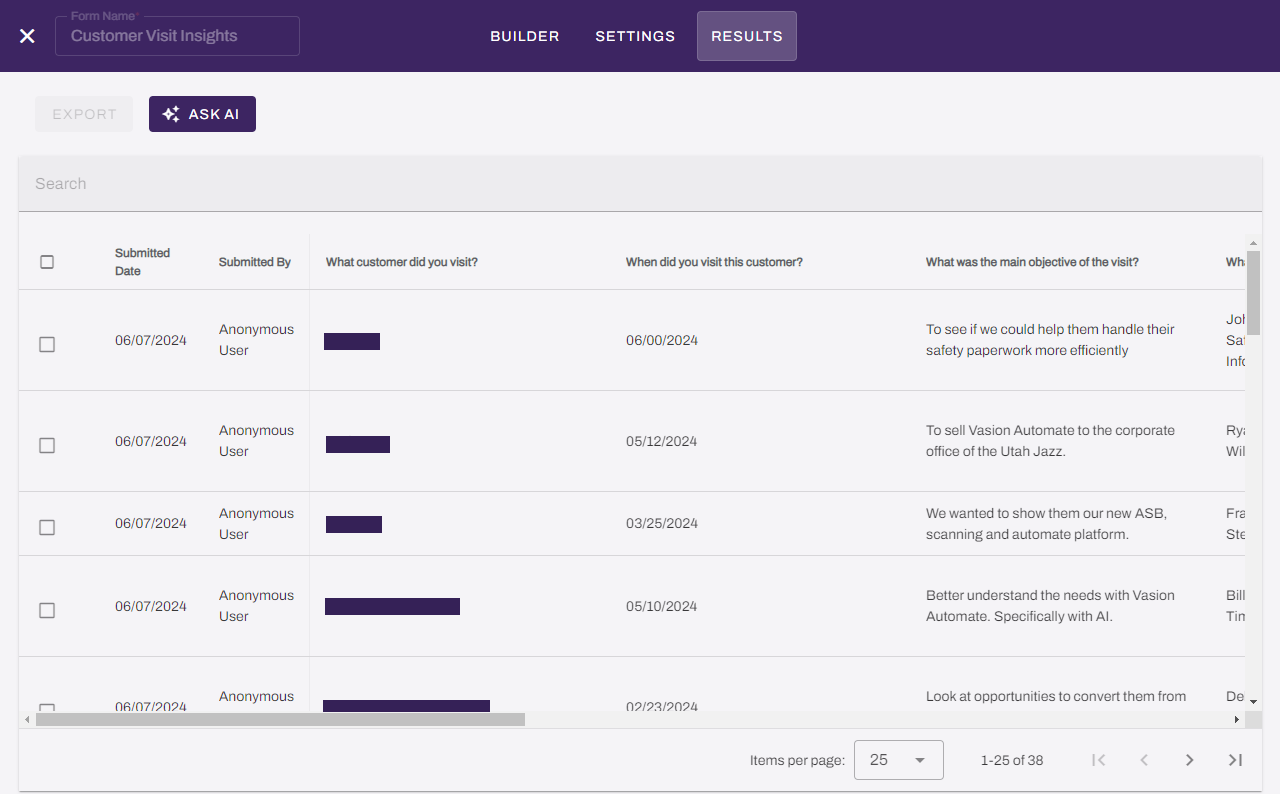
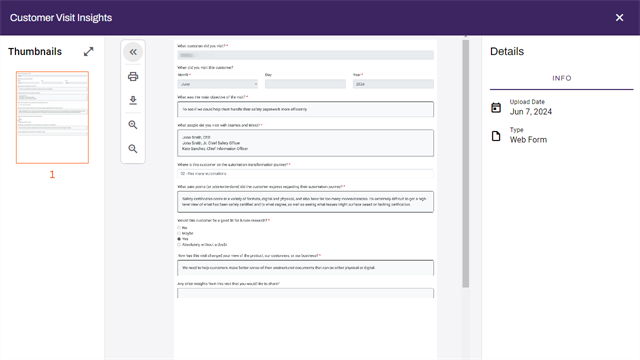
To view details about a response, select it in the table. The completed form appears, and the form details appear to the right. You can hide thumbnails, adjust the size of the form, and print or download the form.
Enhanced Form Results
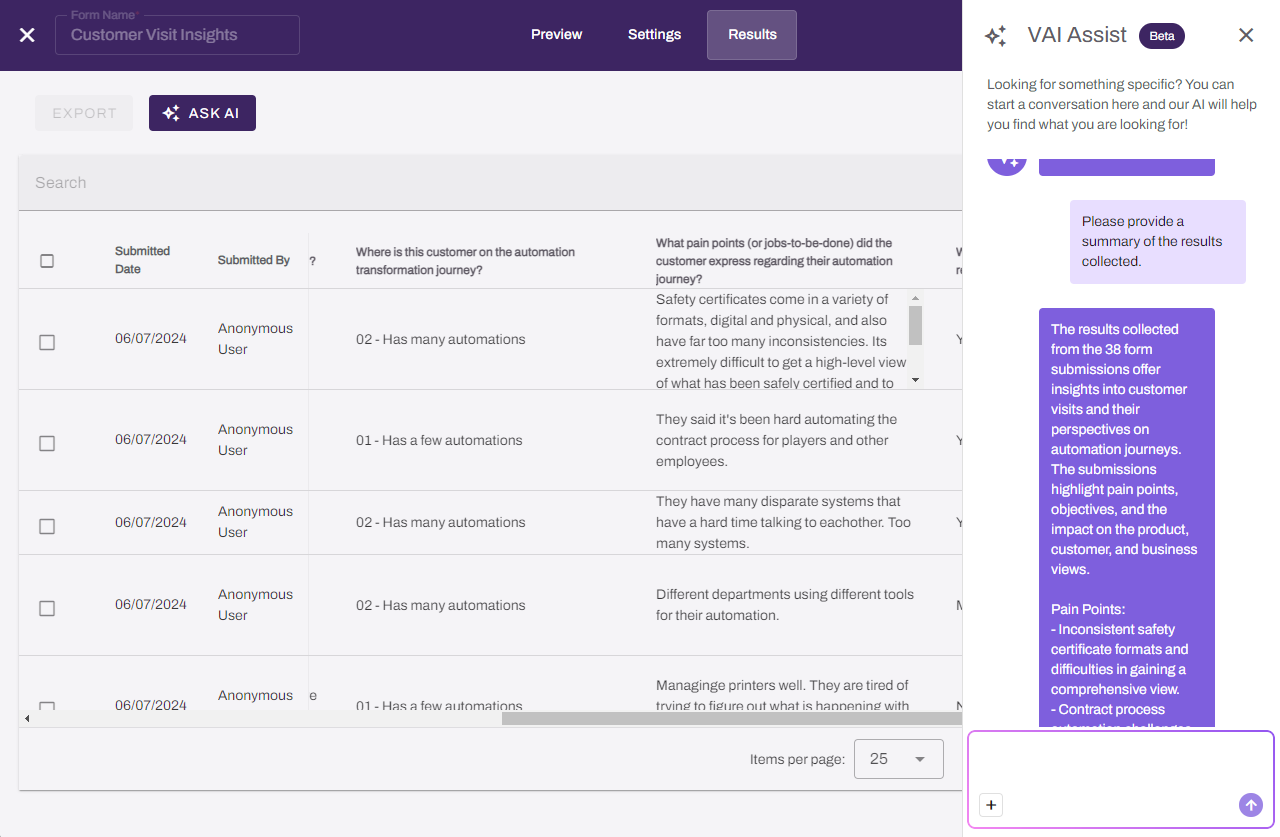
To gain better insight into responses, select the Ask VAI button to open the VAI Assist panel, where you can ask questions about your form data, generate summaries, and identify trends.
Export Results
To export the results as a CSV file, do the following:
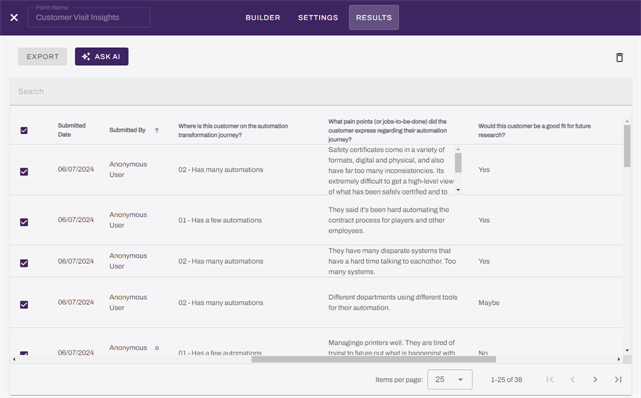
- Select the checkboxes next to the responses that you want to export, or select the checkbox at the top of the column to select all responses.
- Select Export.
The file automatically downloads to your default download location.
Delete a Response
To delete a response, do the following:
- Select the checkbox next to the response you want to delete.
- Select the trash can icon.
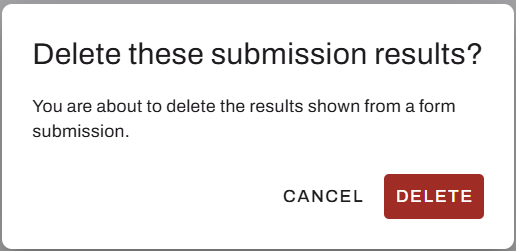
- In the modal, select Delete.
Next Steps
Refer to the following:
In this topic: