API Cloud Link for Epic
Last Updated: September 22, 2026
The API Cloud Link for Epic integration lets organizations submit print jobs from Epic (EHR) directly to Vasion's cloud connector. This eliminates the requirement for an on-prem Service Agent, providing functional parity with on-prem Output Automation printing.
Key Points
- This feature is available only by request. Contact your Vasion representative for more information.
- Cloud-native Epic printing: Epic submits print jobs directly to Vasion's cloud connector without requiring an on-premises Service Agent.
- Functional parity with on-premises: Open Batch, Close Batch, and Receive Job operations behave identically to the existing on-prem Output Automation experience, minimizing retraining for Epic admins.
- Centralized credential management: Epic Basic Auth credentials are managed in a single location in the Vasion Admin Console, rather than distributed across Service Agents.
- Reduced infrastructure overhead: Eliminating the on-premises Service Agent dependency lowers maintenance burden and infrastructure costs for healthcare IT teams.
Endpoints
When adding endpoints, the {site-id} is your instance name. For example, acmecorp.printercloud.com would be /epic/acmecorp/RecieveJob.
1. Configure E0A Record in Epic
Add the endpoint and confirm the Basic Authorization username and password in the Epic E0A Record.
- Access the E0A Record in Epic.
- Add the Receive Jobs endpoint listed above.
- Confirm or add a Basic Authorization username and password. You will use these credentials in a later step.
2. Turn On API Cloud Link
To turn on API Cloud Link:
- In the Admin Console, go to the API Cloud Link section on Tools
 Settings Output.
 - Select API Cloud Link Enabled.
- Select Save in the upper-right corner.

3. Configure Epic Credentials
To configure your Epic credentials in the Admin Console:
- In the API Cloud Link section, select Enable Basic Authentication.
- Enter your Basic Authentication Key credentials that match your E0A record.
- The format is username:password.
- The format is username:password.
- Select Save in the upper-right corner.

Verify that Epic can successfully submit a test job through the connector.
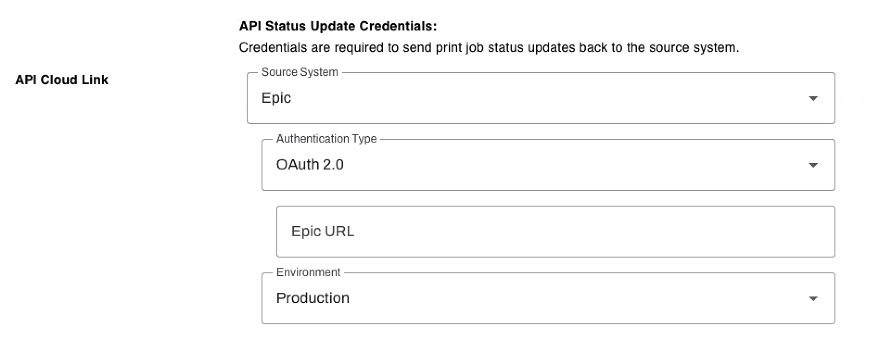
4. Configure Print Job Status Update Credentials
To configure credentials for the Print Job Status update:
- In the API Status Update Credentials section, select Epic as the Source System.
- Select OAuth 2.0 as the Authentication Type.
- In the Epic URL field, enter the base URL of your Epic instance.
- Select Production or Non-Production for the environment.
- Select Save in the upper-right corner.
In this topic: