LDAP
Last Updated: August 18, 2026
To use Active Directory (AD) or Oracle for identity management in your organization, you need a Lightweight Directory Access Protocol (LDAP) A lightweight client-server protocol for accessing X-500-based directory services. LDAP runs over TCP / IP or other connection-oriented transfer services. domain connection to use certain functions, such as authenticating to the Admin Console or mobile app and Secure Release Print.
Key Points
Review the following key points:
- CPA authentication requires an LDAP domain and Identity Sync service configuration.
- For LDAP attributes, such as badge information and email addresses, you can turn on Identity Sync on a local network Service Agent that allows LDAP communication, which syncs with the cloud. You can use this option for some LDAP attributes, but you cannot use it for real-time authentication.
- Whenever PrinterLogic requires LDAP authentication, the LDAP domain settings apply.
Requirements
Review the following requirement:
- For real-time authentication to the Admin Console, Control Panel Application (CPA), and mobile app, the source IP address must communicate with the LDAP server through your firewall.
An environment using an LDAP configuration needs to allow the LDAP server to communicate with the source IP address listed below, according to region, through the firewall to provide real-time username and password authentication for the Admin Console or CPA. Vasion recommends forwarding TCP port 636 so that the LDAP traffic is secured using Transport Layer Security (TLS) A cryptographic protocol for securing network communications by encrypting data in transit. TLS is the current standard and successor to Secure Sockets Layer (SSL)..
|
Location |
Domain Name |
IP Address |
|---|---|---|
|
United States |
printercloud |
35.160.78.54 |
|
Frankfurt, Germany |
printercloud5 |
35.156.186.96 |
|
Azure |
printercloud6 |
20.93.57.100 |
|
Sydney, Australia |
printercloud10 |
52.65.56.219 |
|
Canada |
printercloud15 |
3.98.74.218 |
|
Singapore |
printercloud20 |
18.140.176.85 |
Configure Connection
To configure the Vasion Automate connection, do the following:
- Set the Authentication Type.
- Enter Domain Information.
- Test Settings.
1. Set the Authentication Type
Log in to Vasion Automate, and do the following:
- Select Admin from the left-side navigation.
- Select the Authentication option.
-
Select the + New Authentication button.
- Select LDAP.
- Select Next.
2. Enter Domain Information
Follow these steps:
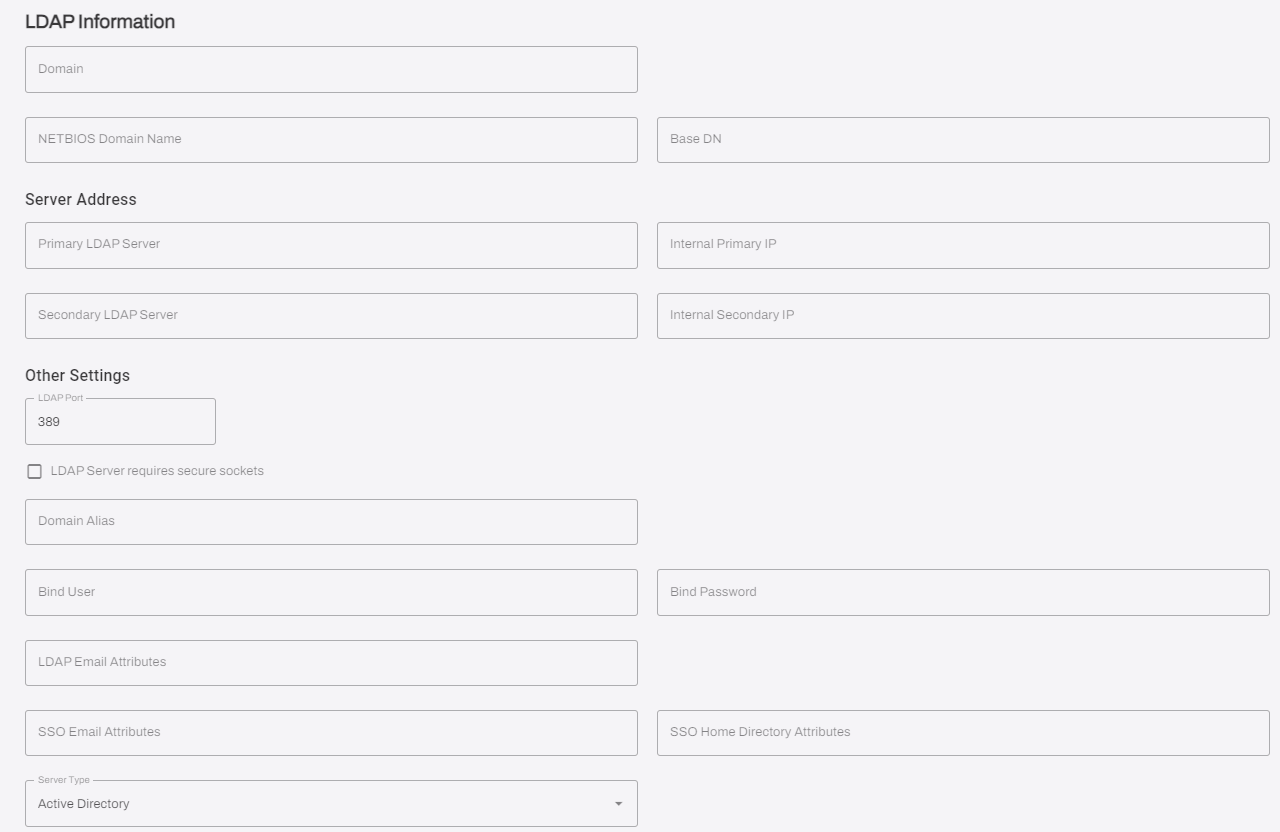
- Enter the domain name of your LDAP domain in the Domain Name field, and press Tab to autopopulate the NETBIOS Domain Name and Base DN fields.
-
Add additional information as listed below:
- Primary LDAP Server: Enter the external, public IP address or Fully Qualified Domain Name (FQDN) that is port forwarded to your primary LDAP server.
- Internal Primary IP: (Optional) Enter the internal, private IP address or FQDN of your primary LDAP server.
- Secondary LDAP Server: (Optional) Enter the external, public IP address or FQDN that is port forwarded to your secondary LDAP server.
- Internal Secondary IP: (Optional) Enter the internal, private IP address or FQDN of your secondary LDAP server.
- LDAP Port: Port 389 is for LDAP.
- LDAP Server requires secure sockets: Port 636 is for secure LDAP (LDAPS). After selecting this setting, the port number automatically changes to 636. You need to create a firewall rule for the port used in the LDAP configuration unless the configuration uses Identity Sync.
- Domain Alias: (Optional) Enter the domain alias.
- Bind User: Enter the bind user name.
- Bind Password: Enter the password for the bind user name.
- LDAP Email Attributes: This field contains the Active Directory attribute in which the user's email address is stored.
- SSO Email Attributes: Attributes you enter here are used for multifunction printer (MFP) user functionality for features like scanning.
- SSO Home Directory Attributes: Attributes you enter here are used for MFP user functionality for features like scanning.
- Not all manufacturers support this functionality. Contact Vasion's support team for a list of supported manufacturers.
- Server Type: Select either Active Directory or Oracle depending on your server type.
- Select Next.
3. Test Settings
Follow these steps:
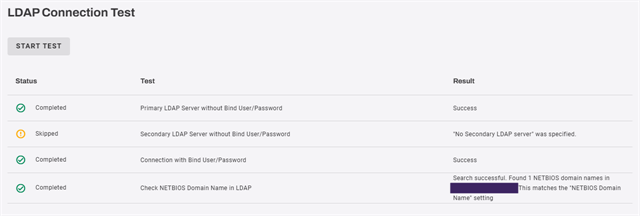
- Select Start Test to ensure that the settings are correct. Successful test results show a check mark. The results of each test appear in the Results column to the right.
- Select Save.
- Select the Close button in the upper-left corner to close the LDAP Connection Test page.
LDAP General Settings
After you configure your LDAP domain, a new button called LDAP General Settings appears on the Authentication tab. Follow these steps:
- Select LDAP General Settings in the upper-right corner.
- From the Default domain when logging in dropdown menu, select the desired domain.
- (Optional) Select the checkbox for Enable advanced LDAP administrative authentication. This feature lets you search for and apply Role-Based Access Control (RBAC) roles to users and groups for configured LDAP domains on devices outside of the domain. This feature is not compatible with printer deployments or portal security rules.
- Select Save.
LDAP Sync
LDAP Sync, also known as Identity Sync, is an authentication option for environments using an LDAP domain. With Identity Sync configured, users can authenticate to the CPA using their LDAP username and password, badge, or PIN.
To configure Identity Sync, refer to Identity Sync.
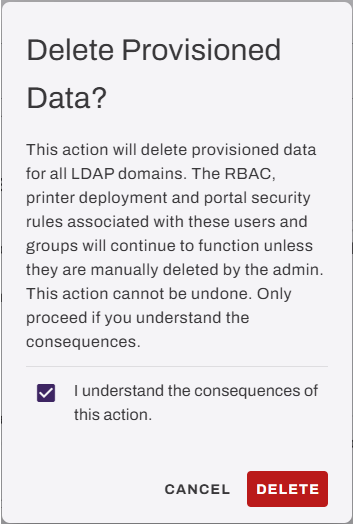
Delete Provisioned LDAP Data
For legal reasons, Product Support cannot remove provisioned LDAP users and groups from the database, so this action is at the discretion of the IT admin. Ensure that deletion is the desired outcome, and then follow these steps:
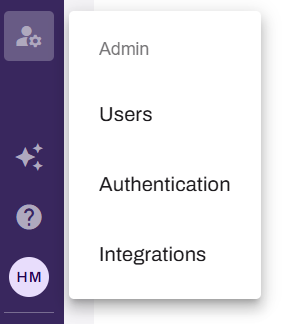
- In Vasion Automate, select Admin from the left-side navigation.
-
Select the Authentication option.
- Select LDAP General Settings in the upper-right corner.
- Select Delete Provisioned LDAP Data.
- Review the warning, and then select the checkbox in the modal.
- Select Delete.
In this topic: