Last Updated: June 24, 2024
Connect Wasabi
Wasabi Connection Requirements
To connect Vasion to Wasabi you need the following:
- Access to the Wasabi console
- Account with full rights to create and modify folders and documents
- A Wasabi Bucket
- Vasion Admin rights
You can create multiple Wasabi connections as long as each is connected to a unique bucket.
Connect Wasabi
- Click on the Admin App and click on Cloud Storage in the navigation menu
-
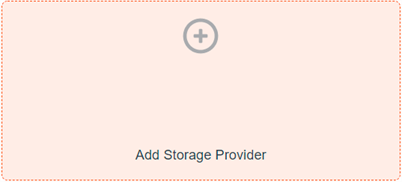
Double-click Add Storage Provider
- In the Select Cloud Storage Provider modal click on Wasabi and then click Continue
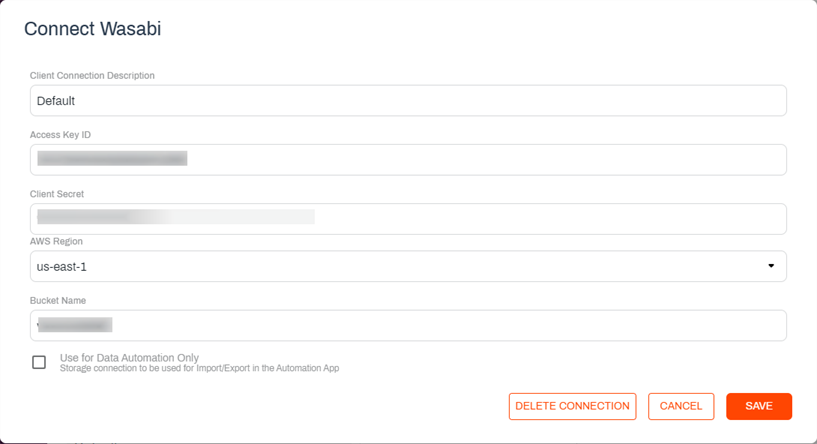
- In the Connect Wasabi modal complete the following:
Client Connection Description — enter a unique name that identifies this cloud storage connection in Vasion.
- Access Key ID — enter the Wasabi Access Key ID.
- Client Secret — enter the Client Secret access key.
- AWS Region — use the drop-down to select the Wasabi bucket region.
Bucket Name— enter the name of an existing bucket if you already have it. If the bucket does not exist, you can create it by entering a new bucket name in this field.
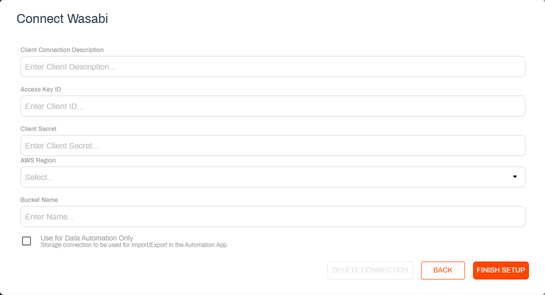
- Use for Data Automation Only — check this box if the storage connection is only used for the Import or Export automations. For more details, see Import / Export.
- Click Finish Setup
When the drive is connected you should see a successful connection alert.
If you have selected to use the drive for data automation only, the drive does not display when navigating storage locations in the Vasion apps. The drive is only visible when configuring Import or Export automations. For more details, see Import / Export.
Edit the Wasabi Connection
You can make any updates to the connection at any time by doing the following:
-
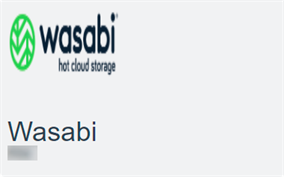
Double-click the connection tile
-
Update the information in the appropriate fields
- Click Save
Delete the Wasabi Connection
To delete the cloud storage connection do the following
-
Double-click the connection tile
-
Click Delete Connection
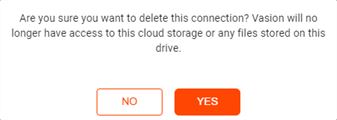
-
In the delete confirmation modal click Yes