Last Updated: June 24, 2024
Connect Google Drive
Google Drive Connection Requirements
To connect Vasion to Google Drive you need the following:
- OAuth client ID Credentials
- Client ID and Client Secret details
- Vasion Admin rights
If you do not have the OAuth clent ID credentials or Client ID and Client Secret details, follow the steps below.
Request OAuth client ID Credentials
- Navigate to https://console.developers.google.com/
- Select Credentials on the left side
- In the Credentials page select Create credentials and then select OAuth client ID
For more information about authentication in Google Cloud, see their help section https://cloud.google.com/docs/authentication.
Find Client ID and Client Secret
Once the Credentials are created, or if you already have OAuth Client Credentials, do the following:
- Open up the Details view
- Find the Client ID and Client Secret in the top-right corner
It can take up to 3 minutes or more for the connection to register before it is available to configure in Vasion
Connect Google Drive
- Click on the Admin App and click on Cloud Storage in the navigation menu
-
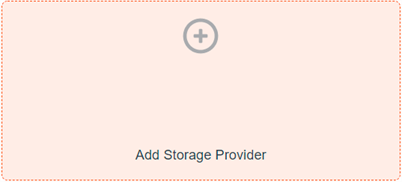
Double-click Add Storage Provider
-
In the Select Cloud Storage Provider modal click on Google Drive and click Continue
- In the Connect Google Drive modal enter the following:
Cloud Connection Description — enter a unique name that identifies this cloud storage connection. This name is displayed when navigating to this location in the Vasion apps.
- Client ID — enter the Client ID from the OAuth credential details from the Google Cloud tab
Client Secret — enter the Client Secret from the Google Cloud tab
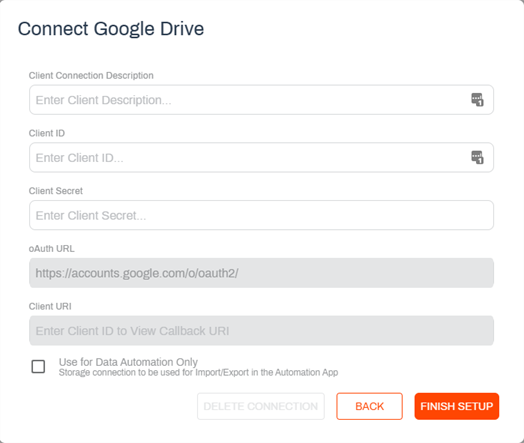
Use for Data Automation Only — check this box if the storage connection is only used for the Import or Export automations.
-
Copy the Client URI text and go back to the Google Cloud tab.
- In the Google Cloud tab do the following:
- Scroll down to find the Authorized redirect URIs section
- In the URI field, paste the client URI you copied from the Vasion module
- Scroll to the very bottom and click Save
- Go back to Vasion Connect Google Drive modal in the browser tab and click Finish Setup
-
Once you're redirected to the Google Authentication page, log in and grant access
When the drive is connected you should see a successful connection alert.
If you have selected to use the drive for data automation only, the drive does not display when navigating storage locations in the Vasion apps. The drive is only visible when configuring Import or Export automations. For more details, see Import / Export.
Edit the Google Drive Connection
You can make any updates to the Google Drive connection at any time by doing the following:
-
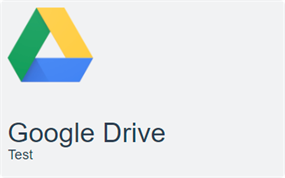
Double-click the cloud storage connection tile
-
Update the information in the appropriate fields
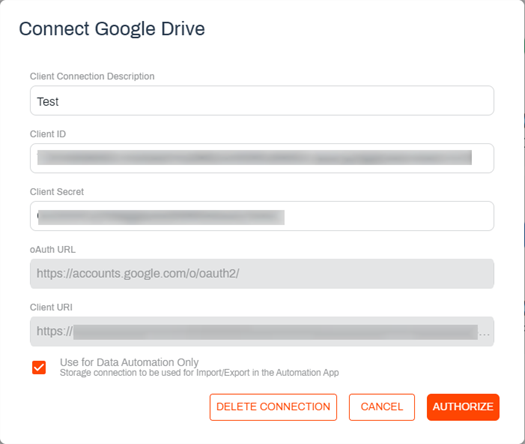
- Click Authorize
Delete the Google Drive Connection
To delete the cloud storage connection do the following
-
Double-click the connection tile
-
Click Delete Connection
-
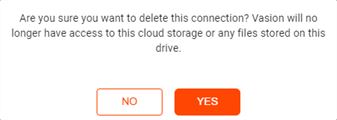
In the delete confirmation modal click Yes