Last Updated: August 13, 2024
Storage
The Storage gives you complete control over where you store and manage your content. You can digitize paper and securely store your content ensuring compliance with encryption and user access rights, retention policies and audit trails. You can also search across all storage systems on any device.
Key Points
Other benefits of Vasion Storage are:
- Ability to migrate storage across platforms.
- Encrypt files in transit and at rest.
- Centrally manage content across local and cloud repositories.
In the Storage app, you’ll find a directory tree consisting of folders and subfolders where you can store your documents. Your permissions dictate which folders and documents you can see.
There are two ways to access the Storage app:
-
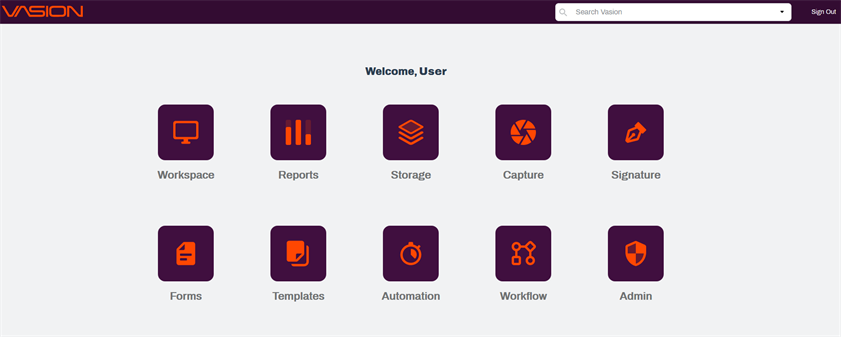
Click on the Storage icon from the Home page, or
-
From any app, click on the App button
 on the header.
App Folders and Subfolders
The left navigation displays any folders currently configured on the app, and if applicable, any 3rd-party storage solutions you have integrated.
When you click on a folder on the left navigation, any subfolders and documents stored in that location display on the left.
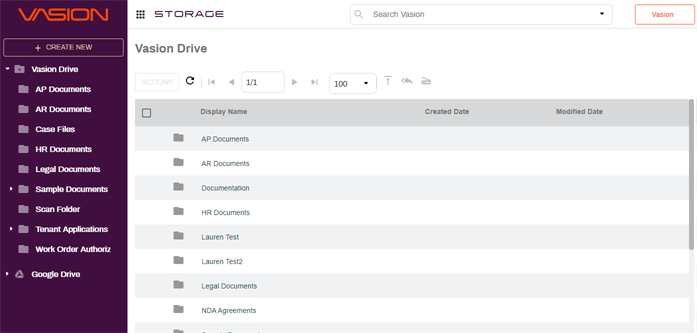
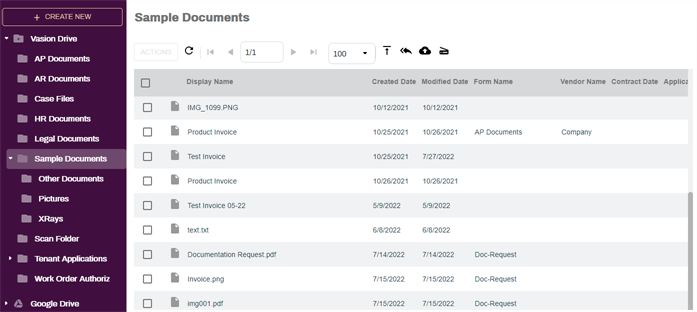
Click on any folder that displays the expand icon  to see any subfolders and documents stored in that location. For documents stored in the folder, information may display on the columns visible in the app with the following information:
- The name of the folder.
- The Storage app tool bar.
- Any folders and documents stored in that location.
To sort by a column:
- Click on the column header once to sort in ascending order.
- Click on the column header a second time to sort in descending order.
If you’re looking for a file you recently scanned, try sorting by the Creation Date column to bring the newest files to the top of the list.
Multiple Page Navigation
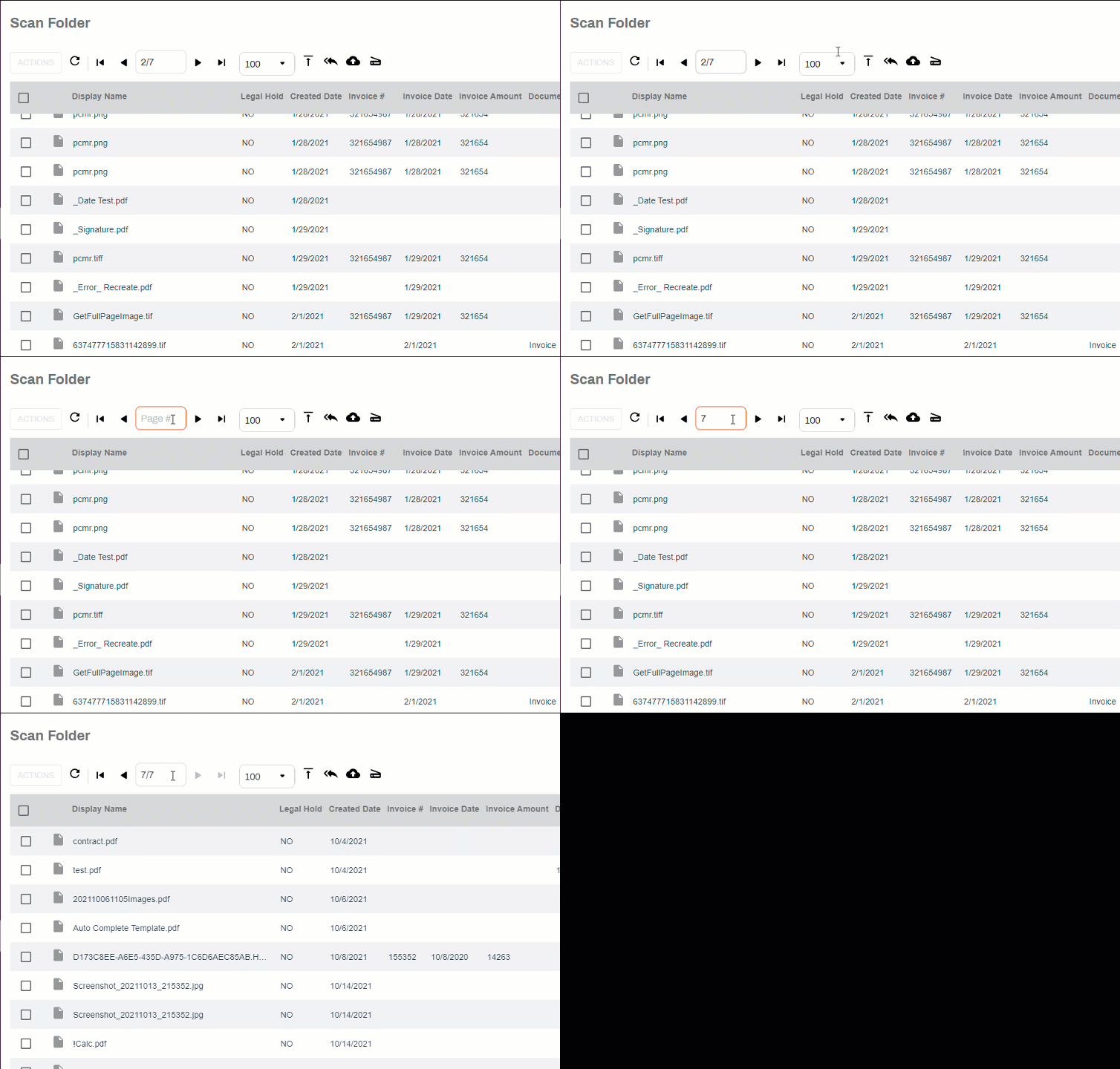
If there are multiple pages of documents in a folder, you can use the navigation buttons in the toolbar to move to the next page by clicking the right or left arrow 
 . You can also move to last or first page by clicking on the appropriate button
 .
.
To quickly navigate to a specific page, Click in the page number box, enter the page you want and press [Enter].
Depending on the number of pages in the folder it may take some time to update the page