Last Updated: August 13, 2024
Workflow
A business workflow consists of tasks that flow from one stage to another in a specific business context. Workflows help you make certain vital processes are done right every time within a specified timeframe. Benefits to businesses that implement effective workflows into their daily activities include:
- Eliminate redundant processes and activities by detecting redundancies and eliminating waste.
- Reduce operational expenses by identifying ways to streamline business operations to get work done faster while freeing resources.
- Automate processes to reduce the time spent on repetitive tasks to focus on more creative work and expansion plans.
With Workflow seamlessly connect workflows across e-forms, e-signatures, content management, print, and third-party applications. Vasion's code-free workflow design empowers you to immediately automate, manage and control your business processes without requiring specialized training.
Access Workflow
Access to Workflow requires the Admin - Configure Workflow role assigned to the user / group.
-
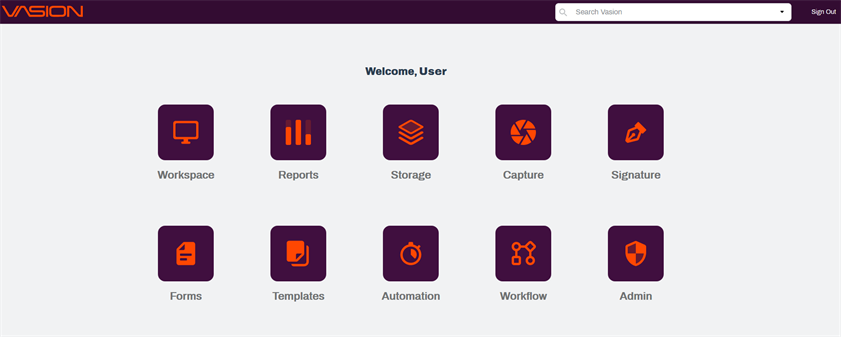
Click on the Workflow icon from the Home page.
-
From any app, click on the Apps icon
 on the header and click on the Workflow icon.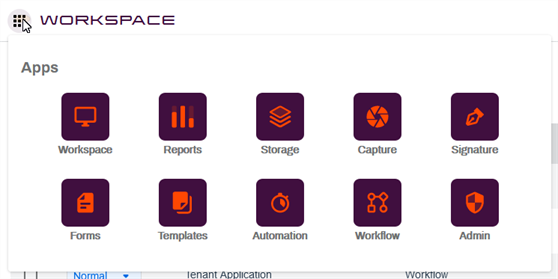
Workflow App Details
The All Workflows page lists any workflows already configured.
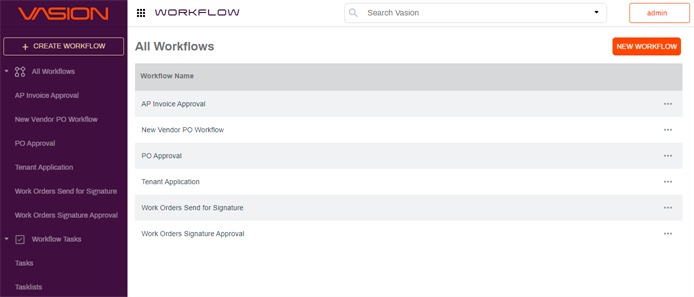
The side navigation consists of three options:
- + Create Workflow — click button to set up a new workflow.
- All Workflows — default view that displays existing workflows.
- You can expand the section to view a list of all the workflows.
- Workflow Tasks — click the arrow to expand.
- Tasks — lists existing workflow tasks.
- Tasklists — lists existing workflow tasklists.
Existing Workflows
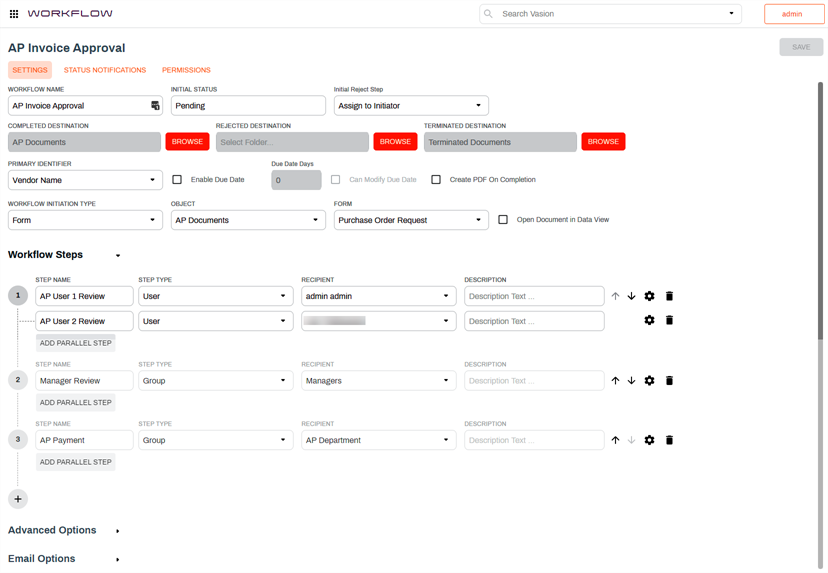
Click on an existing workflow to view the workflow setup.
Copy A Workflow
You can create a new workflow by copying an existing workflow and then make any necessary changes to the existing setup.
When you make the copy, "Copy of" is added in front of the existing workflow name. Change the workflow name to save it. Each workflow must have a unique name.
To close the new workflow and return to the wokflow list click in the side navigation area.
To learn about the Workflow set up options see Create Workflows.