Last Updated: August 13, 2024
Reports
The Reports App lets you run standard reports, create custom reports, and schedule reports. Here we provide an overview of standard reports.
To access Reports:
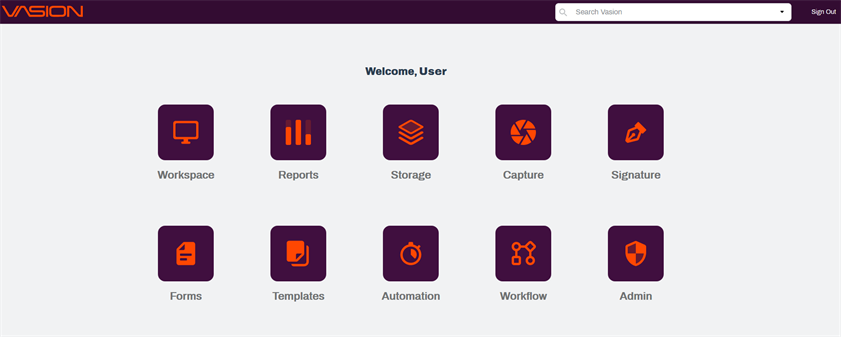
Click on the Reports icon from the home page.
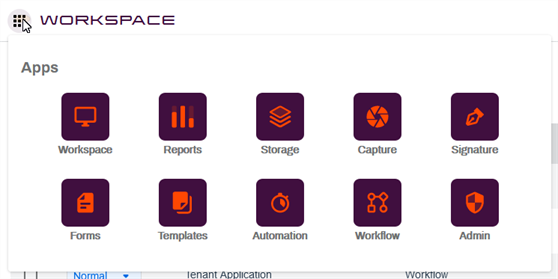
Or you can click on the Apps icon  and click on Reports.
The Reports App comes with four standard reports.
Audit
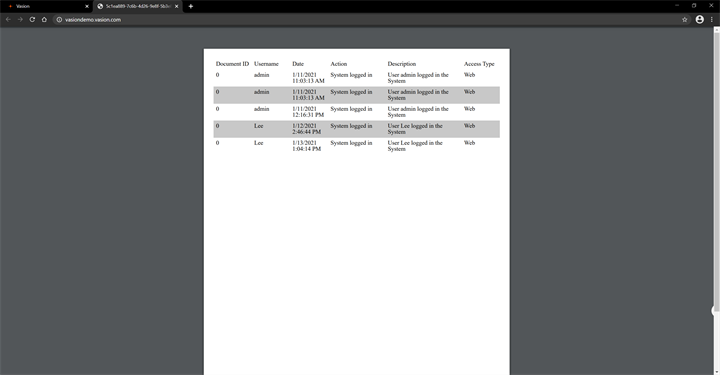
The Audit report contains information about actions taken in Vasion during the selected period of time. Everything a user does in Vasion is logged; examples include logging into the system, viewing a document, assigning a document to a workflow, and more.
To run the Audit report:
- Click Audit in the reports pane.
-
In the Audits page, enter the start and end dates for the period of time for the report. You can either type in a date in the MM/DD/YYYY format or click the calendar button to choose the date on a calendar.
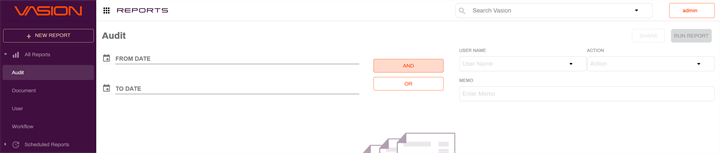
- Choose the report options:
- User Name – click the down arrow to show the list to select a single user to run the report on. If you don’t choose a user, the report will include all users.
- Action – click the down arrow to show the list to select a single action to run the report on. If you don’t choose an action, the report will include all actions.
- Memo – type any words that you want to appear in the Memo Description column of the report. Leave this field blank to find records with any text in the Memo Description.
-
Click the Run Report button.
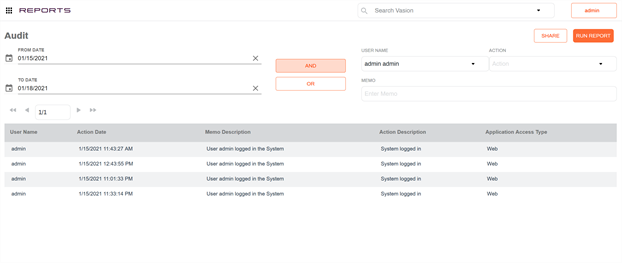
The report results are displayed on the page, below the report parameters.
To save the report as a PDF, click the Share button. The PDF opens in another window, and from there, you can download, print, or email the PDF.
Document
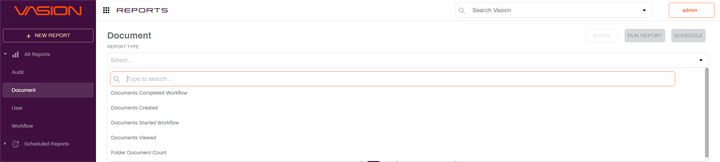
The Document report contains information about documents in Vasion. Some document types you can report on include documents created, documents started workflow, and documents completed workflow. This report is useful if you want to find out how many documents there were, of the selected type, for each day in the selected date range.
To run the Document report:
- Click Document in the reports pane.
-
Click the down arrow to see the document reports available to run, and select the report.
-
Choose the report options. The fields available depend on which report type you choose.

- Object - select an option from the drop-down list. The options available depend on the types of documents saved in the system.
- Enter the start and end dates for the period of time you want to see. You can either type in a date in the MM/DD/YYYY format or click the calendar button to choose the date on a calendar.
-
Click Run Report.
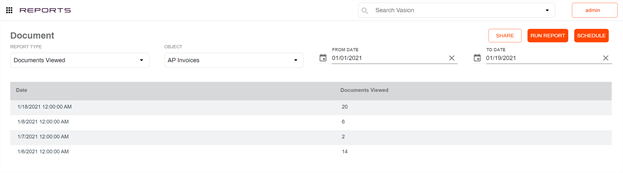
The report results are displayed on the page, below the report parameters.To save the report as a PDF, click the Share button. The PDF opens in another window, and from there, you can download, print, or email the PDF.
User
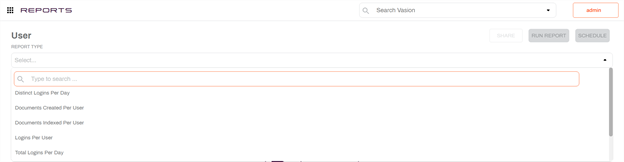
The User report contains information about users in Vasion. You can opt to report on the documents a specific user creates, a user’s total logins per day, the user groups a user belongs to, and more.
To run the User report:
- Click User in the reports pane.
-
Click the down arrow to show the drop-down list to select a report type.
-
Click the Run Report button.
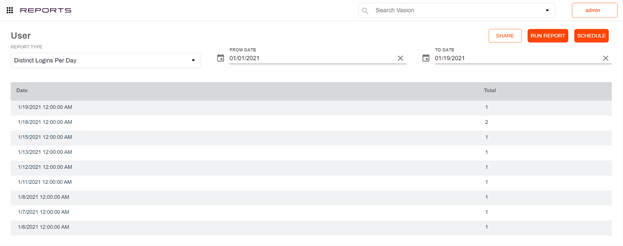
The report results are displayed on the page, below the report parameters.
To save the report as a PDF, click the Share button. The PDF opens in another window, and from there, you can download, print, or email the PDF.
Workflow
The Workflow report contains information about the various workflows in Vasion.
To run the Workflow report:
- Click Workflow in the reports pane.
-
Click on the Object drop-down and select from the available choices.

- Selecting from the Workflow and Approver drop-downs is optional.
-
You can add additional fields to filter the report by click the Added Fields button.
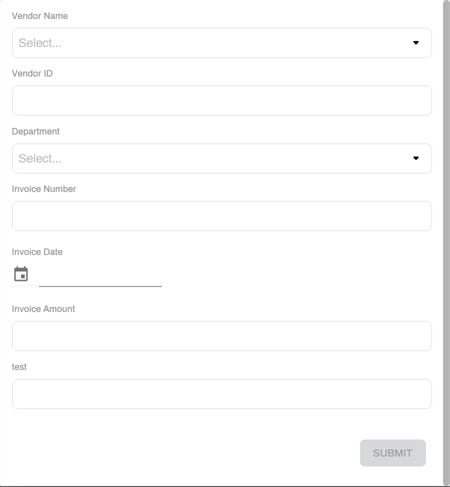
- In the Additional Fields modal enter the filter criteria and click Submit.
- Enter the start and end date for the time period you want to see. You can either type in a date in the MM/DD/YYYY format or click the calendar button to choose the date on a calendar.
-
Click the Run Report button.
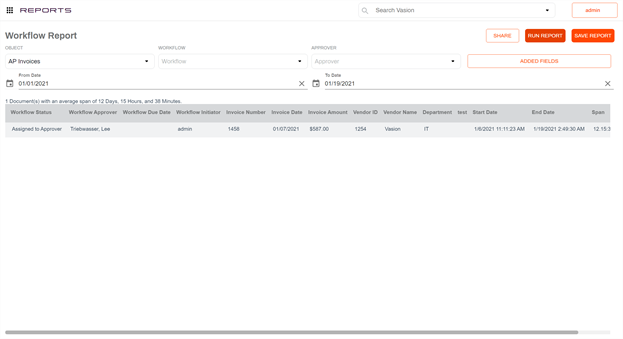
The report results are displayed on the page, below the report parameters.
To save the report as a PDF, click the Share button. The PDF opens in another window, and from there, you can download, print, or email the PDF.
If these standard reports do not provide the data you need, you can create Custom Reports