Last Updated: August 13, 2024
Custom Reports
A custom report allows you to find exactly the information you want.
Create a New Report
To create a new report:
- Click the New Report button at the top of the left pane.
-
In the New Report page, complete the following:
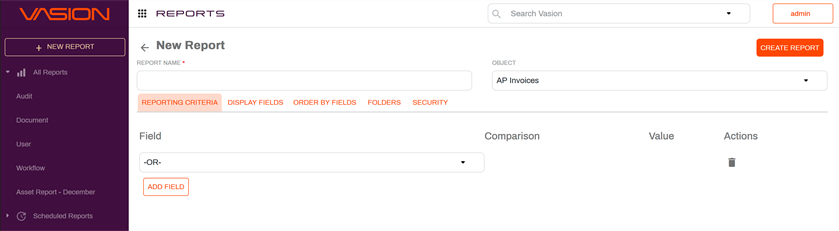
- Report Name — enter a name for your report.
- Object — use the drop-down to apply the report type.
-
In the Report Criteria tab complete the following:
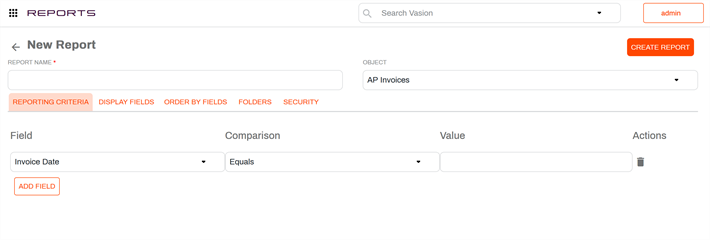
- Field — use the drop-down to select a field to use a report parameter.
- Comparison — use the drop-down to select an option. For example, if the field selected is for a date, you can select Less Than to get records older than a specific date.
- Value — enter the value for the comparison. For the example above, enter a date.
-
Click the Add Field button to add another field to the report and select the appropriate options. Add as many fields as needed.
In the Actions column, you can delete a field by clicking on the trash icon
 . You can click the up and down arrows
  to change the order of the fields.
 -
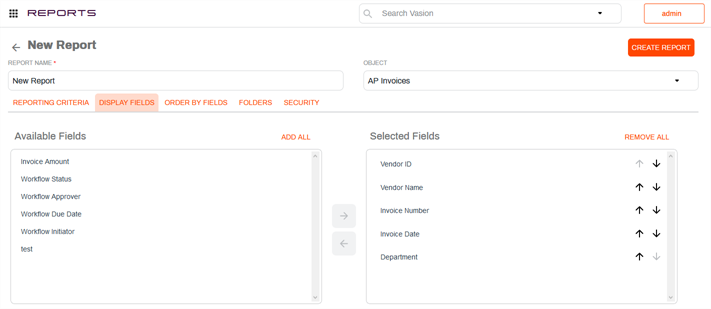
In the Display Fields tab, select the fields you would like to display on the report by clicking on a field, and then click on the right arrow to move it to Selected Fields. Once all of the fields you want are in the Selected Fields section, you can adjust the order in which to display by using the up or down arrows.
-
To remove a field from the report, click on the field in the Selected Fields side, and click the right arrow to move it back to Available Fields.
If you would like to include all of the available fields click Add All. You can remove all selected fields y clicking Remove All.
-
-
In the Order by Fields tab, the order you select determines how the results are ordered. Click on a field and then click on the right arrow to move it to Selected Fields.
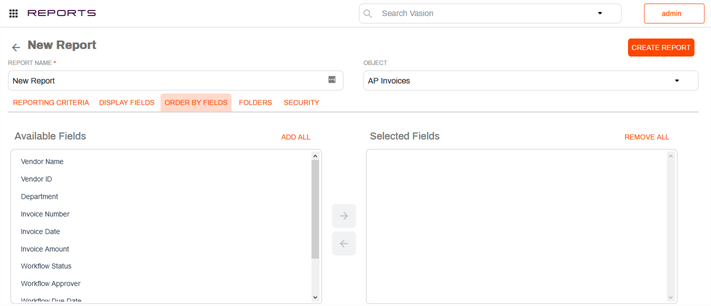
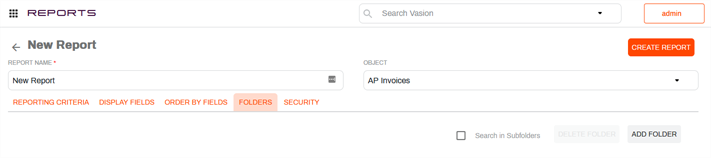
- Click the Folder tab to choose the folder where the report will run.
-
Check the Search Subfolders box if you want the report to include files in any subfolders under the folder you selected in the last step. If you uncheck this box, the report will only be run on the folder, and will not include any files in subfolders.
-
In the Security tab you can determine who can run the report.
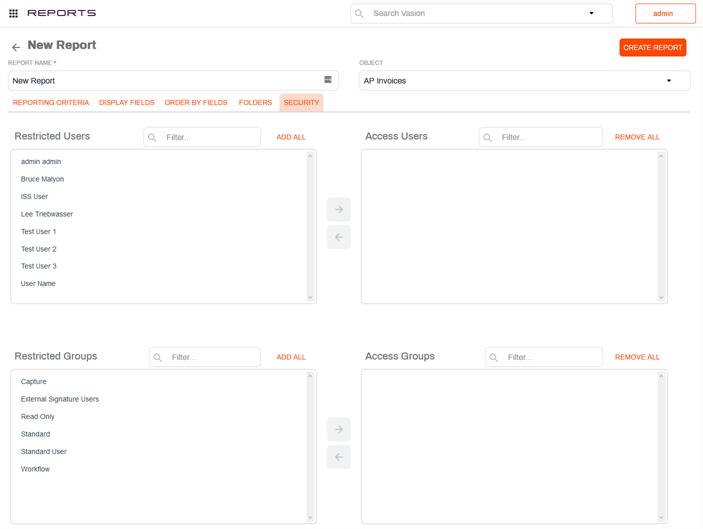
- In the Restricted Users area, click on each user you want to have access to the report, and then click on the right arrow to move them to the Access Users column.
- In the Restricted Groups area, click on each group you want to have access to the report, and then click on the right arrow to move them to the Access Groups column.
-
When you finish making all your selections for the new report, click the Create Report button.
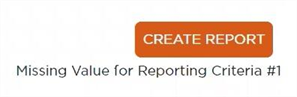
If you missed a field or entered information incorrectly, a message tells you where the error is. Correct the error and click the Create Report button again.
Any custom reports are listed under the standard reports.