Last Updated: June 24, 2024
Custom Folder Views
You can change how the folders and reports display in Vasion by customizing the visible fields. When you apply a custom folder view, the fields you select display in the list when the documents load. Custom views are helpful to provide users relevant information on the objects stored in the folder. You can also select the columns you want to see when generating report results.
Create a New Custom View
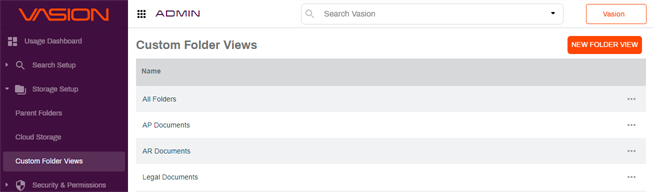
- Click on Custom Folder View on the side navigation.
-
In the Custom Folder View page click New Folder View at the top of the page.
-
In the Untitled Folder View page complete the following:
-
Apply to Folder — use the radio button to apply the custom view to all the folders or a single folder.
-
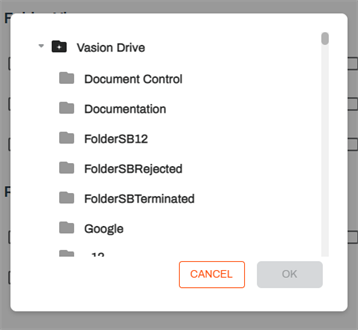
If applying view to single folder, click on the Folder text box and use the Browse button to navigate to the folder you want to apply the view and select it.
-
-
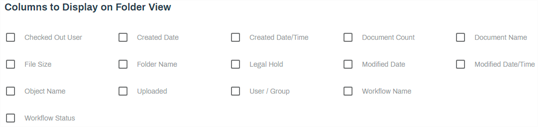
In the Columns to Display on Folder View section, check the box next to the fields you would like to see listed in the Storage app when viewing the folder.
-
In the Columns to Display on Report section, check the box next to the fields you would like to see listed.

-
- If you would like to add any additional fields to the view, click the Add Field button in the Fields section.
-
In the new fields complete the following:
- Title — enter a label title for the field.
- Column Name — use the drop-down to select the field to display in the column.
- Field Type — use the drop-down to select the type of field, text, date or number.
- Check the Show In Report box if you want this field to display on reports.
-
To delete the field, click the trash icon.

- When you complete your selections, click Save at the top-right corner of the page.