Last Updated: August 09, 2024
Object Search Setup
You can configure various searches that users can access to search in objects you identify. Object Search lets users find content in specified storage locations, whether the data was entered into a form, uploaded or using the Capture app.
You can apply a Custom Folder View to the search results to show the user more details. If you do not already have a custom view you would like to apply to the Object Search, you can create one first and then create your object search. See Create a New Custom View for more details.
Object Search
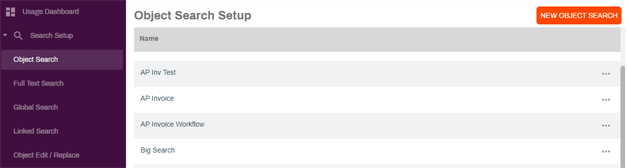
- In the Admin app, select Search Setup on the side navigation and then Object Search.
-
Select the New Object Search button on the top-right.
- In the setup page, enter the name of the new search in the Search Name field.
-
Use the Custom Folder View drop-down to select a custom view to display the search results.

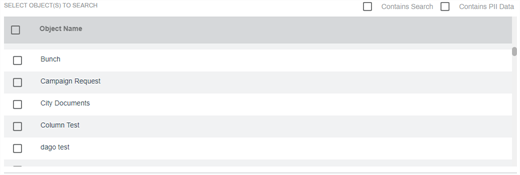
- In the Select Object(s) to Search section complete the following:
- Check the Contains Search box to include any content that contains all or part of the search term; this option functions like a wildcard A wildcard is a special character that represents one or more other characters, commonly an asterisk (*). It is often used in searches, so you don't need to type the full term. For example, when searching for data that starts with "Ps," simply searching for "Ps*" to locate all content..
- Check the Contains PII Data box if the object to be searched contains Personal Identifiable Information.
Check the box next to the object items to include in your search.
- Select the radio button next to the fields option you want to apply to the search
- Apply on Fields — use this option to apply the search on all fields found in the object(s) selected.
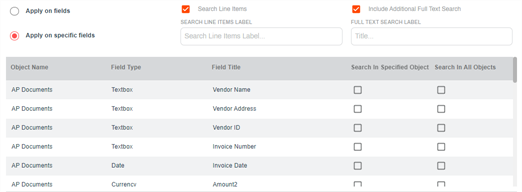
- Apply on Specific Fields — use this option to only search specific fields within the selected object(s). If you select this option complete the following:
Check the Include Additional Full Text Search box to include an additional Full-Text search.
In the Title text box enter a label for the keyword or Full-Text search for display purposes.
If Include Additional Full Text Search is selected, you cannot select Apply on all folders.
On each of specific object fields, check the box to either Search in Specified Object or to Search In All Objects.
You should only check one of boxes because choosing both would contradict each other.
-
Check the Search Line Items box to include line item data that was gathered during an Amazon Textract process.
-
Use the Search Line Items Label field to give the search field a label.

-
- Use the radio button to select the folders when you want to apply this search.
- Apply on all folders — use this option to search in all the storage folders. This is only available if Include Additional Full Text Search is not selected.
- Apply on specific folders — use this option to search in the selected folders and subfolders.
If you do not want to search in any subfolders found in the parent folder check the Search Only In Selected Folder box.
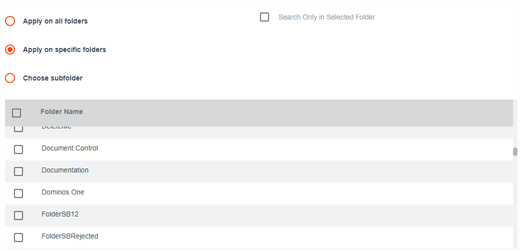
Choose Subfolder — use this option to select a specific subfolder in which to search. If the subfolder has subfolders and you do not want to include those in the search check the Search Only Selected Folder box.

Additional Object Search options - Static Fields
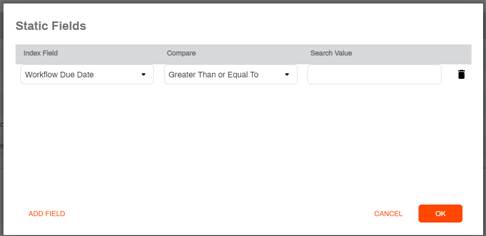
When you configure your Object Search and select the Apply on specific fields option, the Static Fields button gets enabled. This option lets you set up default comparison operators in the select field(s) based on predetermined search values you specify. The search value you set up here is not displayed to the user conducting the search.
- Click on the Static Fields button at the top of the new search page.
- In the Static Fields modal, use the Index Field drop-down to select the Object field.
- Use the Compare column drop-down to select how to compare the selected Index field to the Search Value.
- In the Search Value column, type in the static data value to compare.
- Click the Add Field button if you would like to include additional fields.
- Click on OK to save.
Additional Object Search options - Date Options
To set default date search parameters, such as a range, equal to, etc. use the Date Options button at the top of the new search page. The options displayed in the Date Options modal depend on whether you select the Apply on fields, or the Apply on specified fields option.
If you use the Static Fields options for this object search, then Date Options are not available.
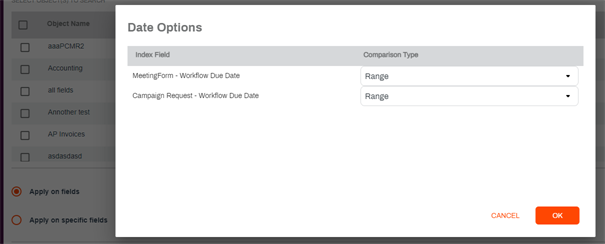
If you select the Apply on fields option:
- Select the Date Options button at the top of the new search page.
- In the Date Options modal, date-type fields currently indexed in Vasion display in the Index Field column. Use the Comparison Type drop-down arrow to set the default date search parameter.
- Select OK.
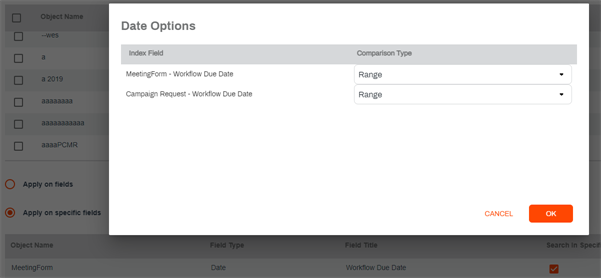
If you select the Apply on specific fields option:
- Check the box on either Search In Specified Object or Search In All Objects options on the Date field type(s) where you would like to set the default parameter. For details about these fields see Step 6 above.
- Select Date Options. If necessary, scroll to the top of the page
- In the Date Options modal, use the Comparison Type drop-down to select the date search parameter for each field listed. Only date fields that have the options in Step 1 checked are displayed in the list.
- Select OK.
Once you select all your search options, Select Add to save the Object Search.