Last Updated: August 13, 2024
Global Search Setup
If you enable Global Search, users can enter a term directly in the Vasion search bar and run a Full-Text search. If you do not enable it, users need to click on the drop-down arrow and select a search before they can enter their search criteria. You can also make global search available to only specific users or groups using the Permissions tab.
Enable Global Search
- In the Admin app, click Search Setup on the side navigation and then click Global Search.
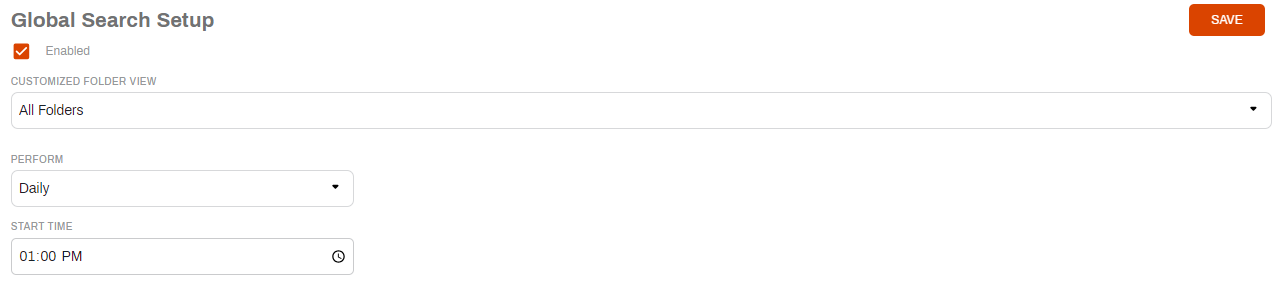
- In the Global Search Setup page, check the box next to Enabled to make global search available.
- Use the Customized Folder Columns drop-down to select a.
General Setup
The options in General setup are only configured if you have an on-premises instance of Vasion. These settings let you configure server settings and updates.
-
In the General tab section complete the following:
- Use the Perform drop-down to select the frequency in which you want the search to update. The next fields that display depend on what you select here.
- Once — use this option to only perform the update once. The next field display updates to Start Date and you can type the date in the format shown or click on the Calendar icon
 to pick the date.
 - Daily — use this option to perform the update every day. The only remaining option is the Start Time.
- Weekly — use this option to perform the update once a week. The next field updates to Weekdays and you can use the drop-down to select one or more days of the week by checking the appropriate box.
- Monthly — use this option to perform the update one a month. The next field updates to Months and you can use the drop-down to select one or more months by checking the appropriate box.
- Frequency — use this option to perform the update at a specified time interval in minutes. In the next field type in the number of minutes for the time interval.
- Once — use this option to only perform the update once. The next field display updates to Start Date and you can type the date in the format shown or click on the Calendar icon
- In the Start Time enter the time of day to run the update in the format shown or click on the Clock
 icon to pick the time.
 - If the Monthly option is selected, a Day of Month field is shown. Type in the day of the selected month(s) when you would like to perform the update.
- Use the Perform drop-down to select the frequency in which you want the search to update. The next fields that display depend on what you select here.
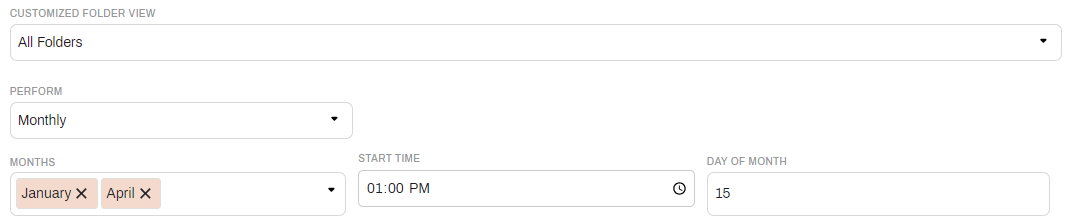
Once you select all your Global Search options, click Save.