Last Updated: June 24, 2024
Full-Text Search Setup
You can configure various searches that users can access to search for text in Vasion. Full-Text searches in all metadata, document notes, workflow comments and objects.
You can apply a Custom Folder View to the search results to show the user more details. If you do not already have a custom view you would like to apply to the Object Search, you can create one first and then create your object search. See Create a New Custom View for more details.
Full-Text Search
- In the Admin app, click Search Setup on the side navigation and then click Full Text Search.
-
Click the New Full Text Search button on the top right.
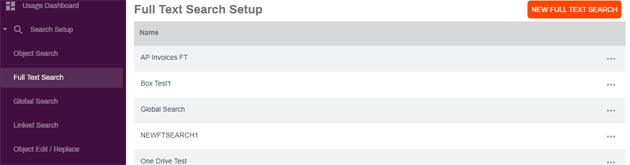
- In the setup page, enter the name of the new search in the Search Name field.
- In the Search Text field enter you can enter a keyword to display as a label, or leave blank.
-
Use the Customized Folder Columns drop-down to select a custom view to display the search results.

-
In the Folders section complete the following:
- Check the Contains PII Data box if the folder to be searched contains Personal Identifiable Information.
-
Check the box next to the folder(s) to include in your search.
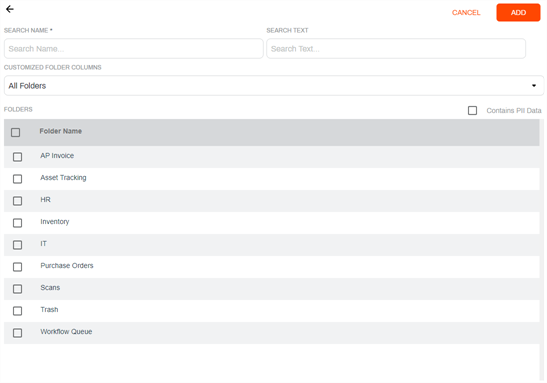
To select all the folders, click on the box in the table header
- Once you select all your search options, click Add.