Last Updated: June 24, 2024
Additional Search Options
Vasion features two additional search options:
- Linked Search — you can search for data across multiple documents and attachments based on specific criteria you specify across different workflows and storage locations.
- Object Edit / Replace — quickly search and replace key words in Object Searches so you don't have to manually edit each Object Search.
Linked Search
To use Linked Search, you must already have at least two objects set up. One of the objects is set up as the primary object from which you can associate data from a workflow or document and link it to another object field in a different object, referred to as the result object.
- In the Admin app, click Search Setup on the side navigation and then click Linked Search.
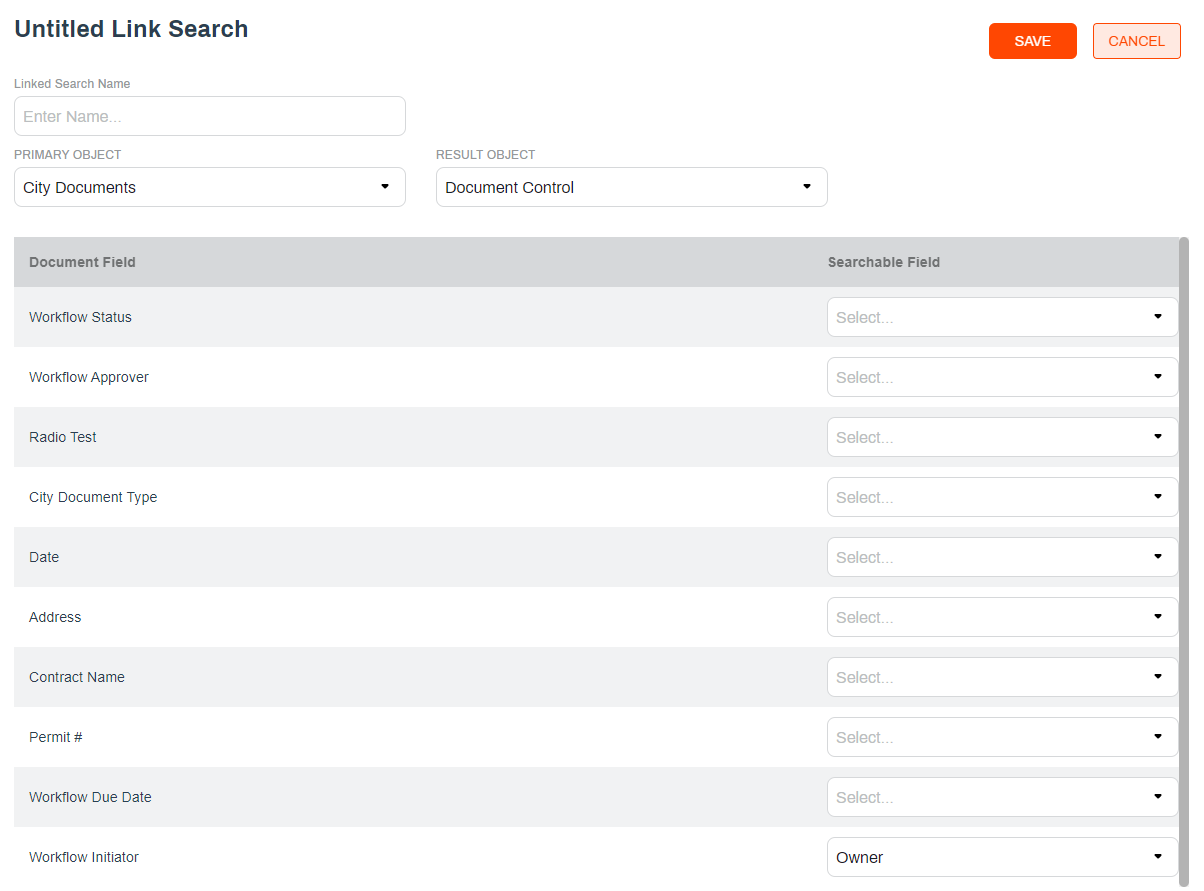
- In the Untitled Link Setup page, enter the name for the new search in the Linked Search Name field.
- Use the Primary Object drop-down to select the object you would like to link.
- Use the Result Object drop-down to select the object to link for search results.
- From the Document Field list, locate the object to link and use the Searchable Field drop-down to select the field within the object.
- Click Save.
Object Edit / Replace
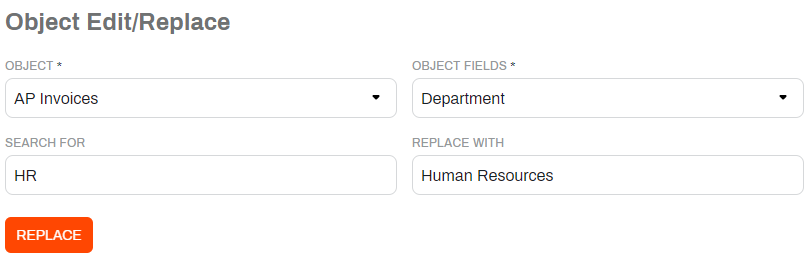
- On the Admin App side navigation, select Search Setup and then click Object Edit / Replace.
- Use the Object drop-down to select the object you would like to update.
- Use the Object Field to select the field associated with the keyword.
- In the Search For field, enter the keyword currently assigned to the object field.
- In the Replace With field, enter the new keyword you want to assign to the object field.
- Click on Replace.