Last Updated: August 13, 2024
Textract Configuration
Here we provide the steps to set up a basic Textract configuration. For full details on the field mapping settings and options see Intelligent Capture with Textract.
Vasion Automate Pro supports the following Amazon machine learning models:
- Expense — used for accounting documents, for example, invoices, purchase orders, etc.
- Lending — used for agreements, contracts, loan documents, etc.
- Identity — used for personal identification, driver's licenses, passports, etc.
- Analyze — used for documents that do not meet the other endpoint criteria.
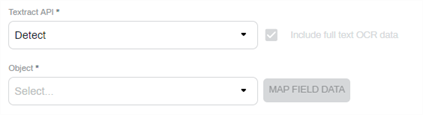
- Detect — used to detect the text in a document without needing to map data to an object.
In Vasion Automate Pro, these models are referred to as Textract API endpoints.
Requirements
Before you start a new Textract configuration you need the following:
- A sample document used to map the fields identified by the Textract process.
- An AWS account. The AWS access key ID and secret key are required.
-
S3 Bucket used to process the files. The AWS region and the name of the bucket are required.
The S3 Bucket used to process the files should not be used as a storage location. It's used by Textract to process the documents to extract the text and data.
You are billed directly by Amazon for the number of pages processed each month.
Textract Configuration
Once you have the required information, follow these steps.
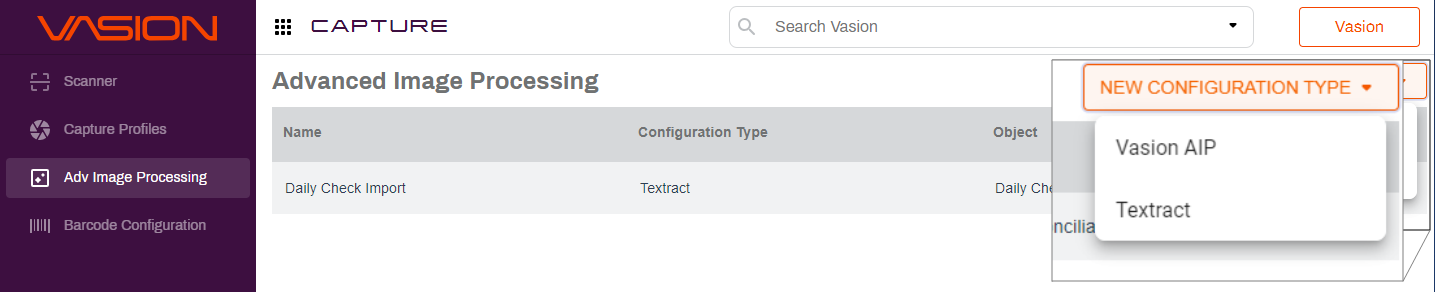
- Navigate to Capture.
- Select Adv Image Processing from the side navigation.
- Select the New Configuration Type drop-down.
-
Select Textract.
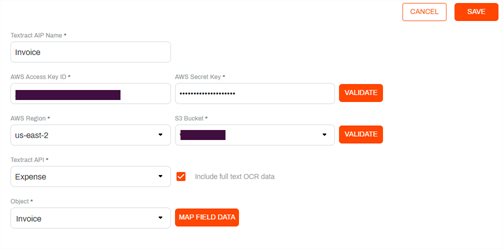
- In the configuration page complete the following:
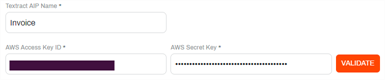
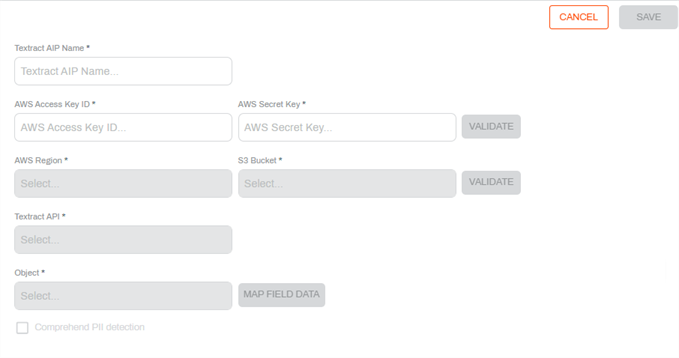
- Textract AIP Name — enter the name you want to use to identify this process.
- AWS Access Key ID — enter the key ID for your AWS account.
- AWS Secret Key — enter the secret key for your account.
-
Select Validate.
- Once the AWS account is validated complete the following:
- AWS Region — use the drop-down to select the AWS region for the account.
- S3 Bucket — use the drop-down to select the bucket you created to use with Textract.
-
Select Validate.

- Once the S3 Bucket is validated, complete the following:
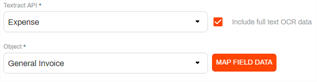
- Textract API — use the drop-down to select the ML model you want to use for this process.
- Include full text OCR data — select this option if you want to include an .rtf file containing all the text extracted by Textract. This option makes the data available in Full Text Searches.
- Object — use the drop-down to select the object where you want to save the data value.
Select Map Field Data.
Detect API
The Detect API option automatically includes the full text OCR data option and you cannot edit the check box. The Map Field Data option is not enabled.
Map the Field Data
In the Map Field Data page, complete the following:
Import the Sample File
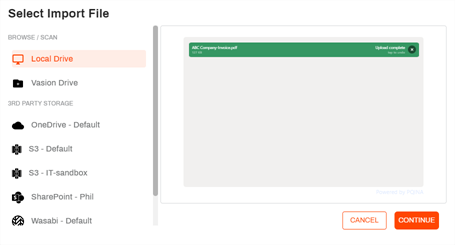
- Select Browse
- In the Select Import File modal:
- Drag and drop the file, or
- Select the drive / storage, navigate to the file location, and select the file.
-
Select Continue.
Map the Fields
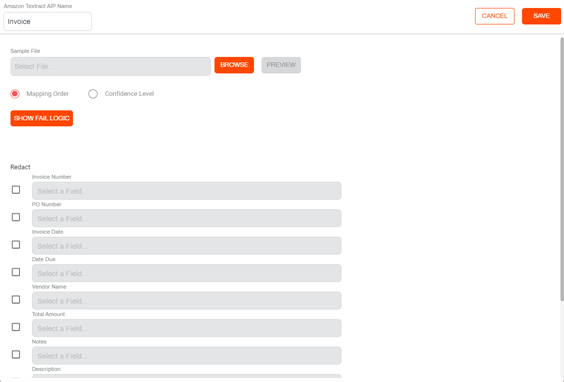
The object fields are shown as drop-downs. use the drop-downs to select the fields you want to map. Some fields can be left blank, depending on the object and how you want to process the file. If you want to see a preview of the sample file, select the Preview button.
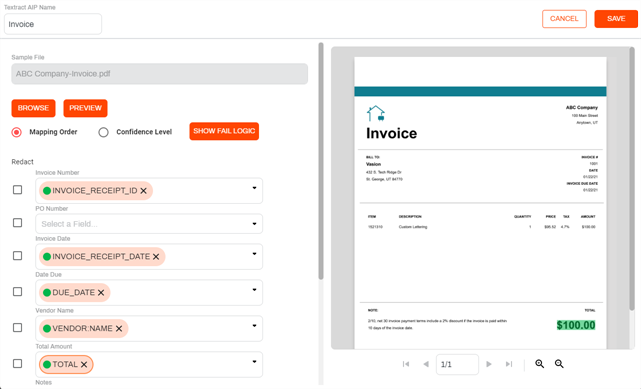
Select a chip from one of the mapped object drop-downs to see the value in the document highlighted with the confidence score color.
Redact
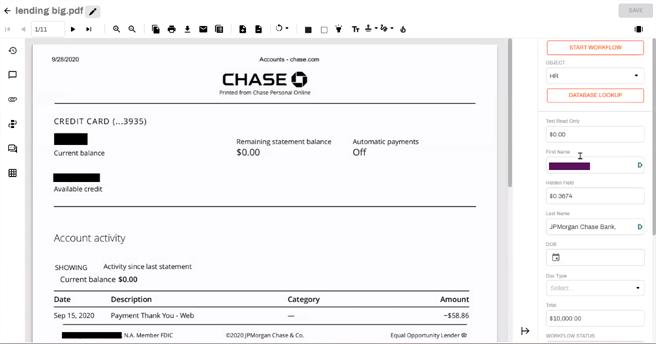
For object fields that contain sensitive data, select the Redact option. When the file is processed by Textract and the confidence level is 61% and above, a version of the document is created with the information contained in the selected field redacted. When you open the document in the Document Viewer, you can still see the data in the object fields in the side panel.
Save the Configuration
- When you complete the mapping, select Save.
-
In the Configuration page, select Save.
Amazon Textract supports PNG, JPEG, TIFF, and PDF file formats.
No. Vasion-hosted users can initiate document processing for invoices, POs, contracts, driver's licenses, and more through Amazon Textract's endpoints: expenses, lending, identities, and analyzing documents.