Last Updated: August 13, 2024
Intelligent Capture with Textract
Below are details about Textract configuration, processing, and field mapping that may be helpful.
ML Models
Vasion Automate Pro supports the following Amazon machine learning models:
- Expense — used for accounting documents, for example, invoices, purchase orders, etc.
- Lending — used for agreements, contracts, loan documents, etc.
- Identity — used for personal identification, driver's licenses, passports, etc.
- Analyze — used for documents that do not meet the other endpoint criteria.
- Detect — used to detect the text in a document without needing to map data to an object.
In Vasion Automate Pro, these models are referred to as Textract API endpoints.
Full Text OCR Data
The Expense, Identity, and Analyze endpoints also support full text OCR data capture. This option includes an .rtf file with all the text extracted by Textract. This file is associated with the document and enables the Full Text Search function to return the file in any results that match the text data search.
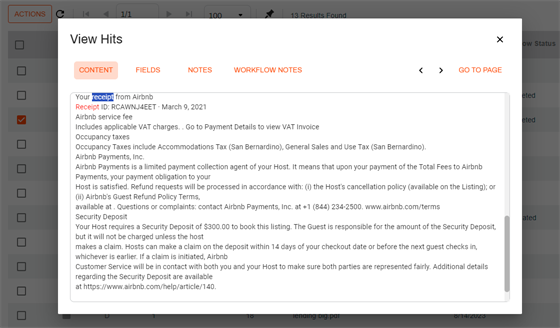
The results display if the confidence level is 61% an above.
The option to include line item data is only visible after you map the field data and save the configuration. Once you save the field map data, select the Map Field Data button on the configuration page to return to field map data to enable the option.
Confidence Levels
The data processed is returned with a confidence score level associated with the following colors:
- Green — high confidence (86% - 100%).
- Yellow — medium confidence (61% - 85%).
- Red — not confident, or nothing was picked up (0 - 60%).
By default, when a document is processed, all the fields must return a high confidence score (86% - 100%) to pass the process. Regardless of the number of field data processed, the whole document will fail if any field returns with a medium or low score. The fail logic can be adjusted as shown below.
Processing Order
Each object field can only capture one value. When there are multiple values mapped to one object field, you can choose to capture the data using one of the following:
- Mapping Order — the system looks for the first value, and if that has no results, it will look for the next value, etc.
- Confidence Level — the system saves the value with the highest confidence level score.
Fail Logic
A document is successfully processed when all the fields are returned with a high confidence score. If one of the fields returns with a medium confidence score or lower, the entire document fails, regardless of how many fields are mapped. If you have mapped some fields because you want to capture data, the data is not required for a document or workflow, you can adjust the fail logic to ignore the field or only fail the document if the confidence score is low.
You can set the logic globally for the process by selecting an option from the top row, or select it for specific fields.
Sample Document
With Amazon Textract, you only need to select the Textract API endpoint from the drop-down list in the configuration. When you select field mapping, a sample document is required to begin the process.
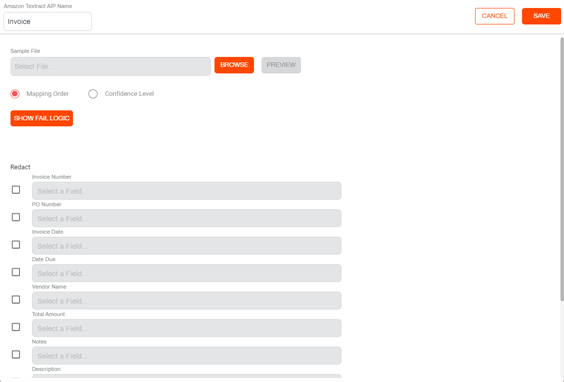
Once the file is processed, you can do the following:
-
Preview — use this option to see the sample file. You can toggle the preview on/off.
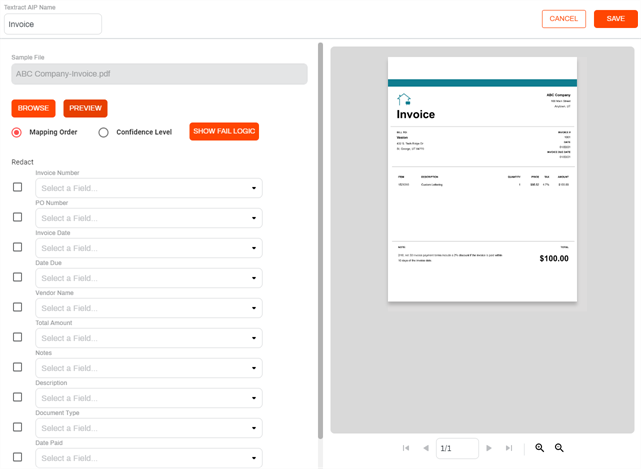
- Select the processing order.
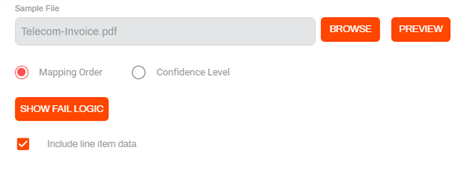
- Mapping Order — the document is processed based on the field order you have mapped.
- Confidence Level — the document is processed based on the confidence level score. The highest confidence score is mapped.
- Show Fail Logic — adjust the fail logic based on the confidence level.
- Ignore — select this option if capturing data is helpful but not required for other documents or workflow actions.
- Low — select this option if you want to fail the document if a field has a low confidence score.
Medium — select this option if you want to fail the document if a field has a medium confidence score.
-
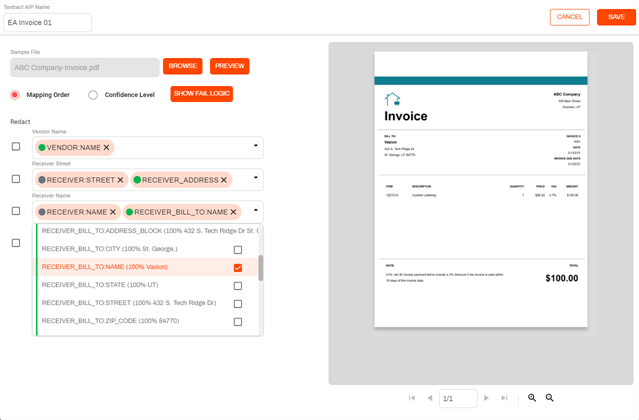
Object field mapping — use the object field drop-down to select the value returned by Textract.
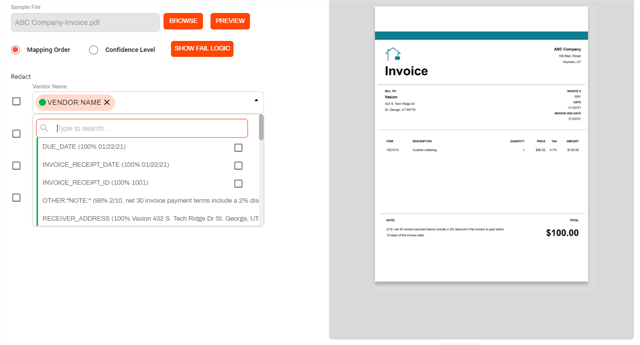
The values returned by Textract show the following information:
- A color bar indicating the confidence level score.
- The name of the field as it appears in the document.
- The confidence score is shown as a percentage inside the parenthesis.
-
The data retrieved by the analysis, inside the parenthesis.
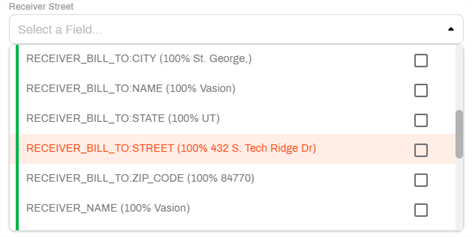
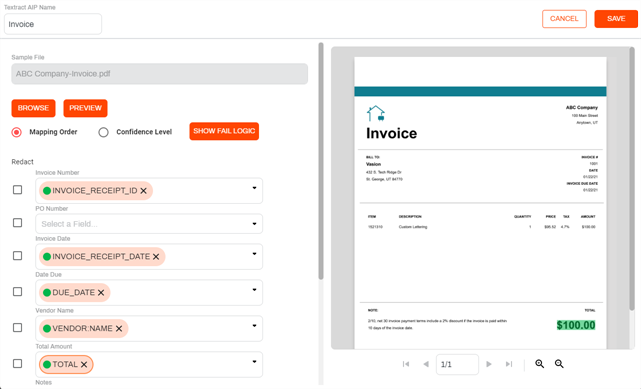
We refer to each value selection shown in the drop-down as a Chip. Once mapped, you can select the Chip in the drop-down to see where the value is located on the document. If your document has multiple pages, the system automatically navigates to the appropriate page to show the value. The value is highlighted in the color that denotes the confidence level score.
Line Item Data
Amazon Textract can extract line item data from documents that are processed and and store the data in a tables format. You can then use this data for reference in the document viewer, searches, or an export to a CSV. To enable line item data processing, check the Include line item data check box.

To understand the Line Item Fail Logic radio buttons, see Fail Logic above.
Document Redact
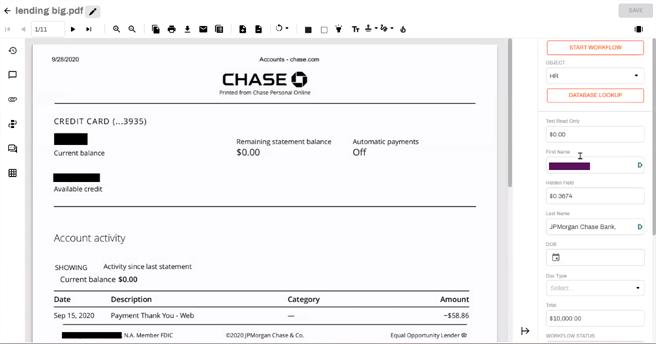
Each mapped field has a Redact option available. When selected, Textract processes the document and if the field has a confidence level of 61% or above, a new version of the document is created with the data redacted so sensitive information is not displayed in the saved document. When you open the document in Document Viewer you can still see the data value in the object field data on the side panel for field validation.
Additional Mapping
You can upload more than one document for analysis. For example, you want a process to extract data from vendor invoices. One of your vendors includes a data type that you want to capture, but this data type is exclusive to only this one vendor. In this case, you can upload a general vendor invoice and also the vendor invoice containing the additional data.
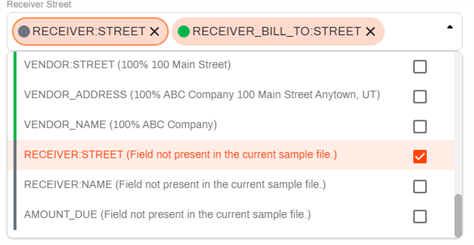
When you upload an additional document, the Field Mapping screen can only display the last document that was uploaded. The original mapping is retained, and any additional mapping is appended. When you use multiple documents for analysis, even though you might be submitting the same type of document, for example, invoices, the form may use different words as labels for the same data. In this case, you can select the additional resulting data from the drop-down. One object field can have multiple values mapped to it.
Values that were previously mapped but don't exist in the current document are denoted by the gray color.
For complete details on how to set up a Textract configuration, see Textract Configuration
Yes. You must have an existing Amazon Textract account to configure Amazon Textract in your Vasion Automate Pro instance.
Vasion has a simple, easy-to-use UI that walks you through the steps needed for configuring Amazon Textract in your Vasion instance. Please see our Amazon Textract documentation for specific configuration steps.
Amazon Textract supports PNG, JPEG, TIFF, and PDF file formats.
No. Vasion-hosted users can initiate document processing for invoices, POs, contracts, driver's licenses, and more through Amazon Textract's endpoints: expenses, lending, identities, and analyzing documents.