Last Updated: February 03, 2026
Portal Users
Portal users have limited access through the External User Portal to do simple tasks like upload documents, approve workflows, or submit forms. For more information on what the External User Portal can do and how to configure it, see External User Portal.
Create a Portal User:
- Select Security & Permissions in the side navigation.
- Select User Management.
-
- Select
-
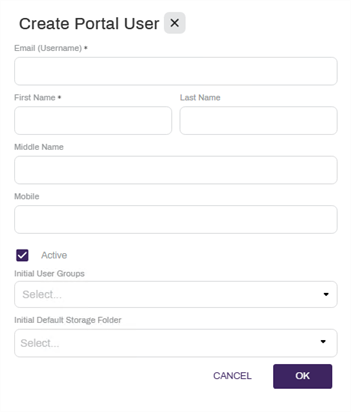
Enter information about the new user. Required fields are indicated by an asterisk (*). Here are some additional details:
- Email (Username) — the name used to log in for this user.
- Mobile — entering the user’s cell phone number is optional. It can be used for two-factor authentication.
- Active — deselect this box to deactivate the user and prevent access to Vasion Automate Pro.
- Email (Username) — the name used to log in for this user.
-
Initial User Groups — Select the portal groups to include the user. For portal group configuration, see Portal Groups.
-
Initial Default Storage Folder — Select the Portal folder for this user's documents. For portal parent folder configuration, see Portal Parent Folder.
-
Select the
Edit a Portal User Profile
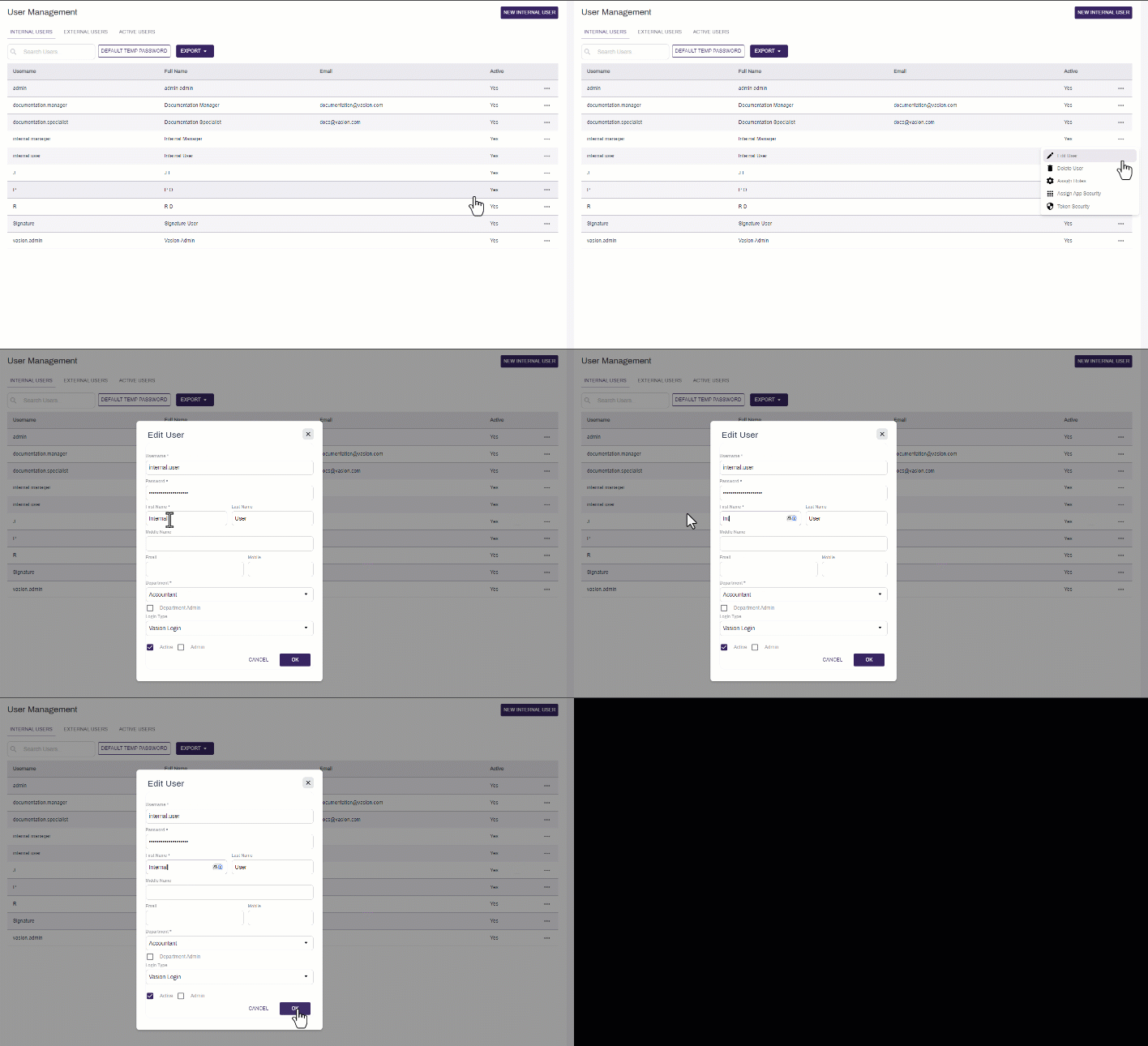
- From the User Management page, select the More button
 for the user you want to edit and select Edit User.
 - Make the changes you want to the user’s profile.
- Select the OK button to save your changes.
Delete a Portal User
Deleting a user from Vasion only removes the user from the list in User Management but it does not delete the user record so the integrity of security and audit trails can be maintained.
- From the User Management page, select the More button for the user you want to edit and select Delete User.
-
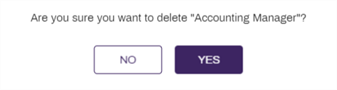
In the confirmation modal select Yes
Assign Roles
External User Portal users can be assigned roles in Vasion Automate Pro to limit what they are able to do. For more information about what roles and what they do, see Roles.
To assign roles to an External User Portal user:
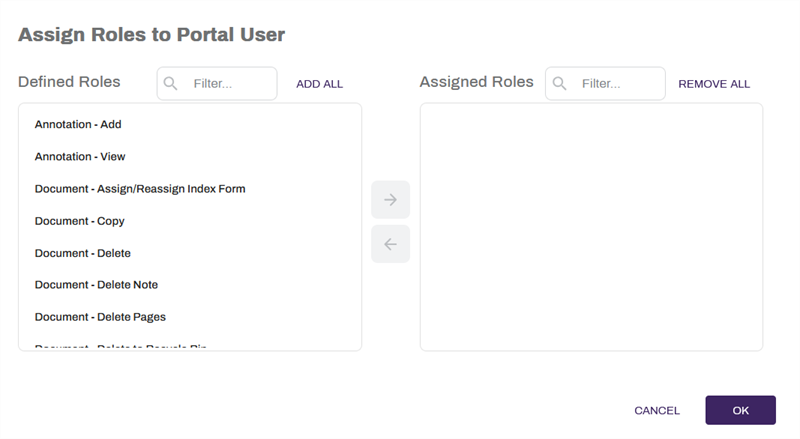
- Select the More button for the user to whom you want to assign roles and select Assign Roles.
- To add roles:
- Select the role(s) in the Defined Roles list that you’d like to assign to the user. You can select more than one.
Select the right arrow button
 to move the selected role to the Assigned Roles list.
-
To remove roles:
-
Select the role(s) in the Assigned Roles list that you’d like to unassign from the user. You can select more than one.
-
Select the left arrow button
 to move the selected role to the Defined Roles list.
If you’d like to add all of the available roles, select Add All. If you’d like to remove all of the roles from the Assigned Roles list, select Remove All.
-
-
Select the OK button.
Make a Portal User Inactive
When a user is made inactive, they are no longer an authorized user and cannot log into Vasion Automate Pro.
- From the User Management page, select the More button for the user you want to edit and select Edit User.
- Select on the Active box to deselect it.
- Select the OK button.
Resend Portal User Invite
The link for setting your password when a portal user account is created is only valid for 48 hours. If the link has expired, a new link can be sent through the Portal tab of the User Management page.
To send a new portal user invite:
- From the User Management page, select the More button for the user that requires a new invite.
- Select Resend Invite.