Last Updated: October 29, 2025
External User Portal User Guide
The External User Portal can be used to submit, approve and edit documents for the organization requesting them. Each user doing so can have a separate portal account, that can then be used tracking and managing access.
Requirements
In addition to the general requirements this feature also requires:
- External User Portal users configured. For configuring these users, See Create Portal Users.
- Optionally, there are further configurations available. For more information on what the External User Portal can do and how to configure it, see External User Portal.
Create Password
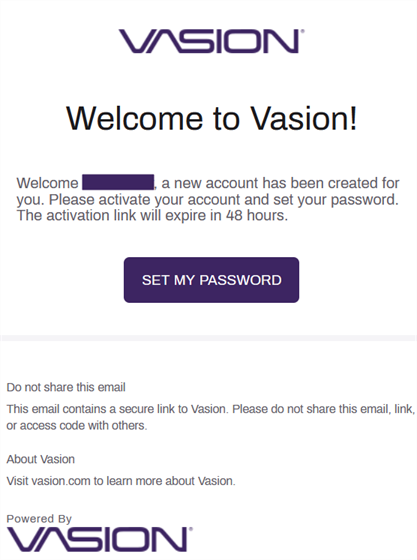
When an External User Portal user is created, an email will be sent to the email address that was entered in user creation. To initiate an account and set a password:
-
Select the Set My Password button from the received email.
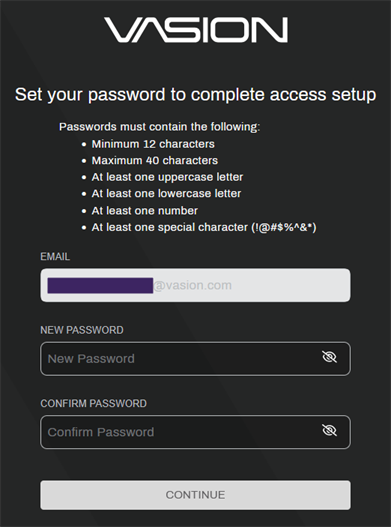
- The Email field will automatically enter the email address.
-
Enter a password in the New Password field.
Be sure to follow the password guidelines. - Enter the same password in the Confirm Password field.
-
Select the Continue button.
-
You will be redirected to the log in page. See below to log in.
Log In
For a portal user to log in, two factor authentication is required. To log into the External User Portal:
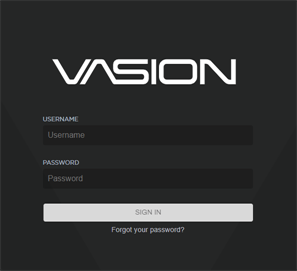
- Navigate to the Vasion Automate Pro log in page, as provided by your business partner.
- Enter your email address into the Username field.
- Enter your password into the Password field.
-
Select the Sign In button.
-
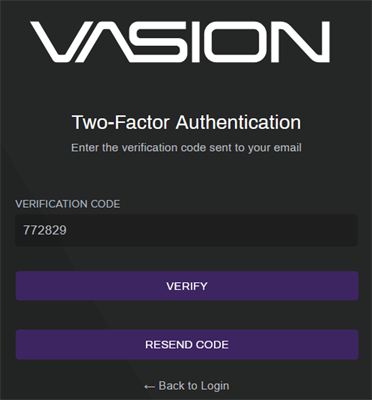
Vasion Automate Pro will send your email a six digit verification code to verify your log in.
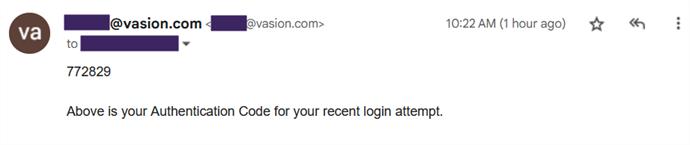
- Enter the six digit code into the Verification Code field.
- Select the Verify button to log in.
- If needed, select the Resend Code button to send a new verification code.
-
If needed, select the ← Back to Login button to return to the log in page.
External User Portal Workspace
The workspace is the main page of the External User Portal. From here, initiate workflows, approve tasks assigned to you, and sign documents.
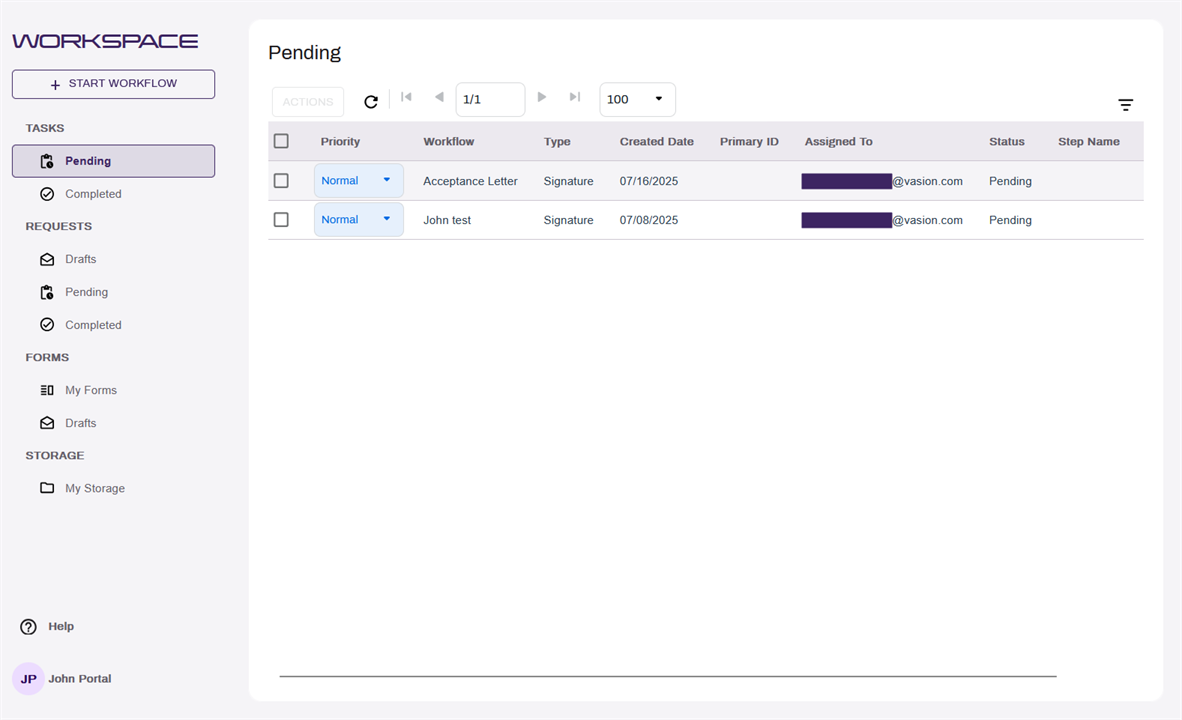
For more information on the various elements of the External User Portal workspace, see Portal Workspace.
Document Viewer
Select a document or form from Workspace or Storage to open the Document Viewer. In the Document Viewer you can perform various tasks depending on the permissions assigned to you and how you access the document.
Typically, documents are opened from:
- Workspace — from pending tasks assigned to you or a group in which you're a member.
- Storage — from folders you have permission to access.
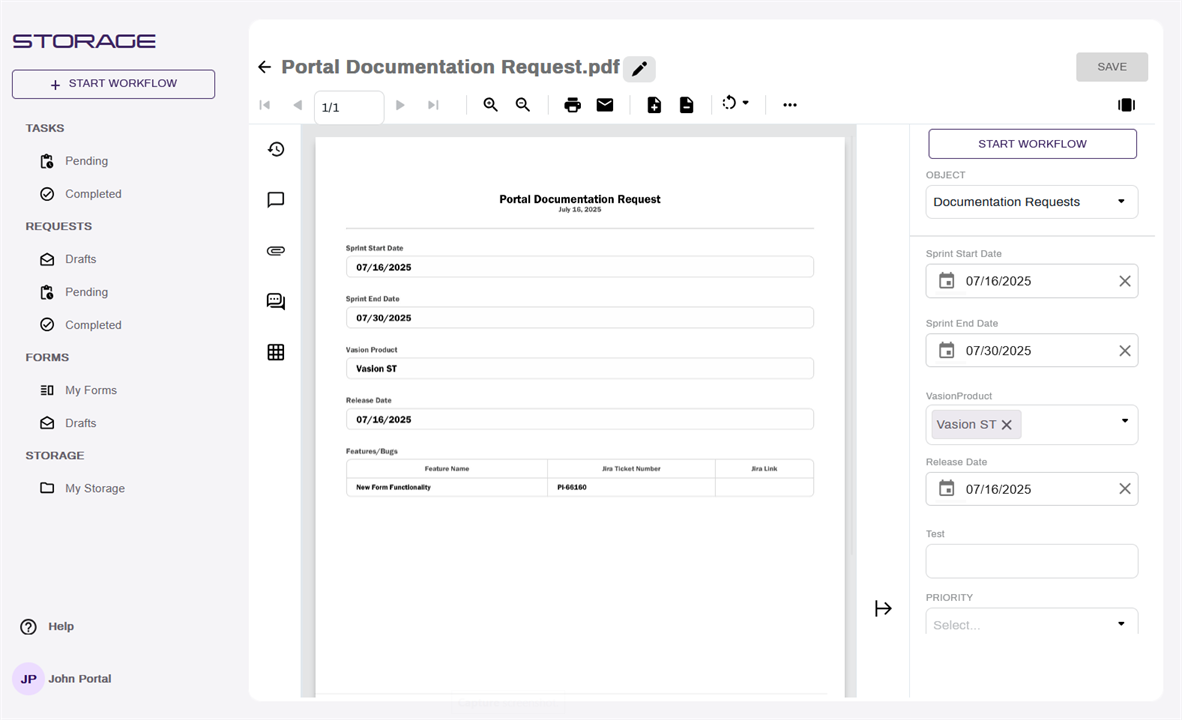
For more information about the Portal Document Viewer, see Portal Document Viewer.