Last Updated: September 08, 2025
Forms
Access to the Forms app requires appropriate permissions. The My Forms section shows a list of forms that have been configured to collect data. Depending on how your system is configured, you can only see forms that do not have any viewing restrictions, public forms, or forms that are assigned to you or a group in which you are a member.
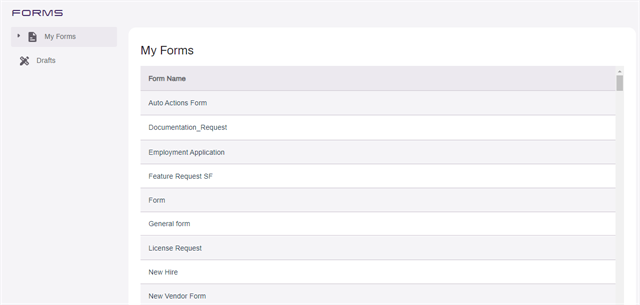
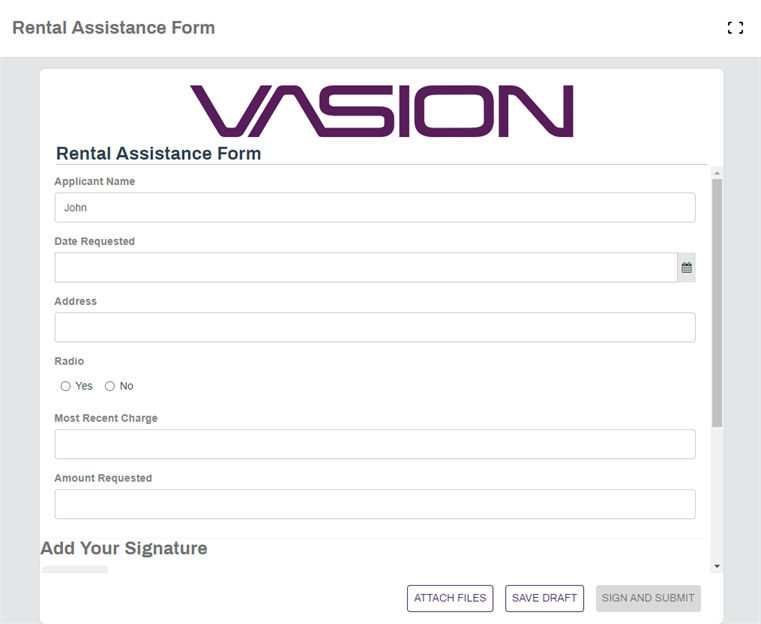
Select a form from the list to complete the form fields and submit the data. Depending on the configuration the data is saved to storage or it starts a workflow.
You can save a draft of a form so you can complete and submit it later. The default draft name is the name of the form with the date and time the draft is saved. If you attach any files to the form, the file attachments are also saved with the draft.
To save your form to complete later, do the following:
- Select the Save Draft button.
-
Update the draft name, if desired.
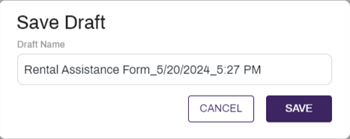
- Select Save.
Form Drafts
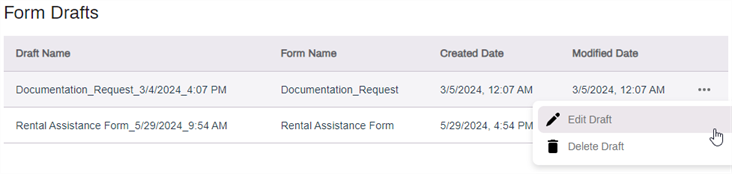
The Drafts option in the side navigation shows any drafts you have saved. This option only displays for users with a Vasion account, and is not accessible to external users.
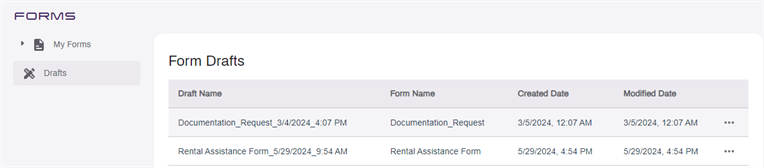
The Form Drafts page shows the following in a table format:
- Draft Name
- Form Name
- Created Date
- Modified Date
- More button
Form draft options available are:
- Edit Draft — select his option to return to the form and complete and submit it.
- Delete Draft — select this option to delete the draft.
Forms can have an expiration time set by the administrator who created the form. If you don't complete and submit the draft by expiration time the form is automatically deleted. The expiration time can be set for each form. Contact your administrator for information about your forms.
Yes, PDF Forms are secured and stored directly within your Vasion instance. End-users can access PDF Forms within Vasion through a secure, password-protected link sent by email or published externally on various web browsers.
For more information about Vasion Automate Pro’s PDF Form Builder, visit our documentation page. If you’re a Vasion Automate Pro customer, reach out to your Vasion representative or contact our Product Support team.