Last Updated: September 08, 2025
Search
With Vasion Automate Pro's search capabilities you can search data captured in forms and stored across storage systems.
Search Overview
The Search field can be used in different ways, depending on how your instance An instance is a collection of services and service groups that is associated with a customer. A customer's instance is created from an application template and is then deployed to a cloud or virtual server. is set up. For information on configuring searches, see Search Setup. The searches are labeled so that you may easily locate the type of document or data you need. The types of searches available depend on what has been configured by your administrator.
Object Search
Use the Object Search for text entered into object fields, also called indexing The action of classifying and providing specific identification information for speedy document retrieval. This type of search is used if to find data for documents tied to an object and which object field contains the search information.
To perform an Object Search:
-
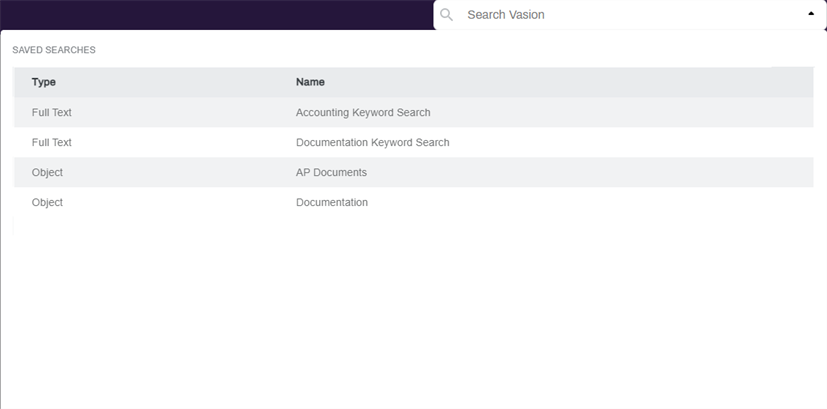
Select the down arrow on the Search bar. The list shows the searches configured by the Vasion Automate Pro administrator.
-
Select the object search you want based on the Type and Name listed.
-
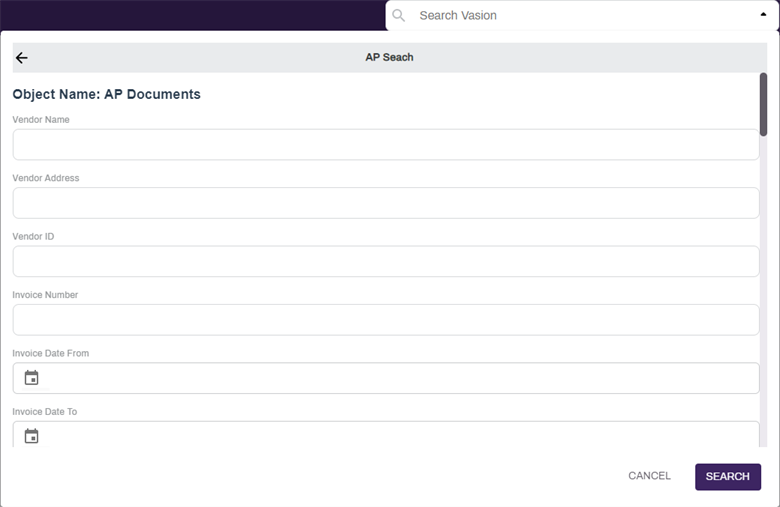
The information you enter in the form depends on how the search was set up by the administrator. Here is an example of what the search could look like.
-
Select Search.
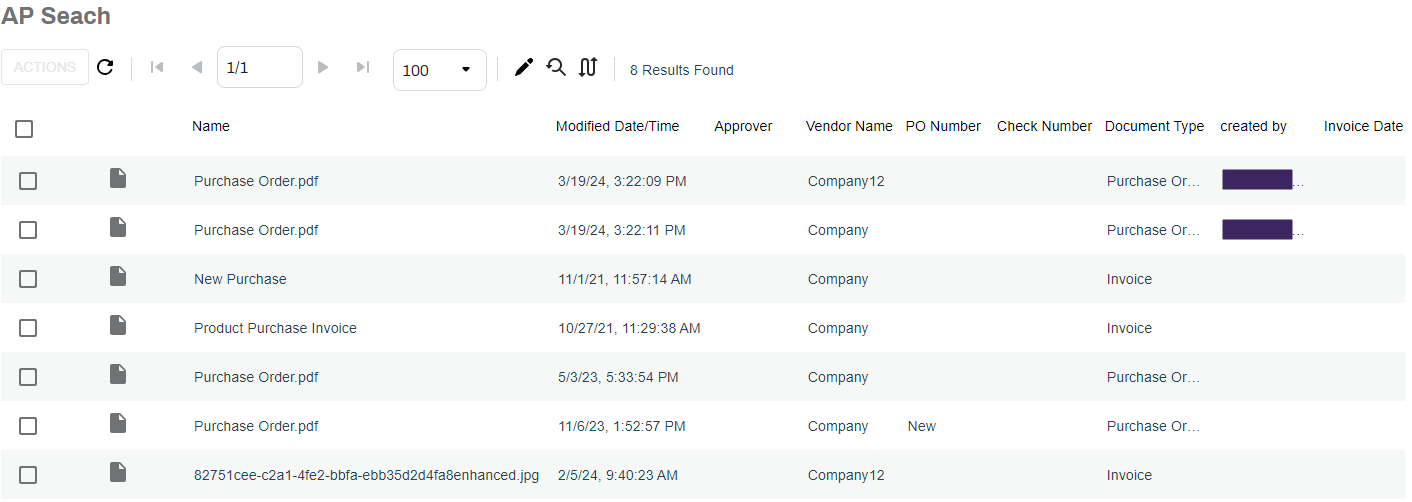
The search results display on a new page. If there are no results returned, the system displays "No results to display".
For additional information about the search results and what you can do, see Search Results.
For configuring an object search, see Object Search Setup.
Full Text Search
A Full Text Search is used to locate documents by typing a word or phrase that exists in one or more documents. Full Text searches in metadata, document notes and line items, workflow comments and objects. For users to locate documents using Full Text Search, the Full Text Search database must be updated. If documents are not being presented using Full Text Search, see your Vasion Automate Pro administrator.
There are some special characters you can use for searching:
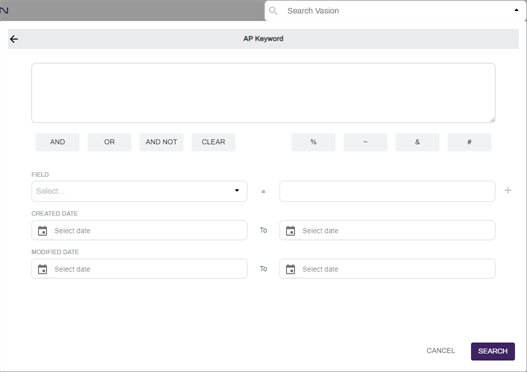
- % — fuzzy / wildcard search. Use this character before and / or after a keyword to return any results that start with, end with, or contain the word based on where the character is placed.
- ~ — stemming search. Use this character at the end of the keyword to return any terms that stem from the keyword.
- & — synonym search. Use this character to before the keyword to search for similar words or alternate endings.
- # — phonic search. Use this character before the keyword to return keywords that sounds like the word you are searching and begins with the same letter.
To perform a text search:
-
Select the down arrow on the Search bar.
-
In the drop-down list select the Full Text option.
-
In the search form complete the appropriate information and select any search options as necessary.
-
Search operators — AND, OR, AND NOT, %, ~, &, and #.
-
Field(s) to search.
-
Created or modified date ranges.
-
-
Select the Search button.
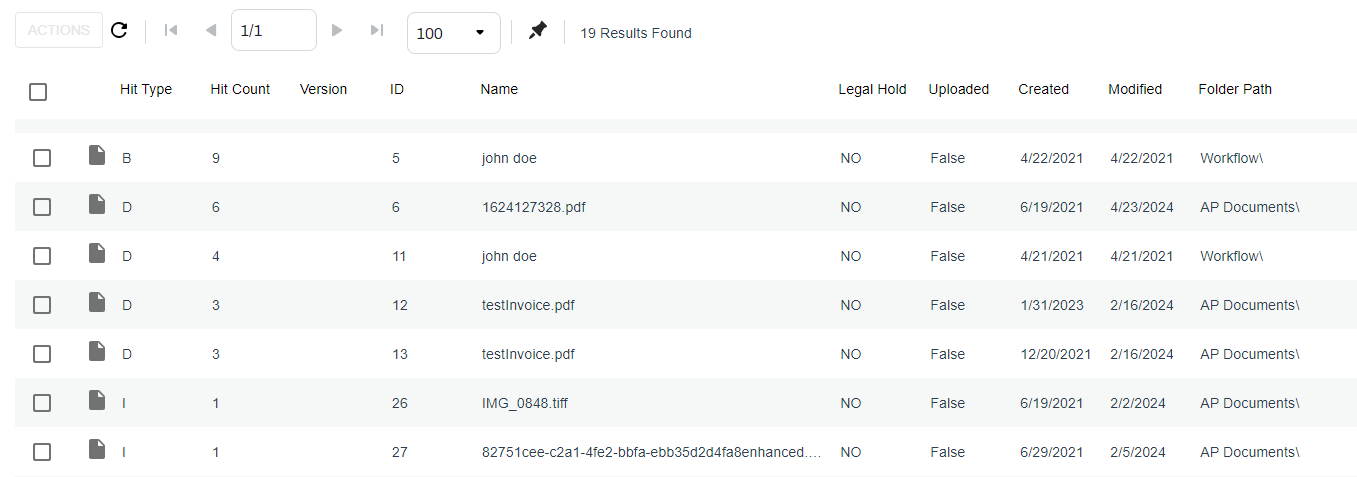
The search results display on a new page. If there are no results returned, the system displays "No results to display".
For additional information about the search results and what you can do, see Search Results.
For configuring an full text search, see Full Text Search Setup.
Global Search
When Global Search is enabled, you can perform a Full Text search by entering the keyword directly into the search field. If Global Search is not enabled, you must use the drop-down to select the Full Text search you want first.
For configuring global search, see Global Search Setup.