Last Updated: October 29, 2025
Portal Document Viewer
Select a document or form from Workspace or Storage to open the Document Viewer. In the Document Viewer you can perform various tasks depending on the permissions assigned to you and how you access the document.
Typically, documents are opened from:
- Workspace — from pending tasks assigned to you or a group in which you're a member.
- Storage — from folders you have permission to access.
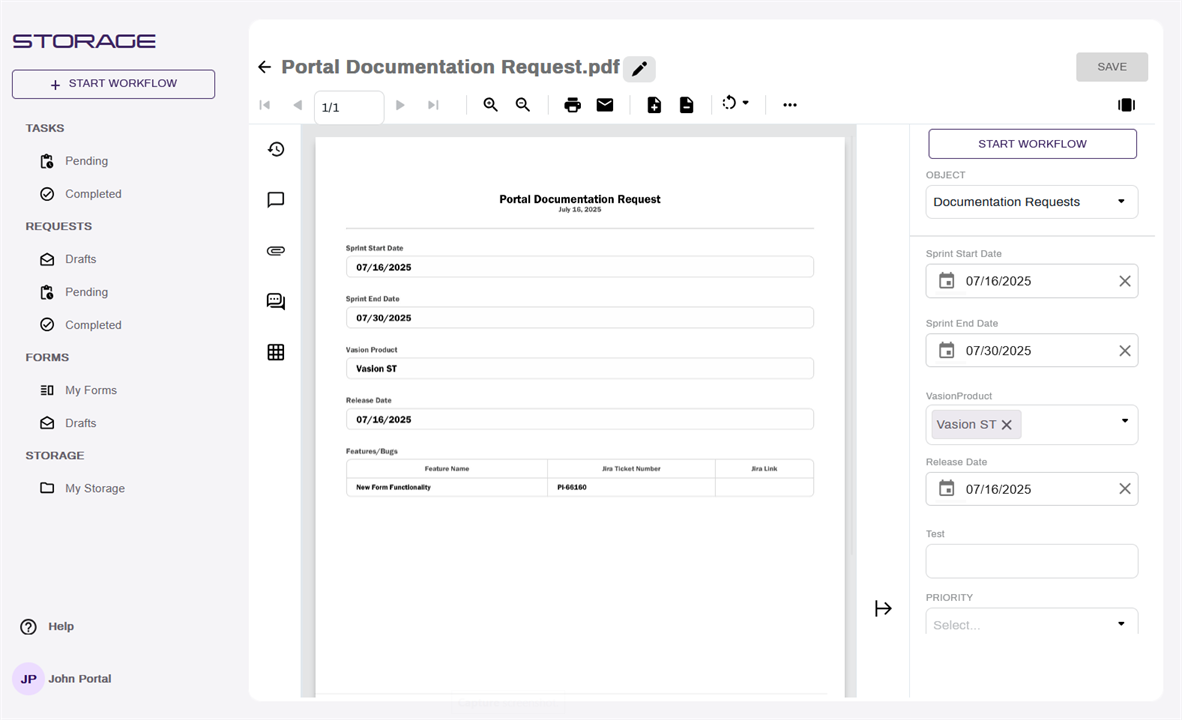
The following four types of views are available:
- Document View — this is the default view when you open a document.
- Data View — this is the default view when you open a document generated from a form through Storage or Search Results.
- Form View — this view is similar to data view, but will display in the form layout that generated the document.
- PDF View — this view will display a PDF document in the browser's native PDF viewer.
Use the links above to learn more about each view.
Supported File Extensions
Utilize Vasion Automate Pro to view the following file name extensions in the document viewer:
-
.pdf
-
Most image types (.gif, .tif, .png, .jpg, .heic)
-
.msg — if a .msg file has attachments, selecting an attachment, will open the Attachment Viewer. For more information on the Attachment Viewer, see Attachment Viewer.
-
Office files (.doc, .docx, .xls, .xlsx)
The following file name extensions are not supported as viewable in the document viewer, but can be added to Vasion Automate Pro's storage app.
- .csv
- .html
- .ppt
- .pptx
- .txt
- .xml
- .xps
- any other file name extensions not listed above
Documents in Workflow
If the document is part of a business process workflow, you can take action to move the workflow to the next step, complete a workflow, or depending on configuration, terminate a workflow. For signature workflows, if a document is assigned to you, you can sign or reject it. Additional options may be available to you, depending on your permissions.
Next Steps
For more information about the External User Portal, see External User Portal User Guide.