Last Updated: October 29, 2025
Portal Document View
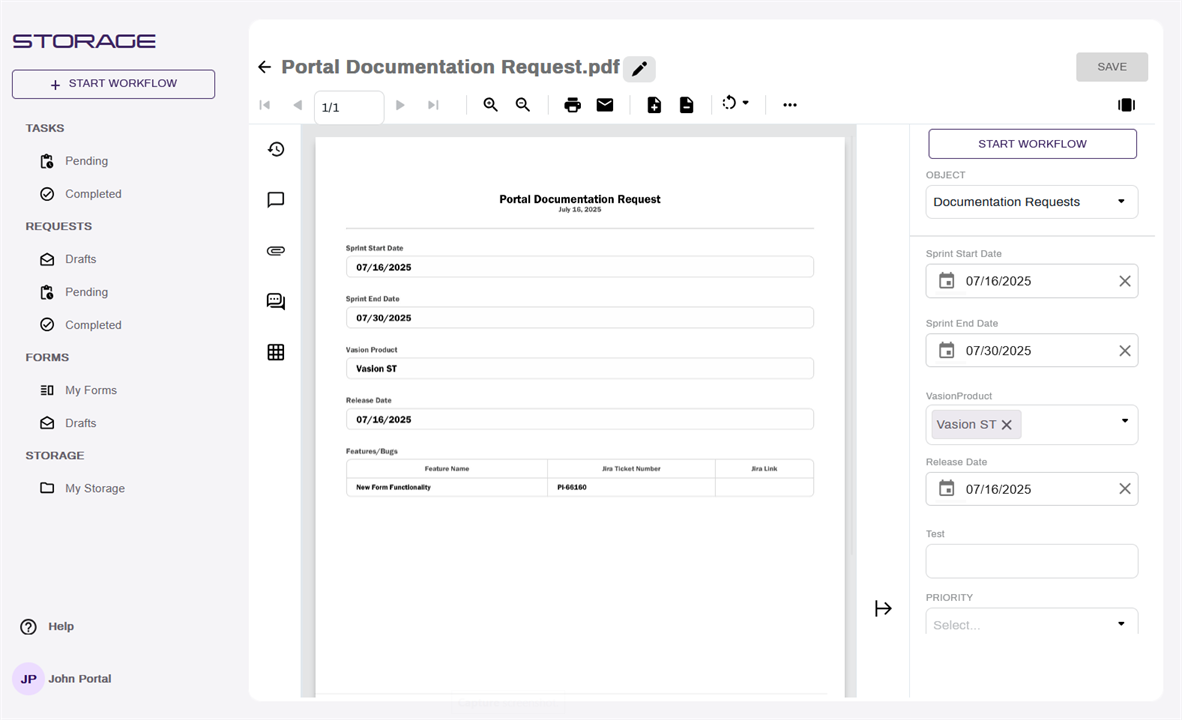
The Document View is the default view when you open any document. The document displays on the left and any actions you can take on the document and object data shows on the right.
If the document is in a workflow and assigned to you, use the workflow action buttons to move the document to the next step in the workflow. Additionally, with the right permissions, you can update any object data by typing directly into the appropriate object field.
If the document is saved in a storage folder, and is not part of any current workflow, the Start Workflow option displays on top right below the toolbar.
For more information about the Document Viewer in general and the views available, see Portal Document Viewer.
For more information about the External User Portal, see External User Portal User Guide.
Rename the Document
Select the Edit button  to change the name of the document. To save the new name select the Save button
  . To cancel select the Close button
  .
.
Change the View
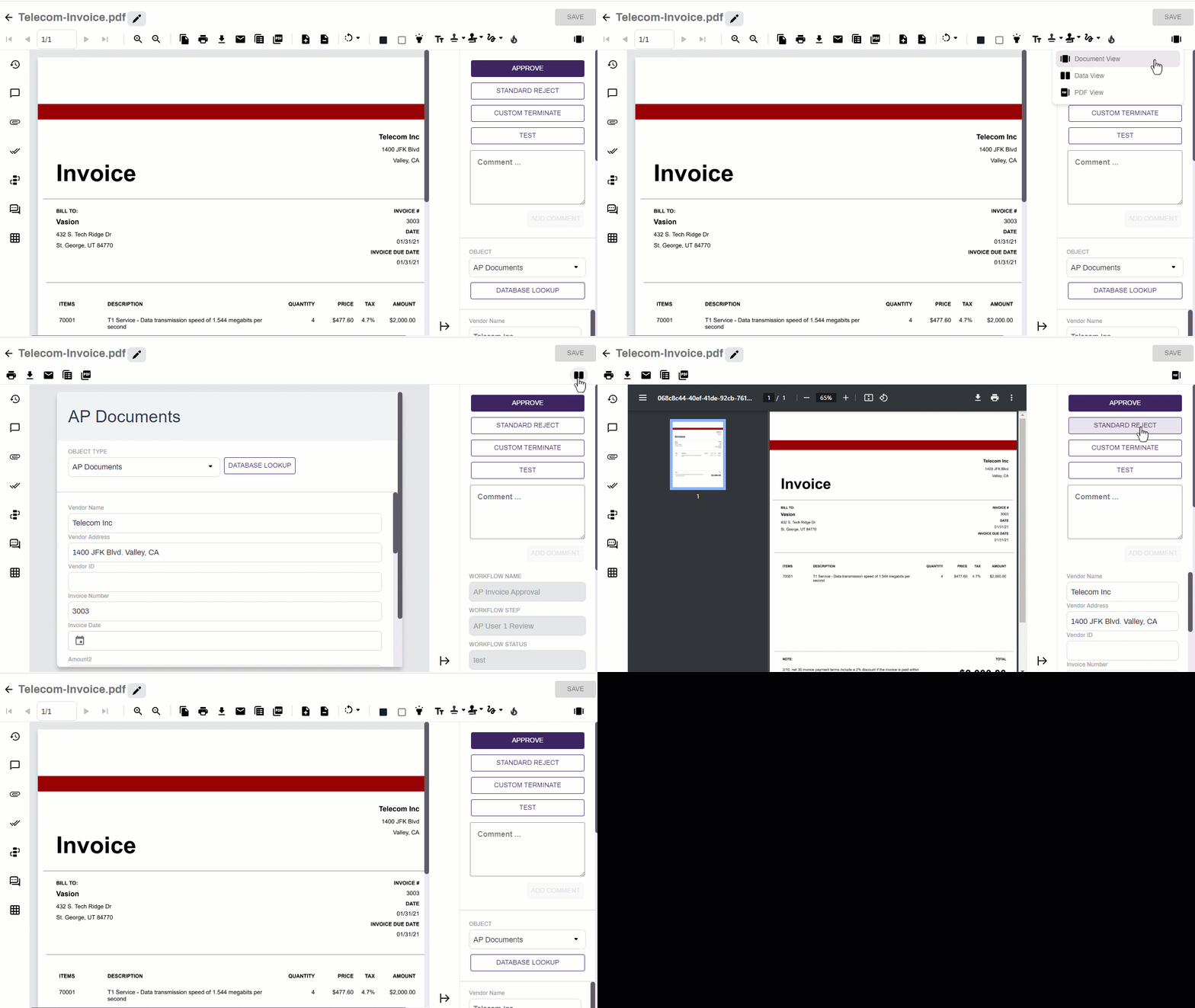
To change the view on the current document use the view filter on right side of the tool bar.
- Select the view filter
 .
. - Select the view you want from the drop-down.
Toolbar
The toolbar at the top contains buttons to control the view, print, email, highlight, insert or redact text, and apply stamps. The options displayed are based on user permissions. Depending on the file-type your assigned roles, you may only see some of the buttons.

Multiple Page Navigation
If there are multiple pages in the document, you can move through them using the page navigation buttons. Select the single forward or back arrows to move forward or back by one page. Select the double forward or backward arrows to move to the first or last page in the document.

Zoom In and Out
Use the appropriate button to zoom in or out in the document.

Print the selected document and any annotations. If the document is part of a signature workflow, you can also print the signature history.
- Select the Print button
 .
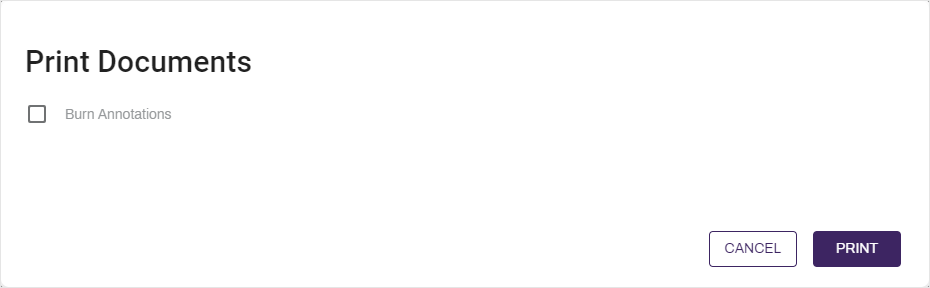
. - In the Print Documents modal, select from the following options:
- Burn Annotations — select this option to include unburned annotations on the document you’re printing.
- Include Signature Doc History – this option only displays if a document is part of a signature workflow. When selected, it downloads the current signature audit trail in a separate PDF.
- Select Print.
With the appropriate permissions, you can use the Email option to send a link to the document via email, or send the document as an attachment. Some options available when using this feature are:
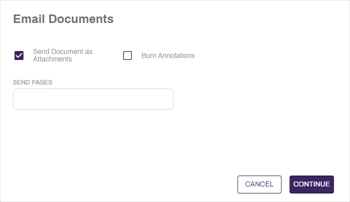
To send a document as an attachment, complete the following:
- Select the Send Document as Attachments button to send the document as an attachment to an email.
- Enter a number or series of numbers in the Send Pages field to limit which pages are sent as an attachment.
- Select the Burn Annotations button to apply all annotations to the document before sending.
To send a link to the document, complete the following:
- Deselect the Send Document as Attachments button to send a link to a document.
- Set a maximum number of views for the document by entering a number in the Max Views field.
- To allow for unlimited views, select the Unlimited Views option.
- Set a maximum number of document downloads by entering a number in the Max Downloads field.
- To allow for unlimited downloads, select the Unlimited Downloads option.
- Set an expiration for the document in hours by entering a number in the Expiration Hours field.
- To prevent the document from expiring, select the Never Expires option.
- Select the Recipient Login as Default Link User to allow external users to automatically log in as the configured default link user. For more information on configuring the default link user, see email Optional Settings.
- Set a maximum number of views for the document by entering a number in the Max Views field.
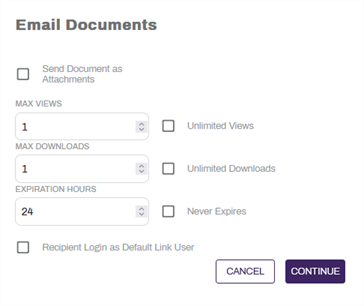
Select Continue to continue to the next step.
-
Enter an email address or addresses in the To, Cc, and Bcc fields for any recipients of the document.
-
Enter a subject in the Subject field.
-
Enter a message in the email body field.
-
Select the Send button to send the document.
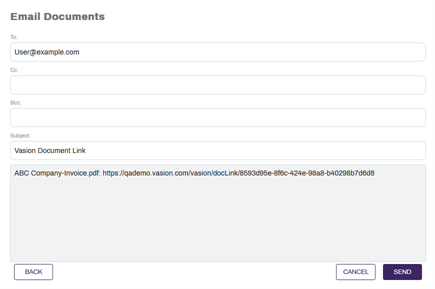
For more details, see Email.
Add Pages
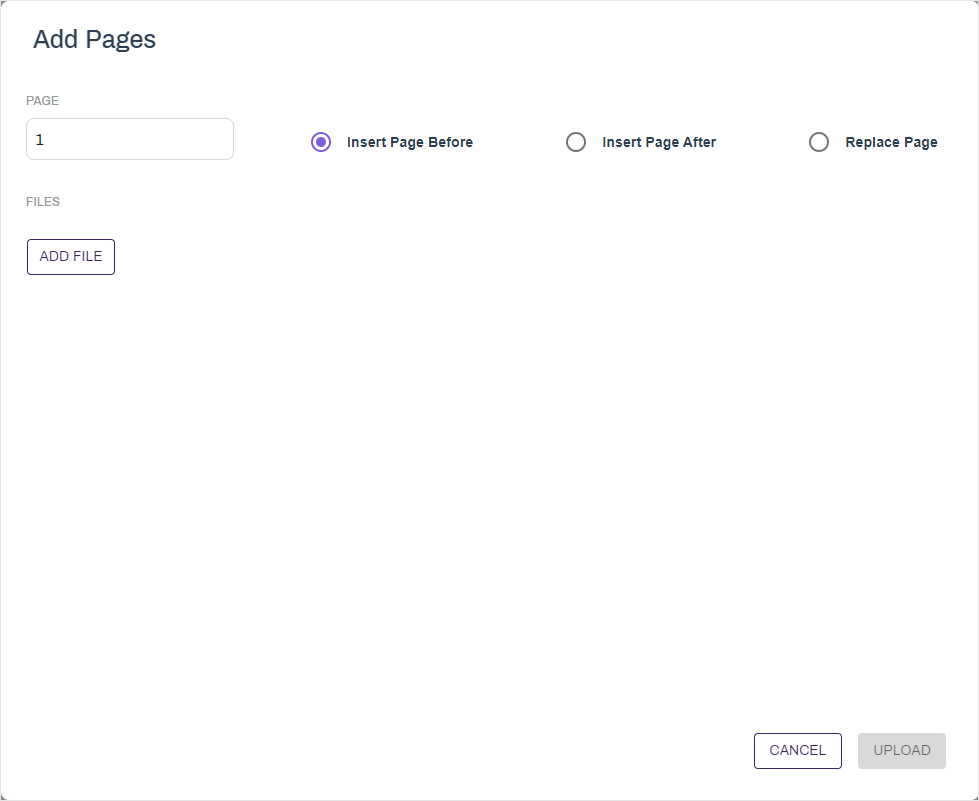
Add or replace pages on the current document at a specific point on the document by using the Add Pages button  . Options for adding pages are:
- Insert Page Before — inserts the page before the page indicated.
- Insert Page After — inserts the page after the page indicated.
- Replace Page — replaces the page indicated.
To learn more see Add Pages.
Delete Pages
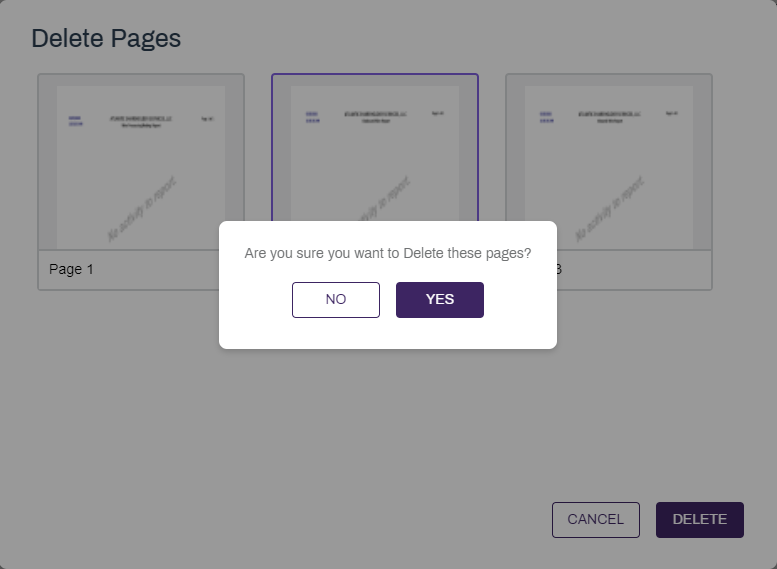
- Select Delete Pages
 from the toolbar.
 - In the Delete Pages modal select the page or pages you want to delete and then select Delete.
- Select Yes in the confirmation modal.
Rotate / Permanently Rotate
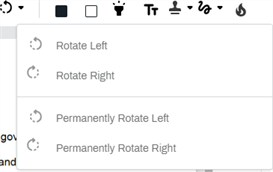
Documents can be rotated to the left or right only during the time you’re viewing them or permanently.
To rotate the documents:
- Select the Rotate button
 .
. - From the Rotate menu choose the option you want:
- Rotate Left — rotates the page to the left. If you leave the document, page resets to its original layout.
- Rotate Right — rotates the page to the right. If you leave the document, the page resets to its original layout.
- Permanently Rotate Left — rotates the page to the left and saves the new layout.
- Permanently Rotate Right — rotates the page to the right and saves the new layout.
Annotations
Utilize annotations to mark a document. Redact text or images, insert text, highlight elements, and add a stamp.
Redact Text
There are two options to redact text: Black Redaction  or White Redaction
  . To add a redaction box:
- Select the appropriate redact button.
- Select and drag over the content you want to redact.
Insert Text
To insert a text box:
- Select the Insert Text button
 .
. - Select and drag where you want to insert the text.
- Type the text you want included on the document.
Highlight
To highlight text in the document:
- Select the Highlight button
 .
. - Select and drag over the area you want to highlight.
Add a Stamp
Stamps are images that can be applied to a document. The images are configured and managed by the Vasion Automate Pro administrator.
To add a stamp:
-
Select the Stamp button
 .
. - Select and drag over the area you want to stamp.
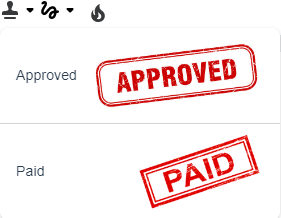
To add more images to use as stamp annotations, see Image Library.
Side Bar
Utilize the Object Side Bar to initiate or progress a workflow, change object, or edit index fields.
Workflow actions
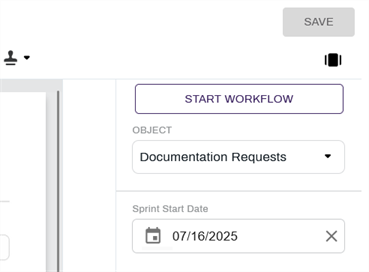
When viewing a document that is not in Workflow, select the Start Workflow button to initiate a workflow with the open document.
When viewing a document that is in workflow, the configured workflow action buttons will be displayed.
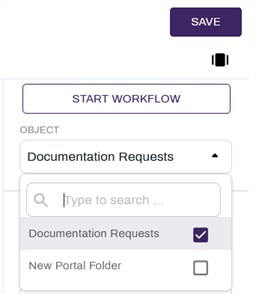
Select Object
Select the Object drop-down, then select an object to change the object.
Database Lookup
When you enter one or more specific values into field, the Vasion Automate Pro system performs a database lookup and utilizes that value to search for and retrieve additional, related information. Once found, this related information is then automatically filled into other corresponding fields within the sidebar, eliminating the need for you to type it manually.
To use a database lookup:
- Select the Database Lookup button from the sidebar.
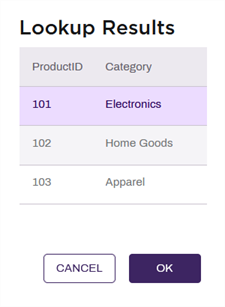
If there are multiple results for the lookup:
- Select the correct one from the Lookup Results modal.
- Select the OK button.
Edit Index Data
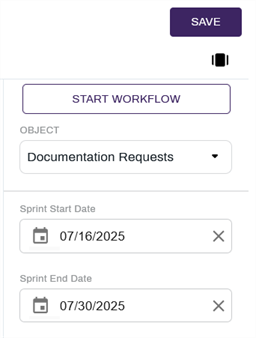
Enter data into the relevant index fields in the side bar, then select the Save button.
Document Info Bar
The toolbar on the left side of the window contains buttons for the document history, notes, versions, attachments and workflow comments. The options displayed on the toolbar depend on if there is an object or workflow that is associated with the document.

View Document History
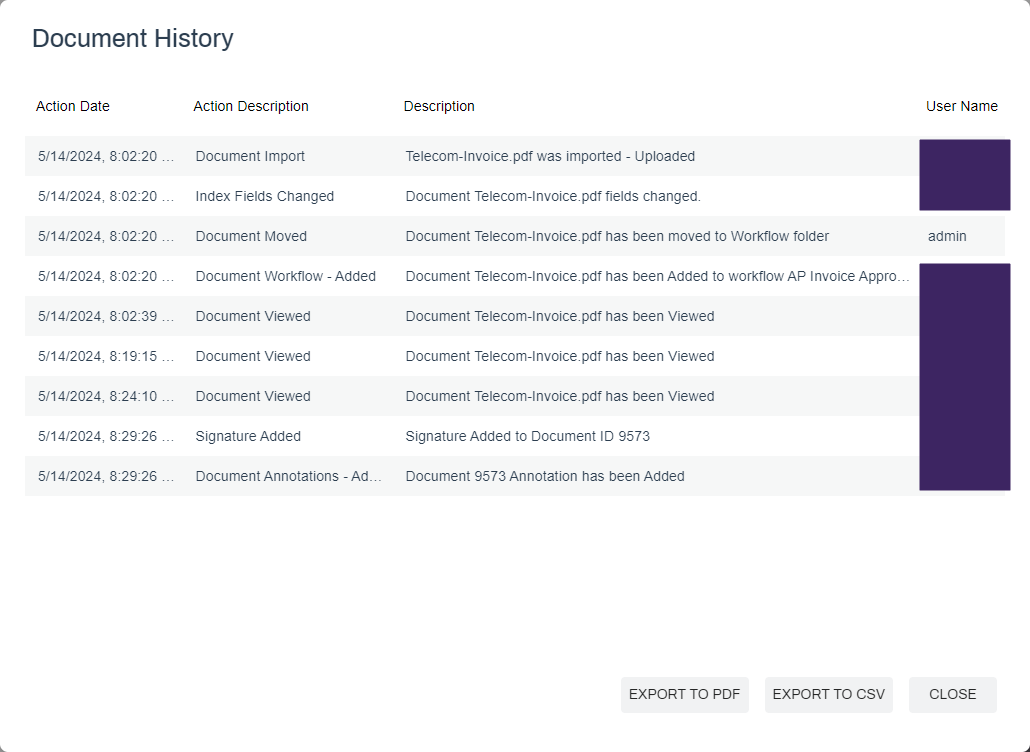
Document History  shows all of the actions that were taken on the document.
To view the history of a document, select the History button on the left side. In the Document History window, you can see the complete history, including entries for:
- When the documents were imported.
- When attribute fields were filled out.
- When a document was moved and the person that performed each task.
-
To export the history to a PDF, select the Export to PDF button.
-
To export the history to a comma-delimited (CSV) file, select the Export to CSV button.
-
Select the Close button to close the history.
Add a Note
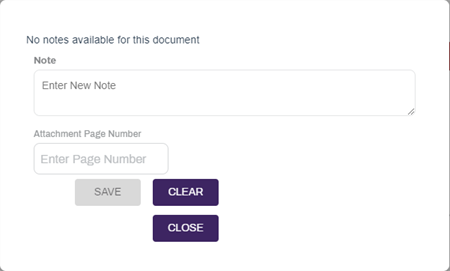
The Notes button  shows a badge with a number that indicates if there are any notes attached to the document.
When you add a note to a document, the note is attached to the document itself and not visible on the document. It also won’t be visible on a printed or emailed copy of the document.
To add a note:
- Select the Notes button.
- In the Notes window type your note in the Note field.
- Add a page number in the Attachment Page Number field if you want to reference a specific page in the document.
- Select the Save button to save your note. The note appears in the notes area of the window.
-
Select the Close button.
View Workflow History
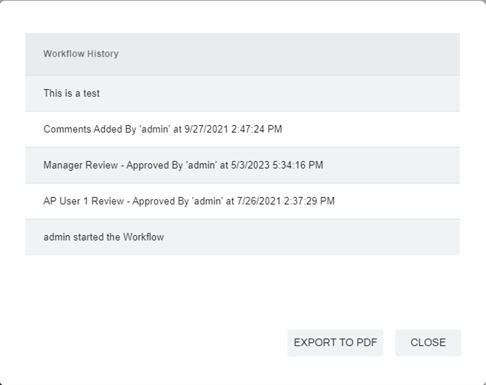
Any time an action is taken on a document when it is in a workflow, is recorded in the workflow history.
- Select the Workflow History button.
- To export the workflow history to PDF, select the Export to PDF button.
- When you're done select the Close button.
Attachments
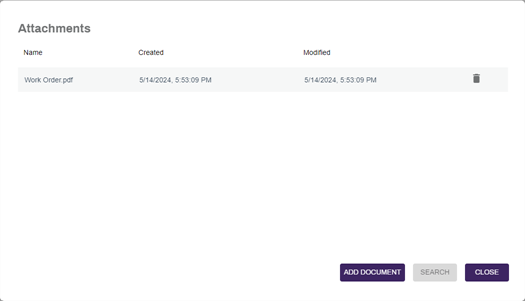
The Attachments button  shows a badge with a number that indicates how many files are attached to the current document.
You can view any supporting documents or add documents by using the Attachments button.
- Select the Attachments button.
- In the Attachment modal:
- Select any existing attachment to view, if applicable, or
Select the Add Document button to add a document.
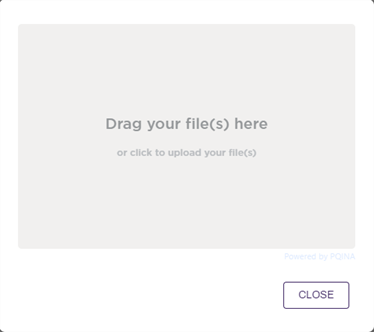
In the Upload modal, you can drag and drop the attachment into the upload section or select Browse to locate the file on your computer and select the attachment you want.
-
Select the Close button to close the Attachments modal.
Line Items
If the document was read by an Amazon Textract process, there will be one or more tables with the associated data stored with the document. The Line Items button  will bring up a display of any line item data that is associated with the document being viewed.
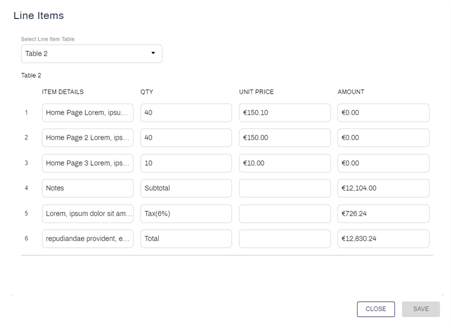
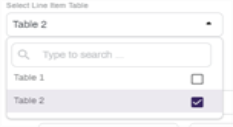
If there is more than one table associated with the document, you can use the Select Line Item Table dropdown to select which table to view.
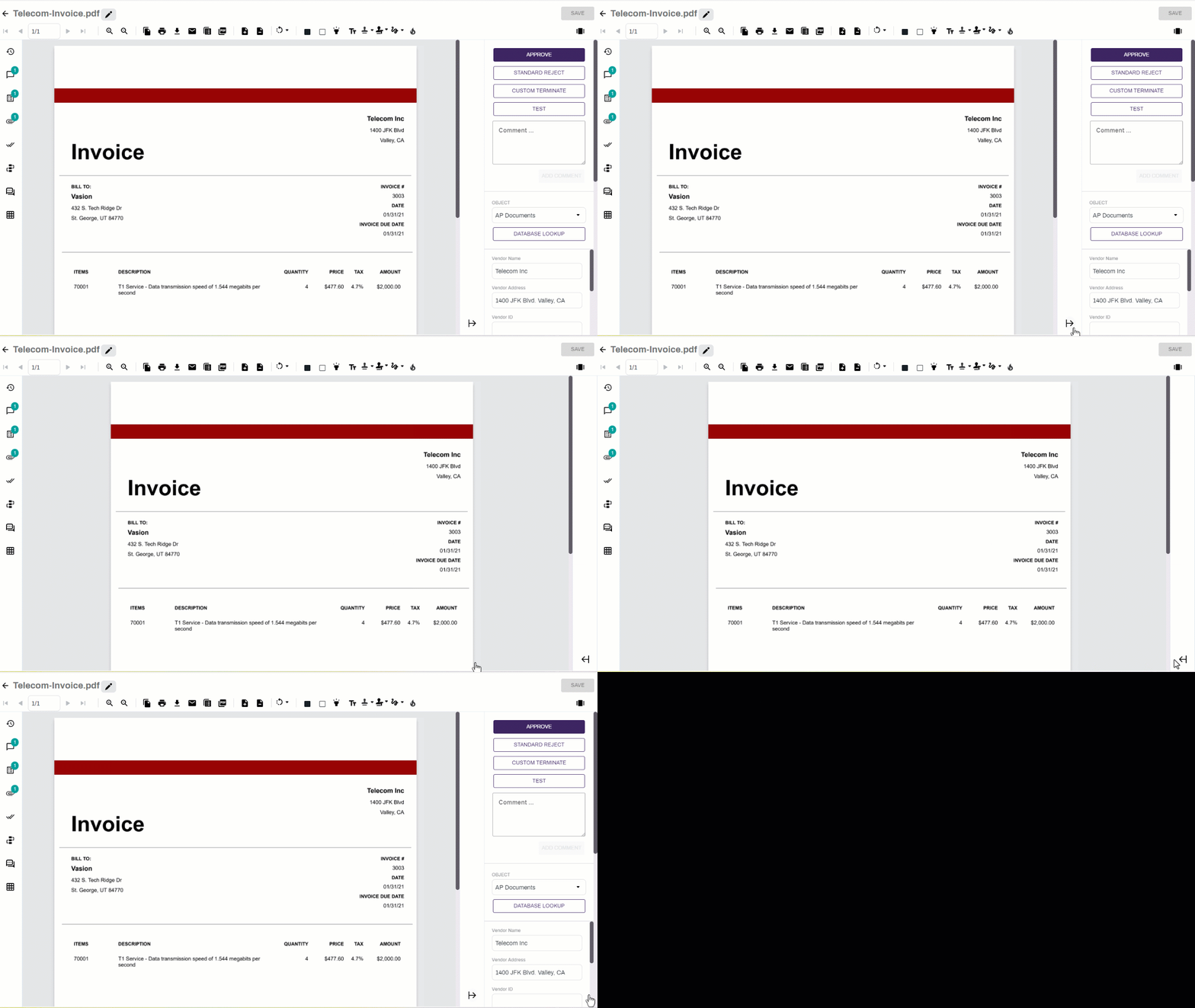
Collapse Object Side Panel
Select the Collapse button to collapse or expand the object side panel.