Last Updated: October 20, 2025
With the appropriate permissions, you can use the Email option to send a link to the document via email, or send the document as an attachment. Some options available when using this feature are:
To send a document as an attachment, complete the following:
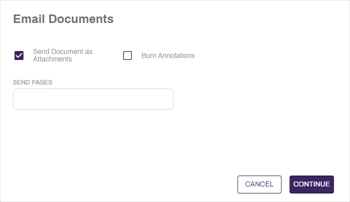
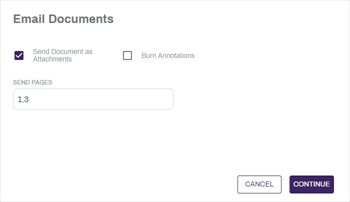
- Select the Send Document as Attachments button to send the document as an attachment to an email.
- Enter a number or series of numbers in the Send Pages field to limit which pages are sent as an attachment.
- Select the Burn Annotations button to apply all annotations to the document before sending.
To send a link to the document, complete the following:
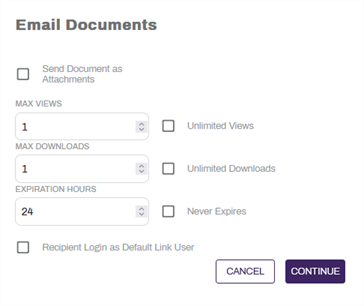
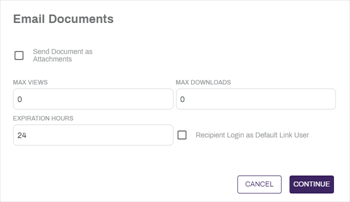
- Deselect the Send Document as Attachments button to send a link to a document.
- Set a maximum number of views for the document by entering a number in the Max Views field.
- To allow for unlimited views, select the Unlimited Views option.
- Set a maximum number of document downloads by entering a number in the Max Downloads field.
- To allow for unlimited downloads, select the Unlimited Downloads option.
- Set an expiration for the document in hours by entering a number in the Expiration Hours field.
- To prevent the document from expiring, select the Never Expires option.
- Select the Recipient Login as Default Link User to allow external users to automatically log in as the configured default link user. For more information on configuring the default link user, see email Optional Settings.
- Set a maximum number of views for the document by entering a number in the Max Views field.
Select Continue to continue to the next step.
-
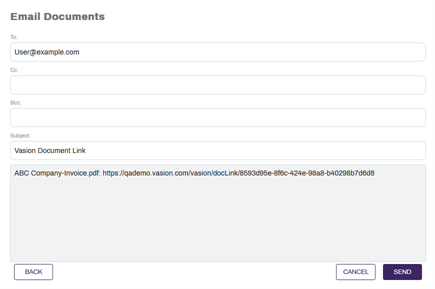
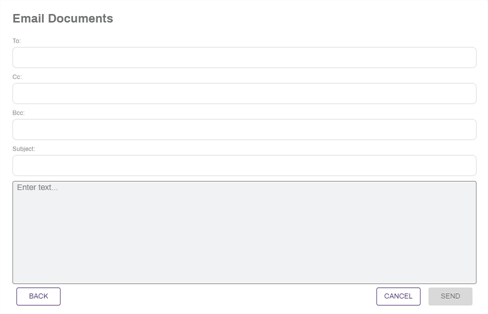
Enter an email address or addresses in the To, Cc, and Bcc fields for any recipients of the document.
-
Enter a subject in the Subject field.
-
Enter a message in the email body field.
-
Select the Send button to send the document.
Send as Attachment
- Select the document you want to email.
- Select the Actions button and then select Email.
- Leave the Send Document as Attachments selected.
- If the document contains signatures or annotations, select the Burn Annotations option to include them in the attachment.
-
Select Continue.
- Complete the appropriate Email Document fields.
-
Select Send.
Send Selected Pages
- Select the document you want to email.
- Select the Actions button and then select Email.
- Leave the Send Document as Attachments selected.
- If the pages contain signatures or annotations, select the Burn Annotations option to include them in the attachment.
- In the Send Pages field enter the page numbers for the pages you want to send. To send a range of pages, use a hyphen between the first page number and last page number, for example 2-7. To send single pages, use a comma, for example 3, 7, 9. You can combine hyphens and commas to get the pages you need, for example 2-7, 9, 15.
-
Select Continue.
- Complete the appropriate Email Document fields.
-
Select Send.
Send a Link
- Select the document.
- Select the Actions button and then select Email.
- In the Email Documents modal uncheck the Send Document as Attachments option.
- Select the options you want:
- Max Views – enter a number for the maximum number of times the recipient can view the document.
- Max Downloads – enter a number for the maximum number of times the recipient can download the document.
- Expiration Hours – enter the number of hours after the email is sent for the document link to remain active.
Recipient Login as Default Link User – use this option to let the recipient access the document directly from the link without logging into Vasion Automate Pro. This option is typically used if you're emailing the link to an external user who does not have login access.
- Select Continue.
- Complete the appropriate fields.
-
Select Send.
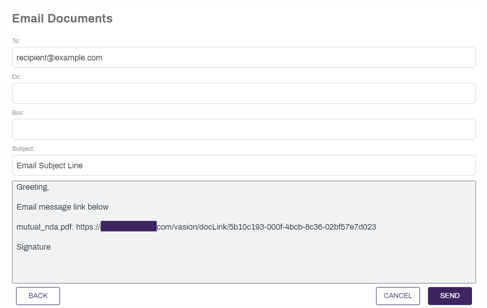
By default the document name followed by the link is displayed in the email body text box. Ensure you do not delete or alter the document information.