Last Updated: February 03, 2026
Textract Configuration
Here we provide the steps to set up a basic Textract configuration. For full details on the field mapping settings and options see Intelligent Capture with Textract.
Vasion Automate Pro supports the following Amazon machine learning models:
- Expense — used for accounting documents, for example, invoices, purchase orders, etc.
- Lending — used for agreements, contracts, loan documents, etc.
- Identity — used for personal identification, driver's licenses, passports, etc.
- Analyze — used for documents that do not meet the other endpoint criteria.
- Detect — used to detect the text in a document without needing to map data to an object.
In Vasion Automate Pro, these models are referred to as Textract API endpoints.
Requirements
Before you start a new Textract configuration you need the following:
- A sample document used to map the fields identified by the Textract process.
- An AWS account. Either of the following are required:
- The AWS access key ID and secret key.
- An AWS Role ARN and External ID.
- The Role will need to be given permissions for the products being used.
-
The
To utilize this feature, ensure that the IAM user has write access for the following actions:
-
ListCollections
-
CreateCollection
-
CreateUser
-
IndexFaces
-
AssociateFaces
-
SearchUsers
-
DeleteFaces
Textract Configuration
Once you have the required information, follow these steps.
- Navigate to Capture.
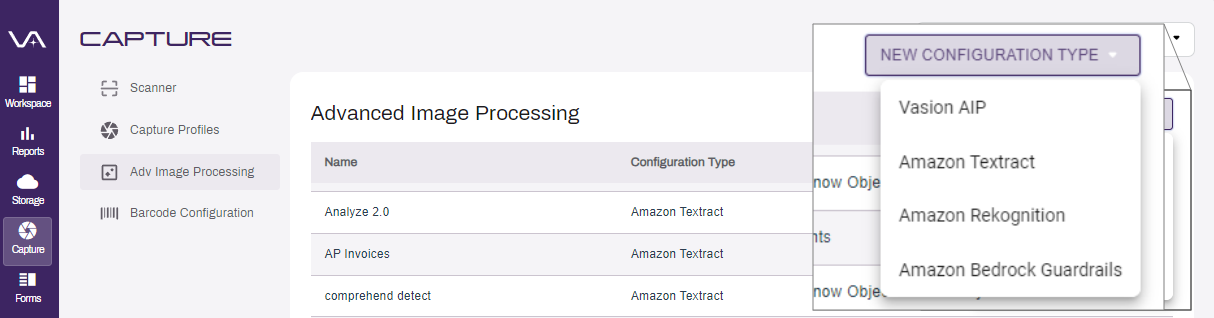
- Select Adv Image Processing from the side navigation.
- Select the New Configuration Type drop-down.
-
Select Amazon Textract.
-
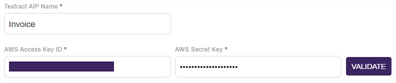
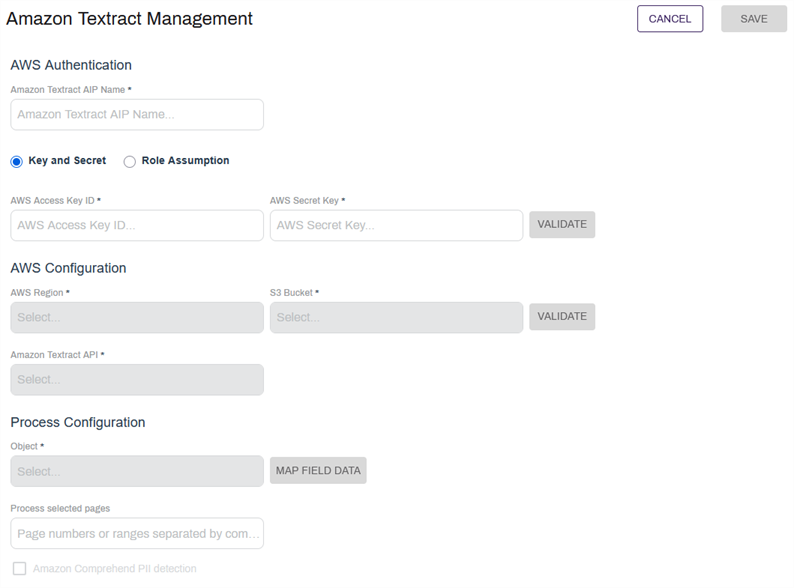
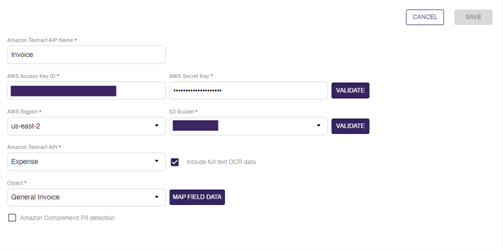
Enter a name for this Textract process in the Amazon Textract AIP Name field.
-
Select either Key and Secret or Role Assumption for authentication.
- Key and Secret:
- AWS Access Key ID — enter the key ID for your AWS account.
- AWS Secret Key — enter the secret key for your account.
- Role Assumption:
- AWS Role ARN — enter the previously configured ARN.
- Duration (seconds) — enter a duration for the authentication to be maintained before reauthenticating.
- External ID — enter the External ID associated with the AWS Role Arn.
- Key and Secret:
-
Select Validate.
- Once the AWS account is validated complete the following:
- AWS Region — use the drop-down to select the AWS region for the account.
- S3 Bucket — use the drop-down to select the bucket you created to use with Textract.
-
Select Validate.

- Once the Bucket is validated, complete the following:
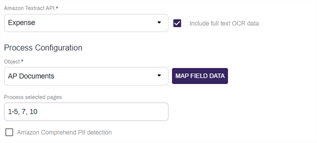
- Textract API — use the drop-down to select the ML model you want to use for this process.
- Include full text OCR data — select this option if you want to include an .rtf file containing all the text extracted by Textract. This option makes the data available in Full Text Searches.
- Object — use the drop-down to select the object where you want to save the data value.
Select Map Field Data to map the data returned from Textract to the Vasion Automate Pro object data. For information on this step, see Map Field Data.
If you would like to limit the number of pages sent to AWS, enter the desired pages numbers or ranges separated by commas in the Process Selected Pages field. An empty value will process all pages of the document.
Select the Amazon Comprehend PII Detection option to detect and handle PII found on documents. For more information on this functionality, see Comprehend PII configuration.
Textract API Options
There are five Textract API endpoints available to use within the Vasion Automate Pro advanced image processing configurations.
Expense
The Expense API endpoint can be used to extract data from documents like invoices, purchase orders, receipts, etc.
To configure the Expense endpoint:
- Select Expense from the Amazon Textract API drop-down.
- If you would like this process to produce a full text file of the document, select the Include Full Text OCR Data check box.

Identity
The Identity API endpoint can be used to extract data from documents like driver's licenses, passports, birth certificates, etc.
To configure the Identity endpoint:
- Select Identity from the Amazon Textract API drop-down.
- If you would like this process to produce a full text file of the document, select the Include Full Text OCR Data check box.

Lending
The Lending API endpoint can be used to extract data from documents like bank statements, collateral agreements, pay stubs, etc.
To configure the Lending endpoint:
- Select Lending from the Amazon Textract API drop-down.

Analyze
The Analyze API endpoint can be used to capture structured document data.
- Select Analyze from the Amazon Textract API drop-down.
- If you would like this process to produce a full text file of the document, select the Include Full Text OCR Data check box.

Detect
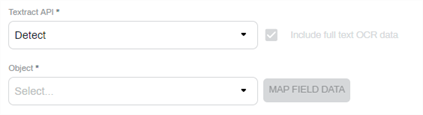
The Detect endpoint can be used to gather and organize all available text and data on the page being scanned. The Detect endpoint option automatically includes the full text OCR data option and you cannot edit the check box. The Map Field Data option is not enabled.
- Select Detect from the Amazon Textract API drop-down.
Line Item Data
The Include Line Item Data check-box will return individualize line item information so that it can be used for searches, stored and exported for other line of business applications, or used for external data analysis through other platforms.
The Line Item Fail Logic radio buttons apply to the collection of line items altogether. If you want to capture the line item data regardless of Amazon Textract's confidence, select the Ignore radio button.

Map the Field Data
In the Map Field Data page, complete the following:
Import the Sample File
- Select Browse
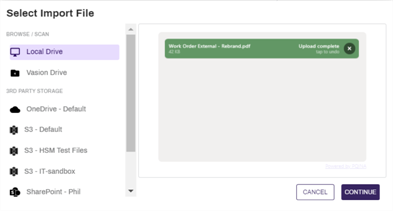
- In the Select Import File modal:
- Drag and drop the file, or
- Select the drive / storage, navigate to the file location, and select the file.
-
Select Continue.
Map the Fields
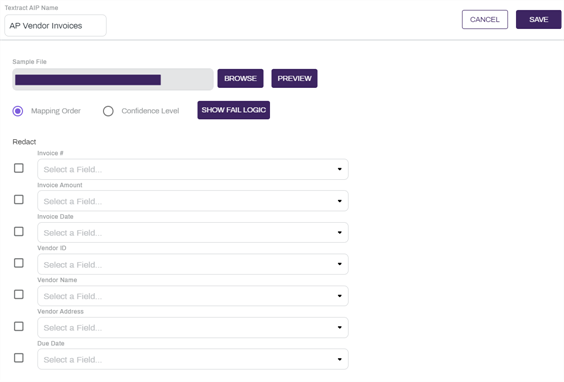
The object fields are shown as drop-downs. use the drop-downs to select the fields you want to map. Some fields can be left blank, depending on the object and how you want to process the file. If you want to see a preview of the sample file, select the Preview button.
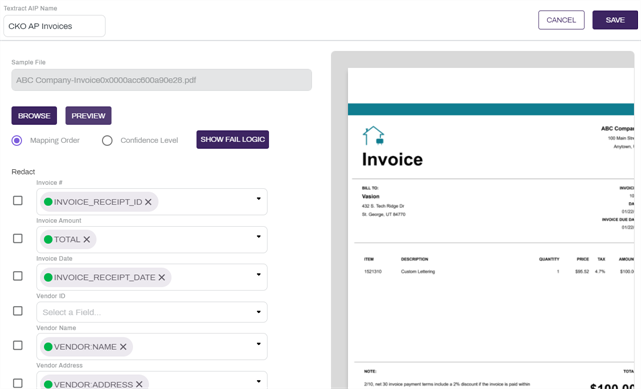
Select a chip from one of the mapped object drop-downs to see the value in the document highlighted with the confidence score color.
Redact
For object fields that contain sensitive data, select the Redact option. When the file is processed by Textract and the confidence level is 61% and above, a version of the document is created with the information contained in the selected field redacted. When you open the document in the Document Viewer, you can still see the data in the object fields in the side panel.
Save the Configuration
- When you complete the mapping, select Save.
-
In the Configuration page, select Save.
Amazon Textract supports PNG, JPEG, TIFF, and PDF file formats.
No. Vasion-hosted users can initiate document processing for invoices, POs, contracts, driver's licenses, and more through Amazon Textract's endpoints: expenses, lending, identities, and analyzing documents.