Last Updated: February 03, 2026
Document Content Analysis & Validation with Bedrock Guardrails
Here we provide the steps to set up a basic Amazon Bedrock Guardrails configuration.
Requirements
- An AWS account. Either of the following are required:
- The AWS access key ID and secret key.
- An AWS Role ARN and External ID.
- The Role will need to be given permissions for the products being used.
-
The
To utilize this feature, ensure that the IAM user has write access for the following actions:
-
ListCollections
-
CreateCollection
-
CreateUser
-
IndexFaces
-
AssociateFaces
-
SearchUsers
-
DeleteFaces
Bedrock Guardrails Configuration
Once you have the required information, follow these steps.
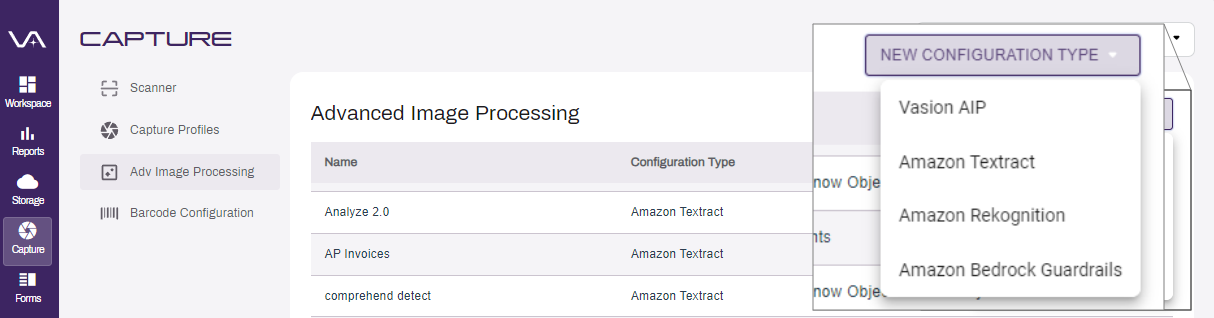
- Navigate to Capture.
- Select Adv Image Processing from the side navigation.
- Select the New Configuration Type drop-down.
-
Select Amazon Bedrock Guardrails.
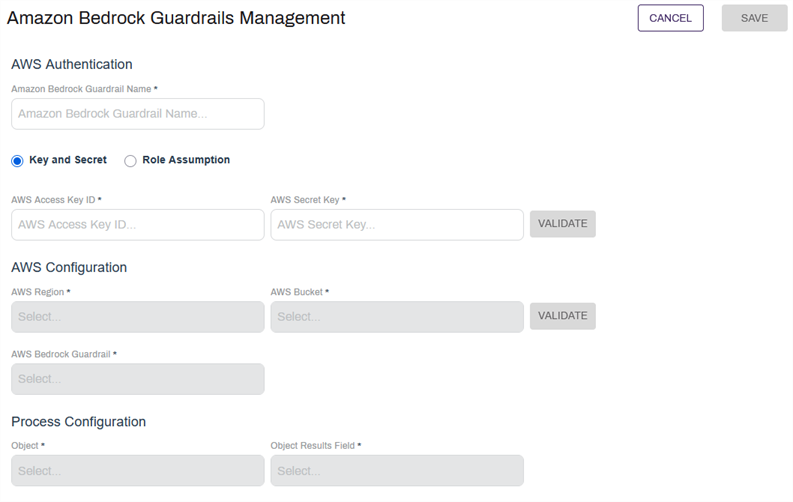
- Enter a name for the Guardrails configuration in the Amazon Bedrock Guardrail Name field.
-
Select either Key and Secret or Role Assumption for authentication.
- Key and Secret:
- AWS Access Key ID — enter the key ID for your AWS account.
- AWS Secret Key — enter the secret key for your account.
- Role Assumption:
- AWS Role ARN — enter the previously configured ARN.
- Duration (seconds) — enter a duration for the authentication to be maintained before reauthenticating.
- External ID — enter the External ID associated with the AWS Role Arn.
- Key and Secret:
-
Select Validate.
- Once the AWS account is validated complete the following:
- AWS Region — use the drop-down to select
- AWS Bucket — use the drop-down to select the bucket you created to use with Textract.
-
Select Validate.
- Once the AWS Bucket is validated, complete the following:
AWS Bedrock Guardrail: use the drop-down to select the guardrail that was configured on AWS.
Object: use the drop-down to select the object where you want to save the content analysis value.
Object Results Field: use the drop-down to select the field where you want to save the analysis value.
-
Select Save.
The analysis values saved in the selected object field will contain the results of the denied topics from the guardrail.
For implementation of this configuration, see Scheduled AIP.