Last Updated: February 03, 2026
Admin
The Admin app is for Vasion Automate Pro administrators to configure email settings, feature flags, global settings, and check software versions
Access the Admin App
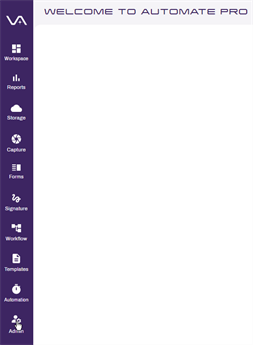
Access to the Admin app requires the appropriate permissions. To access Admin, select the Admin icon from any app.
Usage Dashboard
The Usage Dashboard is designed to give statistics on the use of Vasion Automate Pro. Available data includes totals of active workflows, Forms, Folders, and Users as well as storage space used. Additionally there is a graph that shows the number of transactions completed between customizable date ranges. For details see Usage Dashboard.
Search Setup
To help users to search for content easily and efficiently across your storage locations, the Search Setup section includes details for setting up Object Searches, Full Text Searches, Global Search, Linked Search, and more. You can manage search access by applying users or group permissions to searches, and update or change existing searches. For details see Search Setup
Storage Setup
The Storage Setup section lets you add and modify parent folders, configure cloud storage and manage custom views. For details see Storage Setup.
Security & Permissions
The Security & Permissions section is where you add users and groups, manage app permissions, set up two-factor authentication and more. Access to Vasion Automate Pro, it's various apps and content require user authentication and appropriate permissions. To learn more about setting up users, groups, roles and more, see Security & Permissions.
System Settings
The System Settings section gives you two options:
- Configure the SMTP settings to send emails from Vasion Automate Pro. For details see Email Settings.
- View Vasion Automate Pro product information. For more details, see About Vasion.
- Enable or disable feature flags. For details, see Feature Flags.
- Configure Global Settings. For details, see Global Settings.
Integrations
The Integrations section provides you with the ability to configure the following:
- Authentication — connect a SAML single sign-on ID service
- Software — connect Salesforce
For on-prem customers, you can find server requirement details here.