Last Updated: February 03, 2026
Image Library
Annotations can be made using any of the available images in the Image Library within Vasion Automate Pro. See below for uploading and configuring these images.
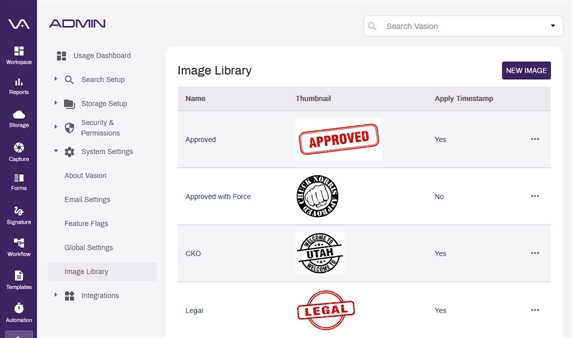
New Image
To upload a new image to be used as an annotation stamp:
-
Select the New Image button.
-
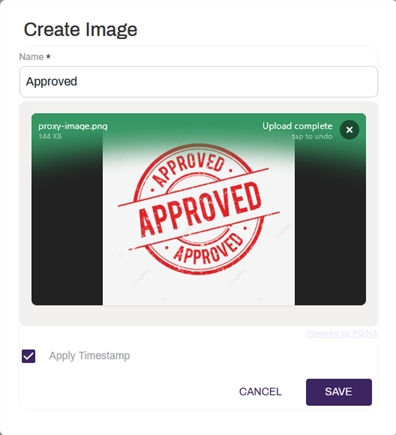
Enter a name for the image in the Name field.
-
Select and drag your image into the Create Image modal, or select the click to upload your Image File to browse your local files for an image.
-
To include a timestamp with the image when the image is added as an annotation, select the Apply Timestamp option.
-
Select the Save button.
Edit Image
To edit an existing image that is used as an annotation stamp:
-
Select the More icon
 on the image to be edited.
 -
Select the Edit Image button.
-
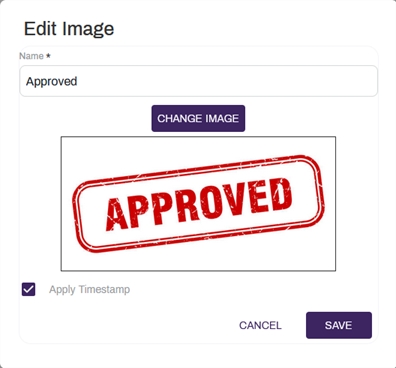
Edit the name for the image in the Name field.
-
To change the image:
-
Select the Change Image button.
-
Select and drag your image into the Edit Image modal, or select the click to upload your Image File to browse your local files for an image.
-
-
To include a timestamp with the image when the image is added as an annotation, select the Apply Timestamp option.
-
Select the Save button.
Delete Image
To delete and image from the Image Library:
-
Select the More icon
on the image to be deleted. -
Select the Delete Image button.
-
Select the Yes button in the confirmation modal.