Last Updated: December 17, 2025
Group Management
A Group is a list of users who have similar capabilities, access security or workflow processes in Vasion. When you create a group, you assign roles to it. The roles are then applied to every user in the group, so you don’t need to assign the roles individually. This allows you to group similar users and save time.
You can group users in the following ways:
- Functional groups — users who have similar functional abilities. The user permissions are based on the functional needs of the group to perform their duties.
- Department groups — users who should have similar access to folders and documents. The users are often members of the same department or have the same security levels.
- Workflow groups — users who are assigned to process and move documents one or more steps for approval, denial or forwarding for the process to complete. These groups should only include users who should be assigned specific workflow steps.
- Portal Groups — users that are external to your company that will need to upload, process, or approve documents for your business processes.
Create a Group
- From the Admin app, select Security & Permissions in the side navigation
- Select Group Management
- Select the New Group button.
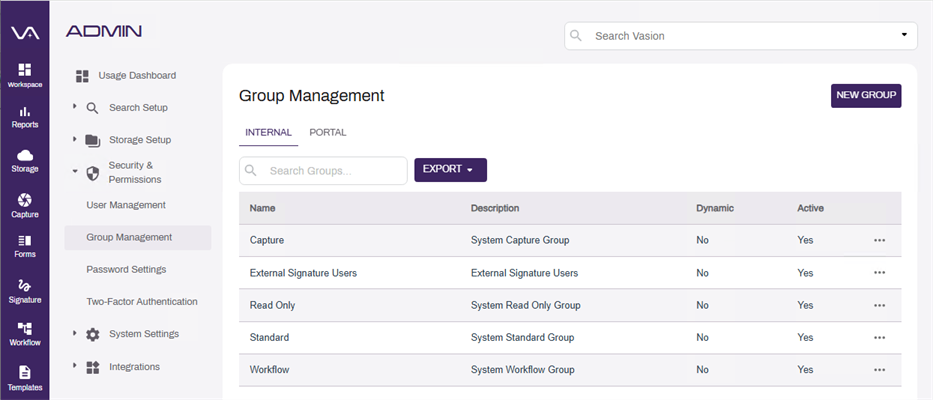
- In the Create Group modal enter the following:
- Name — enter the name of the new group.
- Description — enter a description for the group.
- Dynamic Group — check this box if you are using an identity provider or LDAP login. For more information on identity providers and LDAP logins, see SAML Connections.
- Active — check this box to make the group active so they can access Vasion Automate Pro.
- LDAP Group — enter the LDAP group for syncing.
- Department — select a department from the drop down.
-
Select the OK button.
Create a Portal Group
To manage the users of the External User Portal, portal groups can be utilized to limit permissions and document access. For more information on what the External User Portal can do and how to configure it, see External User Portal.
- From the Admin app, select Security & Permissions in the side navigation
- Select Group Management
-
Select the Portal tab.
- Select the New
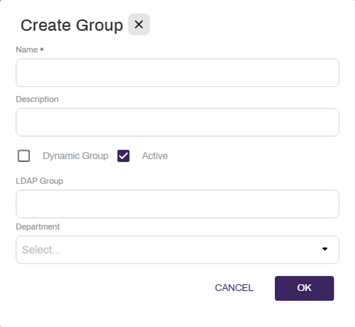
- In the Create Group modal enter the following:
- Name — enter the name of the new group.
- Description — enter a description for the group.
- Active — check this box to make the group active so they can access Vasion Automate Pro.
-
Select the OK button.
Edit Group
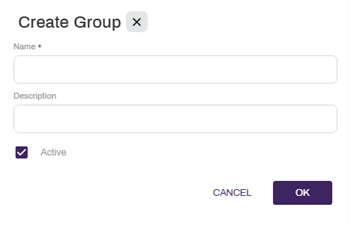
- On the Group Management page, select the More
 button for the group you want to edit.
 - From the drop-down, select Edit Group.
- In the Edit Group modal, make the changes you want to the group’s profile.
-
Select the OK button.
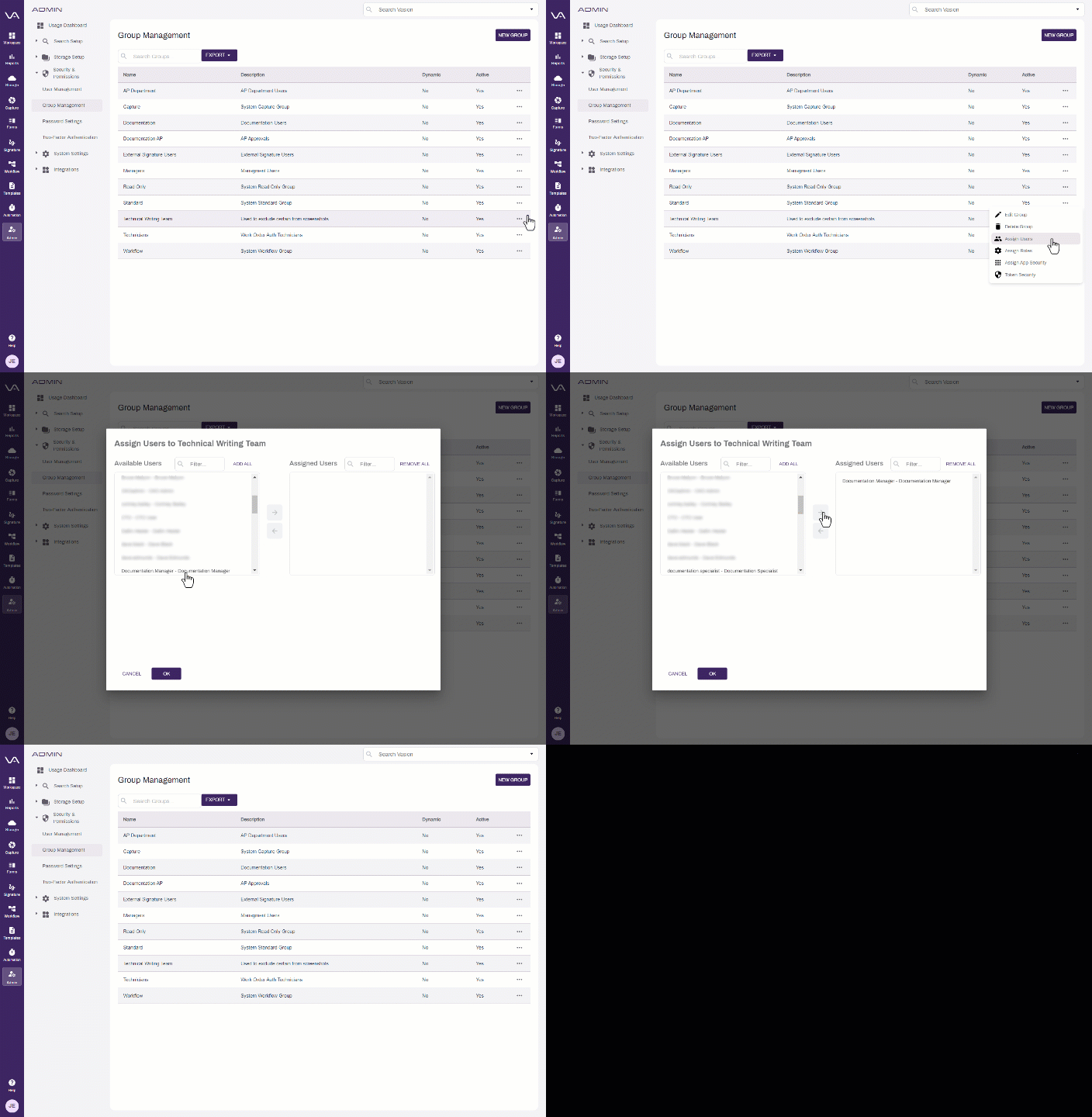
Assign Users to a Group
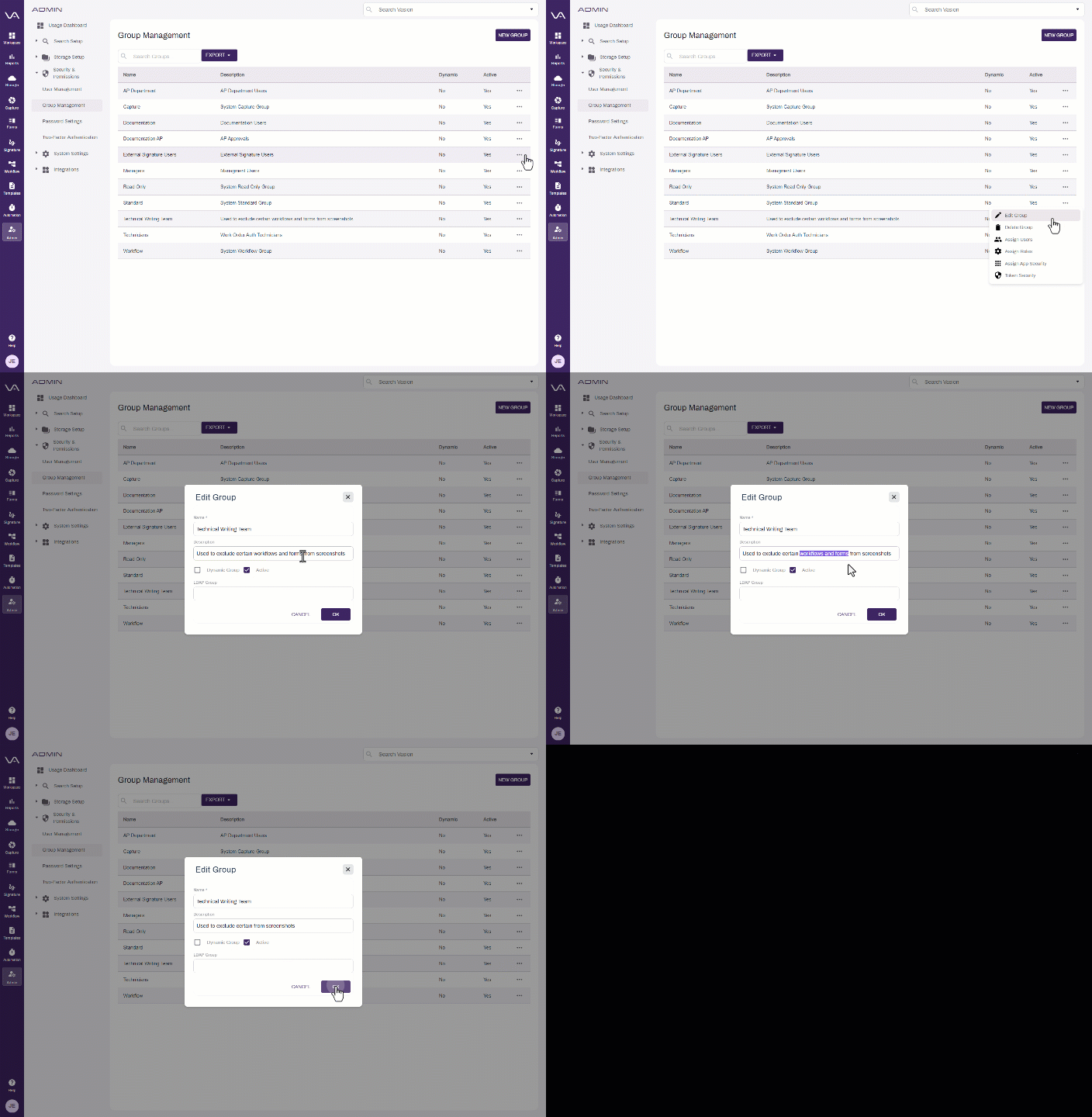
- On the Group Management page, select the More button for the group you want to edit
- From the drop-down, select Assign Users
- Select the user(s) in the Available Users list that you’d like to assign to the new group
- Select the right arrow button
 to move the selected user to the Assigned Users list.
 - Select the OK button
Assign Roles to a Group
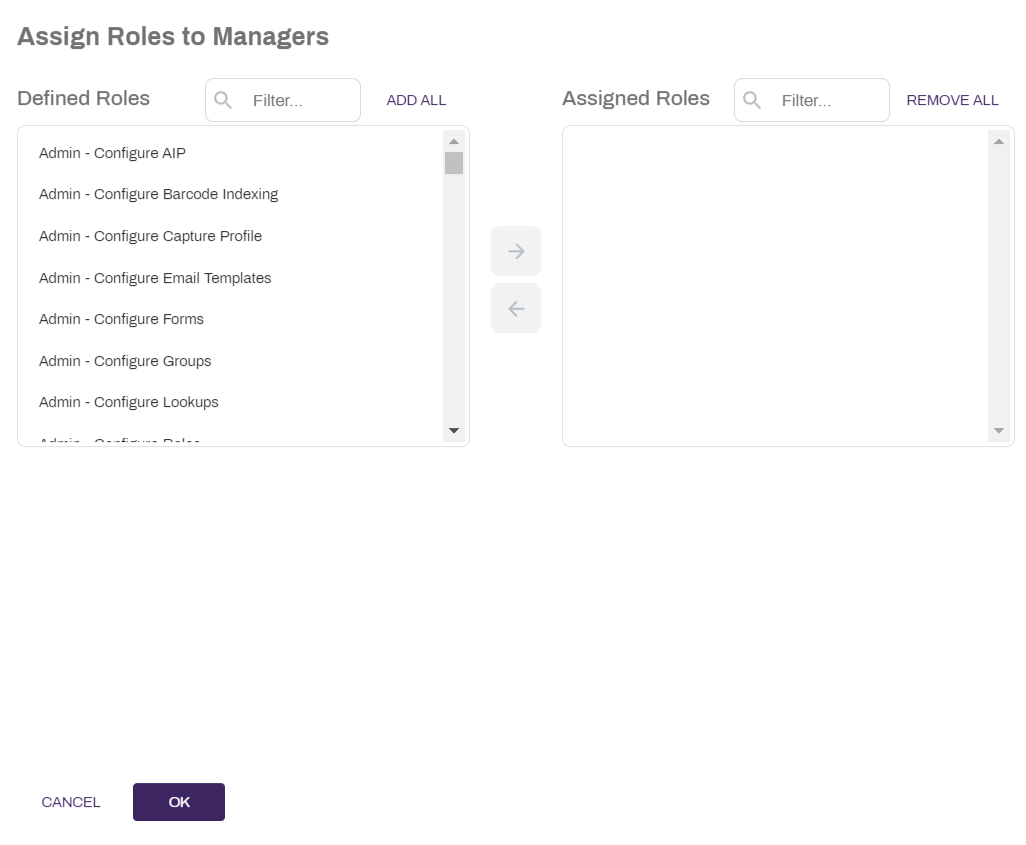
- Select the More button for the group you want to assign roles and select Assign Roles.
- Select the role(s) in the Defined Roles list that you’d like to assign to the new user. You can select more than one.
-
Select the right arrow button
to move the selected role to the Assigned Roles list.If you’d like to add all of the available roles, select Add All. If you’d like to remove all of the roles from the Assigned Roles list, select Remove All.
-
Select the OK button.
Assign Apps to a Group
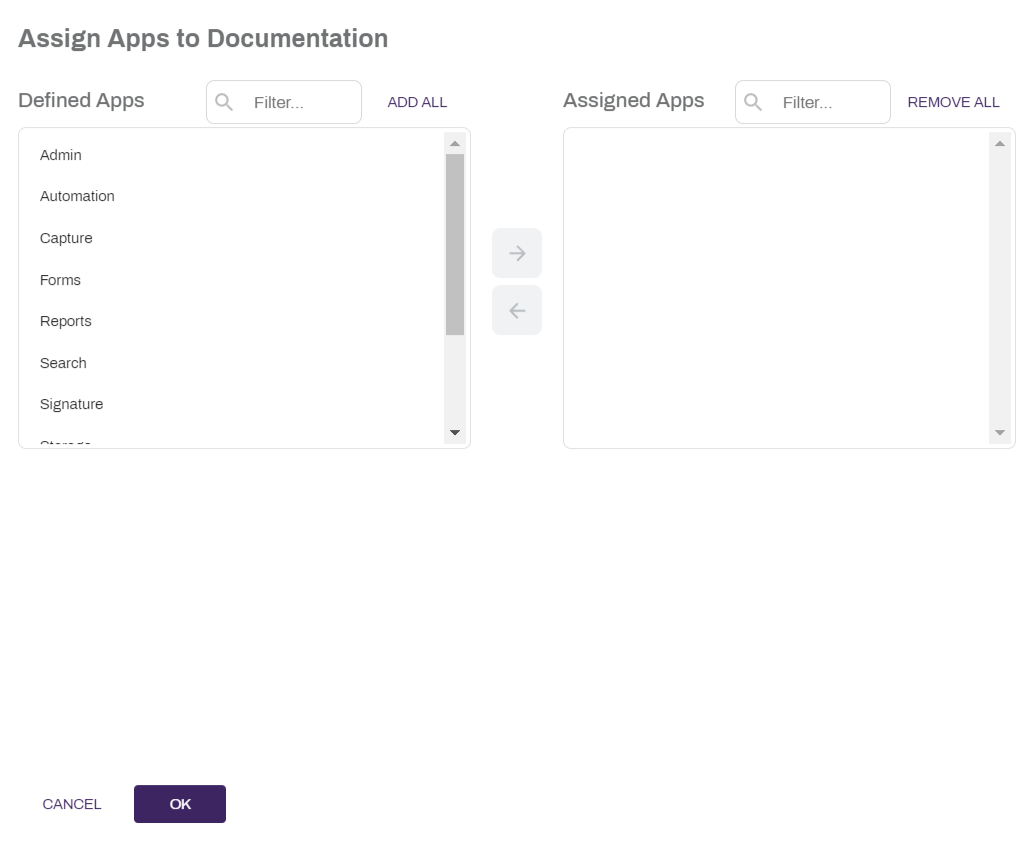
- Select the More button for the user to whom you want to assign roles and select Assign App Security.
- Select the app(s) in the Defined Apps list that you’d like to assign to the user. You can select more than one.
-
Select the right arrow button
to move the selected app to the Assigned Apps list.If you’d like to add all of the available apps, select Add All. If you’d like to remove all of the apps from the Assigned Apps list, select Remove All.
- Select the OK button
Make Group Inactive
- On the Group Management page, select the More button for the group you want to edit.
- From the drop-down, select Edit Group.
- Uncheck the Active box.
- Select the OK button.
Delete a Group
- On the Group Management page, select the More button for the group you want to edit.
- From the drop-down, select Delete Group.
- Select the Yes button to confirm that you want to delete the group.
Token Security for a Group
Token security is an additional level of security and a flexible way to limit access to documents by users or user groups based on object field values. It acts like an electronic key to access restricted documents. To learn more, see Token Security.
Follow these steps to add token security to a group.
- On the button for the
- From the drop-down, select Token Security.
- In the Token Security modal, complete the following:
- In the text field, enter the field value you want to use as the parameter for the security token. The text you enter here must match a value in the object field you select.
- Object — use the drop-down to select the object with the data you want to secure. The list only contains objects that have token security already enabled.
- Field — use the drop-down to select the field that contains the value used for the token. The list only contains objects that have token security already enabled.
- Select the Add button
 next to the token name.
- Select the OK button to save