Last Updated: February 03, 2026
Password Settings
Vasion Automate Pro can be configured to require users to create strong passwords by selecting password settings. To configure the password settings for Vasion Automate Pro:
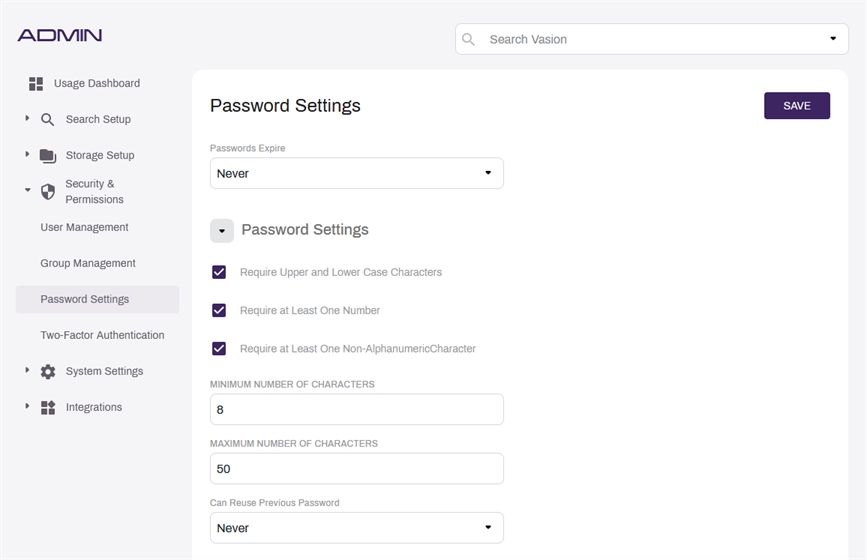
Password Expiration
Passwords in Vasion Automate Pro will not expire by default. To enable password expiration:
-
Select the Passwords Expire drop-down.
-
Select the desired expiration timeframe.
-
Select the Save button.
Password Settings
For more security settings regarding passwords, expand the Password Settings section. Options available include the following:
| Setting Name | Description | Notes |
|---|---|---|
| Require Upper and Lower Case Characters | Select this option to require users to use at least one of each upper and lower case characters. | |
| Require at Least One Number | Select this option to require users to use at least one number character. | |
| Require at Least One Non-Alphanumeric Character | Select this option to require users to use at least one non-alphanumeric character. | |
| Minimum Number of Characters | Enter a number of the minimum number of characters a user can create for their password. | Entering 0 will disable this requirement. |
| Maximum Number of Characters | Enter a number of the maximum number of characters a user can create for their password. | Entering 0 will disable this requirement. |
| Can Reuse Previous Password | Select an option from this drop-down to configure how often a user can reuse passwords. | To disable this requirement, deselect a password count selection. |
After updating any of the options available here, select the Save button to save your changes.
Changes in password requirements will not enforce existing passwords to be updated. Vasion Automate Pro will enforce those requirements the next time a user updates their password.