Last Updated: July 08, 2026
Two-Factor Authentication
Vasion Automate Pro can be configured to require two-factor authentication when users log in. See the following to enable this functionality.
Requirements
Before beginning the process of configuring two-factor authentication, ensure you have completed the following:
-
Created a Twilio Account.
-
Purchased a phone number through Twilio.
Twilio Two-Factor Authentication Setup
To enable two-factor authentication in Vasion Automate Pro:
-
Create a Twilio Account.
-
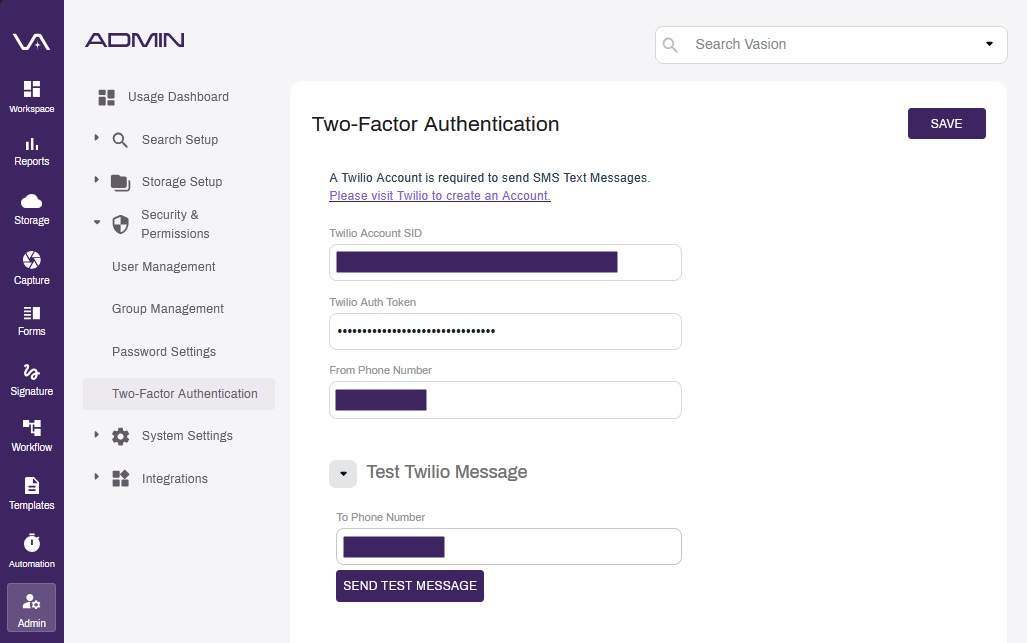
Enter your Twilio Account SID into the Vasion Automate Pro Twilio Account SID field.
-
Enter your Twilio Auth Token into the Vasion Automate Pro Twilio Auth Token field.
-
Enter the outgoing phone number of your Twilio account into the Vasion Automate Pro From Phone Number field.
-
Expand the Test Twilio Message section.
-
Enter a phone number to receive the test message into the To Phone Number field.
-
Select the Send Test Message button.
-
-
Select the Save button.
Related Topics
For other Vasion Automate Pro security configurations, see the following: