Last Updated: February 03, 2026
Internal Users
Each user has a profile that contains information about that user, including what the user can do in the system and which areas they can access. Once you create a user profile, you can assign roles to the user and add the user to a group, if desired.
Create a New User Profile
- Select Security & Permissions in the side navigation.
- Select User Management.
- Select
-
Enter information about the new user. Required fields are indicated by an asterisk (*). Here are some additional details:
-
- Password — enter a password for the user.
- Mobile — entering the user’s cell phone number is optional. It can be used for two-factor authentication.
- Department — Use the drop-down to select the department to which the user belongs.
- Department Admin — check this box if you want to designate the user as a department admin.
-
Login Type — use the drop-down to select the type of login you want for the user.
- Auto login — launches Vasion without requiring the user to enter their user name and password. The user name entered in the user profile must match the user's PC login name.
- SAML — uses an identity provider (IdP) An identity provider (abbreviated IdP or IDP) is a system entity that creates, maintains, and manages identity information for an organization that can be authenticated by a computer system or network. It is referred to as a security principal in Java and Microsoft literature. IdP also provides authentication services to relying applications within a federation or distributed network. user credentials.
- Vasion Login — uses Vasion Automate Pro user profile credentials.
- Windows Login — uses LDAP authentication to access Vasion Automate Pro.
- Active — deselect this box to deactivate the user and prevent access to Vasion Automate Pro.
- Admin — check this box to make the user an system administrator in Vasion Automate Pro. This option gives administrative access to all areas of Vasion Automate Pro.
-
-
Select the
If you have set up a default password, enter that password in the Password field of the Create User modal. When the user logs in for the first time, the system prompts them to create a new password.
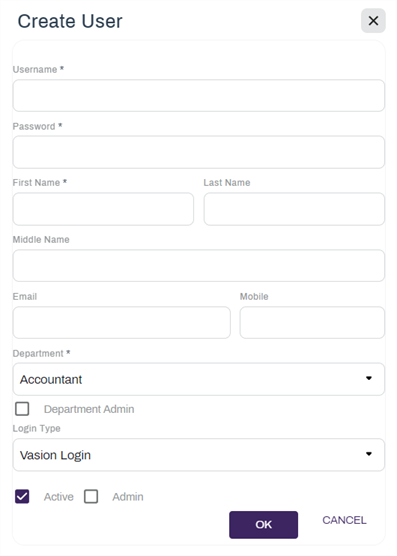
Once you have created a user profile you can add the user to a Group A group is a list of users who have similar capabilities, access security, or workflow processes. Permissions for access to Vasion can be assigned to the group, which will then pass those permissions down to all users assigned to it.. For more details, see Group Management. You can also assign roles and apps to a user. For more details, see Assign Apps and Assign Roles.
User Departments
Assign users to departments to keep track of the departments users belong to in your business.
Add a Department
From the new internal user modal, add a new department if it does not exist in the drop-down.
-
Select the New Department option.
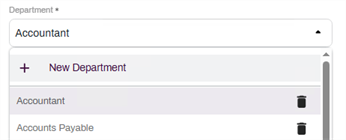
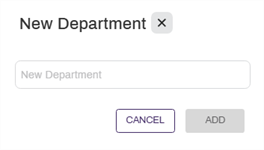
- Enter the name of the Department in the New Department field.
-
Select Add.
Delete a Department
From the Department drop down, select the delete icon  .
.
Default Password
User log in and password information should be unique and should not be shared to ensure the integrity and security of Vasion Automate Pro. The default password functionality ensures that new users update their password the first time log in to the system.
To set a default password for the Vasion Automate Pro environment:
- Select Default Temp Password.
- In the new modal, enter a password to use as default.
- Select OK.
Edit a User Profile
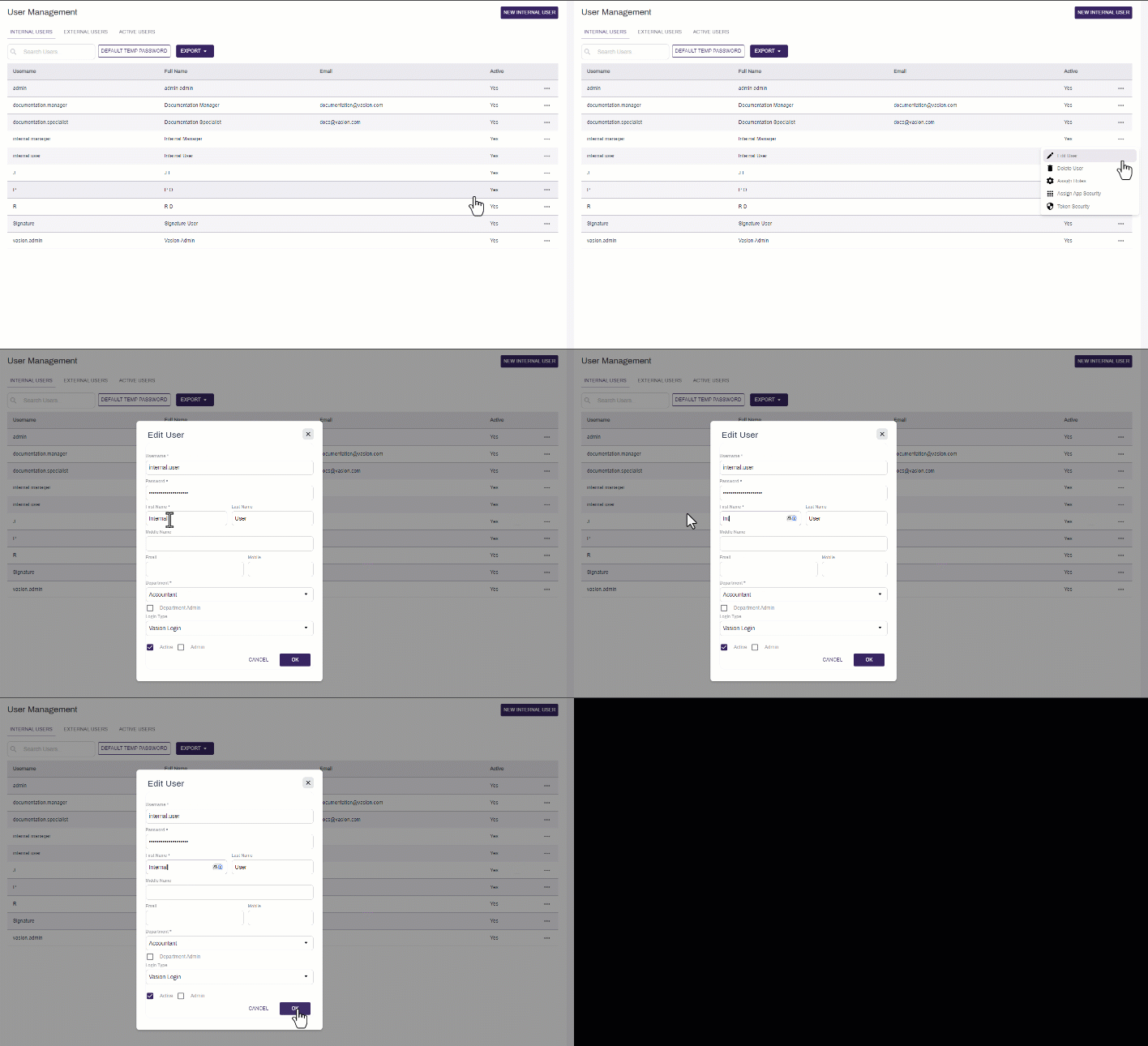
- From the User Management page, select the More button
 for the user you want to edit and select Edit User.
 - Make the changes you want to the user’s profile.
- Select the OK button to save your changes.
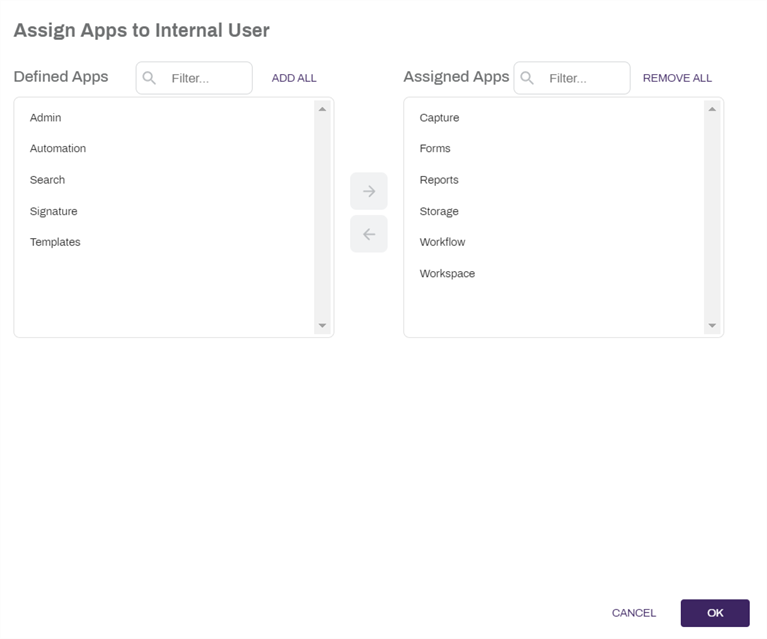
Assign Apps to a User
Vasion Automate Pro apps can be assigned to users to limit the access to various apps.
- Select the More button for the user to whom you want to assign roles and select Assign App Security.
- Select the app(s) in the Defined Apps list that you’d like to assign to the user. You can select more than one.
-
Select the right arrow button
 to move the selected app to the Assigned Apps list.
If you’d like to add all of the available apps, select Add All. If you’d like to remove all of the apps from the Assigned Apps list, select Remove All.
- Select the OK button
Assign Roles
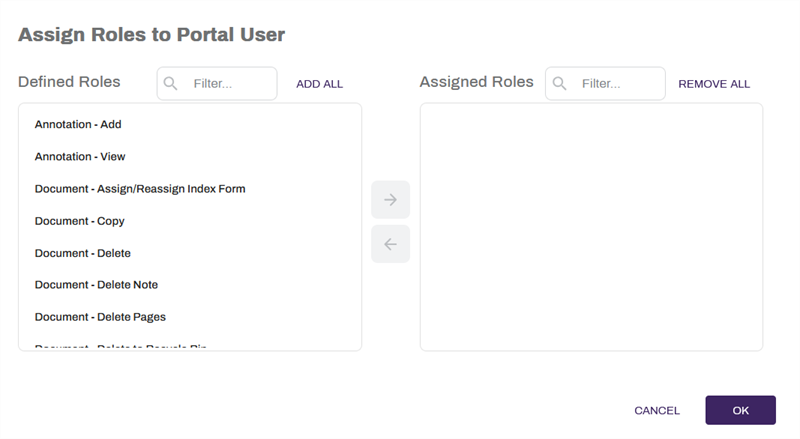
Users can be assigned roles in Vasion Automate Pro to limit what they are able to do. For more information about what roles and what they do, see Roles.
To assign roles to an user:
- Select the More button for the user to whom you want to assign roles and select Assign Roles.
- To add roles:
- Select the role(s) in the Defined Roles list that you’d like to assign to the user. You can select more than one.
Select the right arrow button
to move the selected role to the Assigned Roles list.
-
To remove roles:
-
Select the role(s) in the Assigned Roles list that you’d like to unassign from the user. You can select more than one.
-
Select the left arrow button
 to move the selected role to the Defined Roles list.
If you’d like to add all of the available roles, select Add All. If you’d like to remove all of the roles from the Assigned Roles list, select Remove All.
-
-
Select the OK button.
Export
To export a list of the
- Select the Export drop-down
- Select either CSV or PDF
The exported
- Username
- Full name
- Active status
Make an Internal User Inactive
When a user is made inactive, they are no longer an authorized user and cannot log into Vasion Automate Pro.
- From the User Management page, select the More button for the user you want to edit and select Edit User.
- Select on the Active box to deselect it.
- Select the OK button.
Delete an Internal User
Deleting a user from Vasion only removes the user from the list in User Management but it does not delete the user record so the integrity of security and audit trails can be maintained.
- From the User Management page, select the More button for the user you want to edit and select Delete User.
-
In the confirmation modal select Yes