Last Updated: February 03, 2026
API Access User
The API Access tab can be used to create and manage API Access Users. API Access Users are a tool that can be used to interact and integrate with Vasion Automate Pro outside of the user interface. For more information on the API endpoints that are available, see the API Reference page.
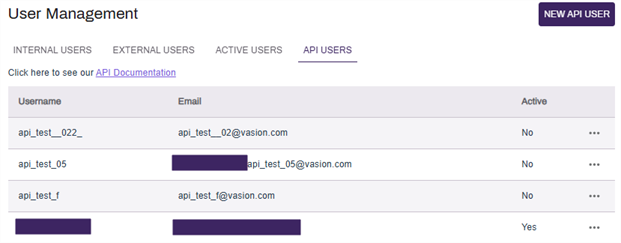
To view and test the API endpoints for your Vasion Automate Pro environment, select the API Documentation link to navigate to your environment's Swagger API page.
Create a New API User
- Select Security & Permissions in the side navigation.
- Select User Management.
-
- Select
-
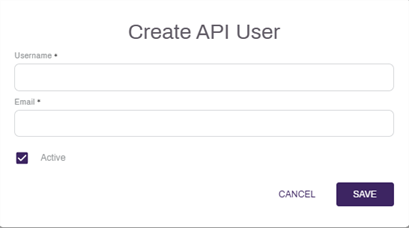
Enter information about the new user. Required fields are indicated by an asterisk (*). Here are some additional details:
-
- Active — deselect this box to deactivate the user and prevent access to Vasion Automate Pro.
-
-
Select the
-
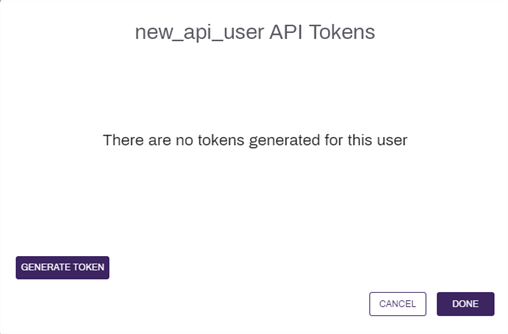
In the API Tokens modal that appears, select Generate Token.
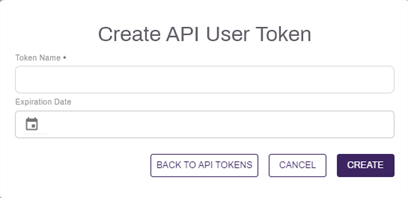
- Enter a name in the Token Name field.
- Select an expiration date for the API token.
-
Select Create.
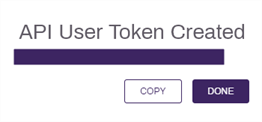
- Select the Copy button to copy the API token to the clipboard.This is the only time that this token will be available to be copied. Make sure to copy it now.
-
Select the Done button to exit the API User Token Created modal.
- Select Done to exit the API Tokens modal.
Edit API User
To edit an existing API User:
- Select the More icon
 next to the user to be edited.
 - Select Edit User.
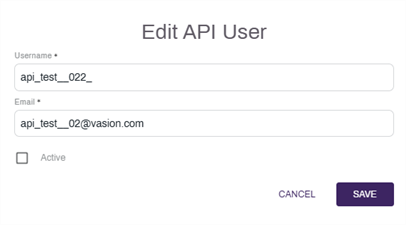
- Edit the username or email of the API user.
- Unselect the Active checkbox to prevent this API user from accessing Vasion Automate Pro.
-
Select Save.
Assign Roles
API users can be assigned roles in Vasion Automate Pro to limit what they are able to do. For more information about what roles and what they do, see Roles.
To assign roles to an API User:
- Select the More button for the user to whom you want to assign roles and select Assign Roles.
- To add roles:
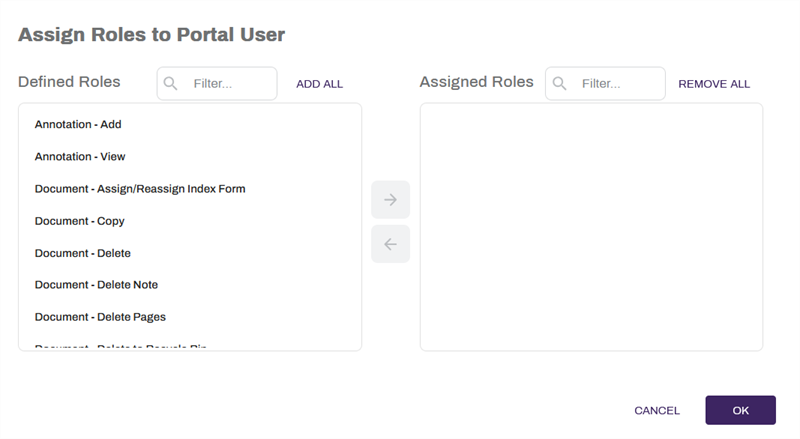
- Select the role(s) in the Defined Roles list that you’d like to assign to the user. You can select more than one.
Select the right arrow button
 to move the selected role to the Assigned Roles list.
-
To remove roles:
-
Select the role(s) in the Assigned Roles list that you’d like to unassign from the user. You can select more than one.
-
Select the left arrow button
 to move the selected role to the Defined Roles list.
If you’d like to add all of the available roles, select Add All. If you’d like to remove all of the roles from the Assigned Roles list, select Remove All.
-
-
Select the OK button.
Manage Tokens
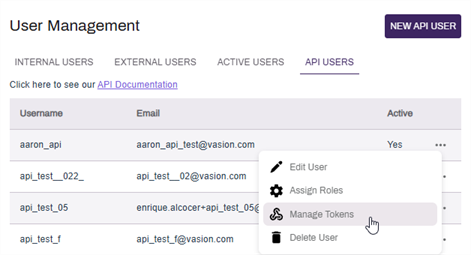
Each API user can have multiple tokens associated with it for multiple authorized apps. Within the Manage Tokens modal, generate new tokens or delete existing tokens. To manage an existing API User's tokens:
- Select the More icon next to the API user for which to manage the tokens.
- Select Manage Tokens.
Generate a New Token
To generate a new token:
-
In the API Tokens modal that appears, select Generate Token.
- Enter a name in the Token Name field.
- Select an expiration date for the API token.
-
Select Create.
- Select the Copy button to copy the API token to the clipboard.This is the only time that this token will be available to be copied. Make sure to copy it now.
-
Select the Done button to exit the API User Token Created modal.
- Select Done to exit the API Tokens modal.
Delete Tokens
To delete an existing token:
- Select the Delete icon
 .
. -
Select Yes, Delete Token.
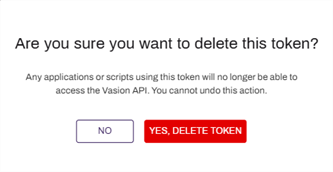
- Select Done to exit the API Tokens Modal.
Export
To export a list of the
- Select the Export drop-down
- Select either CSV or PDF
The exported
- Username
- Full name
Make an API Access User Inactive
When a user is made inactive, they are no longer an authorized user and cannot log into Vasion Automate Pro.
- From the User Management page, select the More button for the user you want to edit and select Edit User.
- Select on the Active box to deselect it.
- Select the OK button.
Delete a API Access User
Deleting a user from Vasion only removes the user from the list in User Management but it does not delete the user record so the integrity of security and audit trails can be maintained.
- From the User Management page, select the More button for the user you want to edit and select Delete User.
-
In the confirmation modal select Yes