Last Updated: February 09, 2026
Parent Folders
Parent Folders are top-level folders you create in your storage locations, whether it is in Vasion Drive, or any cloud storage provider you have configured.
Parent Folders
A parent folder is a top level folder within Vasion Automate Pro. Create parent folders to organize documents in broad categories and limit access permissions for users.
Create Parent Folders
Here is the basic required information you need to create a new parent folder.
To create a new parent folder you must configure:
- General Settings
- Parent folder name
- Parent folder location
Optional settings:
- Add a default Object
- Configure Folder
- Folder Permissions
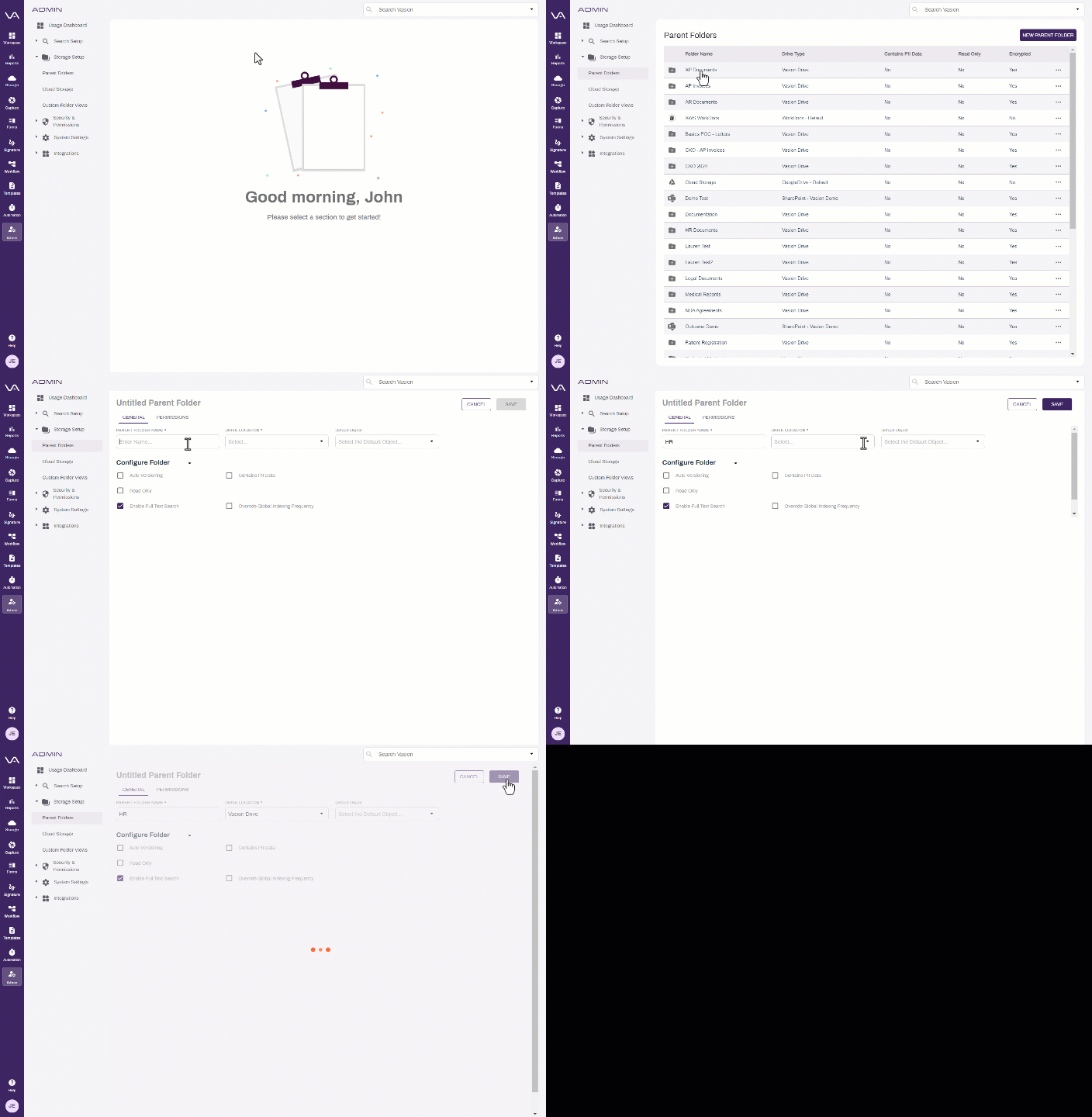
Details about optional configurations follow.
On the Parent Folders page, select the New Parent Folder button.
General Settings
- Parent Folder Name — enter the name for the new folder
-
Drive Location — use the drop-down to select the drive where you want to save the new folder. The list includes any cloud storage set up in Vasion.
-
Default Object — this is an optional step if you want to ensure a document is indexed when it gets saved to this folder or any of its subfolders. When adding a new document to this folder location, the object is automatically selected, and any required object fields must be completed to save the document.

Configure Folder
-
Check the box next to the setting(s) you want to apply to the folder:
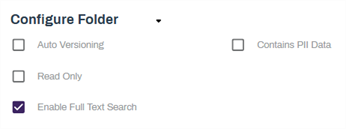
- Auto Versioning — automatically creates a new version of files stored in the folder automatically when a user edits the document.
- Contains PII Data — flags files within the folder as PII (Personal Identifiable Information).
-
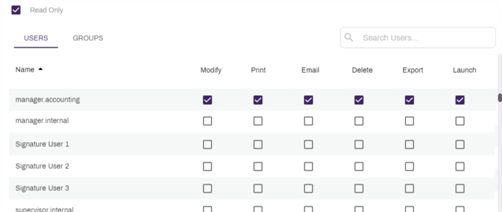
Read Only — limits access to only view files stored in the folder restricting any changes. When this box is checked you can grant additional rights to users, if needed, by checking the appropriate boxes for the user in the list.
-
Enable Full Text Search — allows folder contents to be indexed so its contents can be included in configured Full Text Searches.
- Use the Perform drop-down to select the frequency you want the automation to run. The next fields that display depend on what you select here.
- Once — select this option to only run the automation once. The next field display updates to Start Date. Enter the date in the format shown or select the Calendar icon
 to pick the date.
 - Daily — select this option to run the automation every day. The only remaining option is the Start Time.
- Weekly — select this option to run the automation once a week. The next field updates to Weekdays. Use the drop-down to select one or more days of the week by selecting the appropriate box.
- Monthly — select this option to run the automation once a month. The next field updates to Months. Use the drop-down to select one or more months by selecting the appropriate box.
- Frequency — select this option to run the automation at a specified time interval in minutes.
- In the next field, enter the number of minutes for the time interval.
- Once — select this option to only run the automation once. The next field display updates to Start Date. Enter the date in the format shown or select the Calendar icon
- In the Start Time, enter the time of day to run the automation in the format shown or select the Clock icon
 to pick the time.
 - If the Monthly option is selected, a Day of Month field is shown. Enter the day of the selected month(s) when you would like to run the automation.
Folder Permissions
You can change who can see or edit the
- Select the Permissions tab at the top of the screen.
- Select the users and / or groups you would like to have permission to access the
 .
. - Add or remove all users or groups by selecting on the Add All or Remove All buttons above each column.
- Select Save.
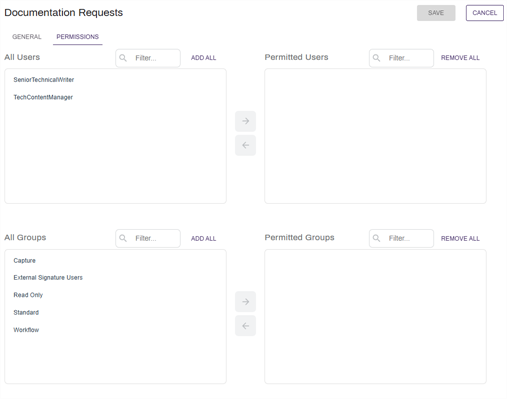
When the configuration is complete, select Save at the top of the page.
If you wish to further organize your data with subfolders, the subfolders can only be created in the Storage app. For more details, see New Folder.
Portal Parent Folders
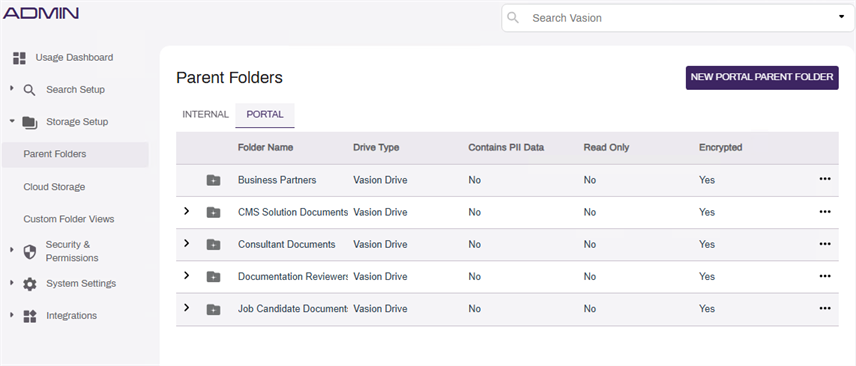
External User Portal parent folders are used to separate documents that are being uploaded or worked on by external portal users from internal documents. Utilize these folders to isolate document access between internal and external users.
For more information on what the External User Portal can do and how to configure it, see External User Portal.
Create Portal Parent Folders
Here is the basic required information you need to create a new portal parent folder.
To create a new
- General Settings
- P
- P
- P
Optional settings:
- Add a default Object
- Configure Folder
- Folder Permissions
Details about optional configurations follow.
On the Portal Parent Folders page, select the New Portal Parent Folder button.
General Settings
- Parent Folder Name — enter the name for the new folder
-
Drive Location — use the drop-down to select the drive where you want to save the new folder. The list includes any cloud storage set up in Vasion.
-
Default Object — this is an optional step if you want to ensure a document is indexed when it gets saved to this folder or any of its subfolders. When adding a new document to this folder location, the object is automatically selected, and any required object fields must be completed to save the document.
Configure Folder
-
Check the box next to the setting(s) you want to apply to the folder:
- Auto Versioning — automatically creates a new version of files stored in the folder automatically when a user edits the document.
- Contains PII Data — flags files within the folder as PII (Personal Identifiable Information).
-
Read Only — limits access to only view files stored in the folder restricting any changes. When this box is checked you can grant additional rights to users, if needed, by checking the appropriate boxes for the user in the list.
-
Enable Full Text Search — allows folder contents to be indexed so its contents can be included in configured Full Text Searches.
- Use the Perform drop-down to select the frequency you want the automation to run. The next fields that display depend on what you select here.
- Once — select this option to only run the automation once. The next field display updates to Start Date. Enter the date in the format shown or select the Calendar icon to pick the date.
- Daily — select this option to run the automation every day. The only remaining option is the Start Time.
- Weekly — select this option to run the automation once a week. The next field updates to Weekdays. Use the drop-down to select one or more days of the week by selecting the appropriate box.
- Monthly — select this option to run the automation once a month. The next field updates to Months. Use the drop-down to select one or more months by selecting the appropriate box.
- Frequency — select this option to run the automation at a specified time interval in minutes.
- In the next field, enter the number of minutes for the time interval.
- Once — select this option to only run the automation once. The next field display updates to Start Date. Enter the date in the format shown or select the Calendar icon
- In the Start Time, enter the time of day to run the automation in the format shown or select the Clock icon to pick the time.
- If the Monthly option is selected, a Day of Month field is shown. Enter the day of the selected month(s) when you would like to run the automation.
Folder Permissions
You can change who can see or edit the
- Select the Permissions tab at the top of the screen.
- Select the users and / or groups you would like to have permission to access the .
- Add or remove all users or groups by selecting on the Add All or Remove All buttons above each column.
- Select Save.
When the configuration is complete, select Save at the top of the page.
For Portal users to be able to view any folders, even their assigned portal folder, they will need the Document — View role.
For more information:
Create Portal Subfolders
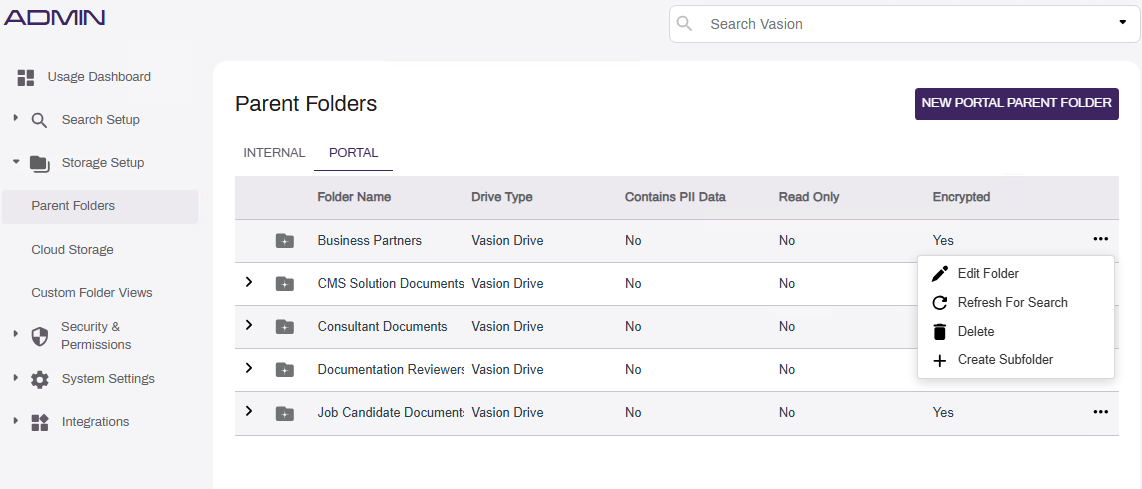
Subfolders for portal folders must be created within the Portal tab of the Parent folder configuration page in the Admin app. To create a subfolder for a Portal folder:
- Select the more button
 .
. - Select Create Subfolder.
- Enter a name for the subfolder into the Subfolder Name field.
- Optionally, set folder permissions. See below for information on how to configure permissions.
- Select Save.
Configure Portal Subfolder Permissions
You can change who can see or edit the
- Select the Permissions tab at the top of the screen.
- Select the users and / or groups you would like to have permission to access the .
- Add or remove all users or groups by selecting on the Add All or Remove All buttons above each column.
- Select Save.
For Portal users to be able to view any folders, even their assigned portal folder, they will need the Document — View role.
For more information: