Last Updated: April 24, 2026
Connect Amazon S3
Amazon S3 Connection Requirements
To connect Vasion to S3 you need the following:
- Access to the Amazon IAM console
- Account with full rights to create and modify folders and documents
- An Amazon S3 Bucket
- Vasion Admin rights
You can create multiple S3 connections as long as each is connected to a unique bucket.
Create IAM User
If you don't already have one, create an IAM user.
- Navigate to the Amazon IAM Console https://console.aws.amazon.com/iam/home.
- Select Access management > Users > Add User.
- Enter a username for Vasion to access the account; for example, vasions3, and select Programmatic access for the access type.
- Choose Next: Permissions.
- On the Set Permissions page, choose Attach existing policies directly.
- In the Filter policies box, search for s3.
- Check the box next to AmazonS3FullAccess and choose Next: Tags.
- Choose Next: Review, then Create User.
- Choose Download .csv – use this file to set up the credentials in Vasion.
Create an S3 Bucket
You must create an S3 bucket first to use this feature. If you do not already have one, create your Amazon S3 bucket. For information on how to create it, see Get Started With S3.
The bucket name must start with a lowercase letter or number. The bucket name cannot contain underscores, end with a dash, have consecutive periods, or use dashes adjacent to periods.
Required Permissions
For Vasion Automate Pro to access S3 buckets, an IAM policy needs to be created with the following permissions:
"Action": "s3:*",
"Resource": [
    "arn:aws:s3:::<bucket_name>/*",
    "arn:aws:s3:::<bucket_name>"
]Connect S3
- Select the Admin App and select Storage Setup, then Cloud Storage in the navigation menu.
-
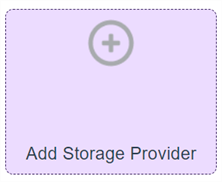
Double-click Add Storage Provider
- In the Select Cloud Storage Provider modal, select Amazon S3 and then select Continue
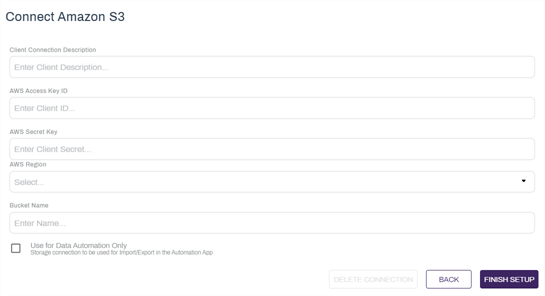
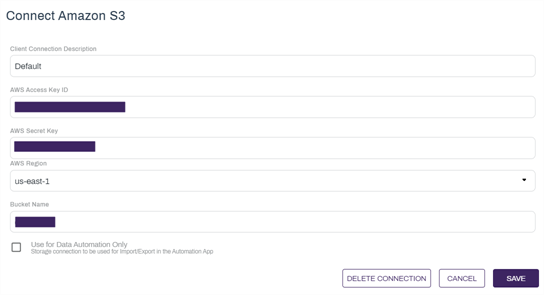
- In the Connect Amazon S3 modal complete the following:
Client Connection Description — enter a unique name that identifies this cloud storage connection in Vasion.
- AWS Access Key ID — enter the Access Key ID from the CSV file. (Step 9 of Create IAM User, above)
- AWS Secret Key — enter the Secret access key from the CSV file. (Step 9 of Create IAM User, above)
- AWS Region — use the drop-down to select the region where the S3 site was created. (You can find it by going to Amazon S3 Buckets)
Bucket Name— enter the name of an existing bucket. If there are no existing buckets available in S3, please create one first within your S3 management application.
The bucket name must start with a lowercase letter or number. The bucket name cannot contain underscores, end with a dash, have consecutive periods, or use dashes adjacent to periods.
Use for Data Automation Only — check this box if the storage connection is only used for the Import or Export automations. For more details, see Import / Export.
For an Import or Export Automation, please create a top level folder in your S3 bucket from the S3 management application. This is required to be able to select an import or export location when configuring the automation in Vasion Automate Pro.
- Select Finish Setup
When the drive is connected you should see a successful connection alert.
If you have selected to use the drive for data automation only, the drive does not display when navigating storage locations in the Vasion apps. The drive is only visible when configuring Import or Export automations. For more details, see Import / Export.
Edit the Amazon S3 Connection
You can make any updates to the connection at any time by doing the following:
-
Double-click the connection tile
-
Update the information in the appropriate fields
- Select Save
Delete the Amazon S3 Connection
To delete the cloud storage connection do the following
-
Double-click the connection tile
-
Select Delete Connection
-
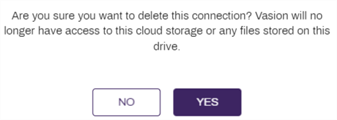
In the delete confirmation modal select Yes