Last Updated: May 05, 2026
Connect SFTP Storage
Last Updated: May 05, 2026
Requirements
To connect Vasion Automate Pro to SFTP you need the following:
- Location and user credentials for your FTP server.
- Vasion Admin rights.
Connect SFTP
- Select the Admin App and select Storage Setup, then Cloud Storage in the navigation menu.
-
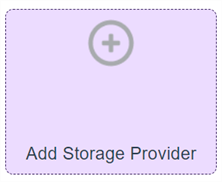
Double-click Add Storage Provider
-
In the Select Cloud Storage Provider modal, select SFTP and then select Continue
- In the Connect SFTP modal enter the following:
Client Connection Description: enter a unique name for this storage connection. This name is displayed when navigating to this location in the Vasion apps.
- Protocol: Select a FTP protocol from the Protocol dropdown.
Host: Enter the URL, Hostname or IP of the FTP server.
Port: Enter a port number. The default is 22.
Username: Enter a username to access the FTP server.
Password: Enter a password to access the FTP server.
Root Path: Enter a file path to the root of the FTP server.
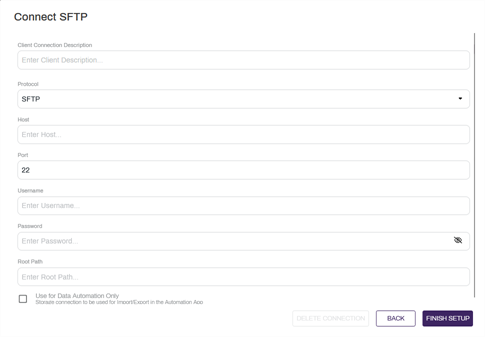
Use for Data Automation Only: select this box if the storage connection is only used for the Import or Export automations.
-
Select Finish Setup.
Edit the SFTP Connection
You can make any updates to the connection at any time by doing the following:
-
Double-click the connection tile.
-
Update the information in the appropriate fields.
- Select Authorize.
Delete the Box Connection
To delete the cloud storage connection do the following
-
Double-click the connection tile.
-
Select Delete Connection.
-
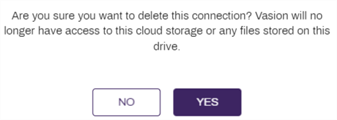
In the delete confirmation modal select Yes.