Add an End Step
Last Updated: October 25, 2026
Add an End step to mark the end of a workflow branch. Every branch in a workflow must connect to an End step.
Requirements
Review these Requirements before you start.
Add an End Step
In the Workflow Designer, follow these steps:
- From the Basic Steps section, drag the End step onto the canvas.
- Drag the previous step connector to the new step.
- On the End Settings panel, use the End Type dropdown to select how the workflow ends:
- End Branch: Ends this branch. Other branches continue.
- Terminate Workflow: Ends the entire workflow, including any branches still in progress.
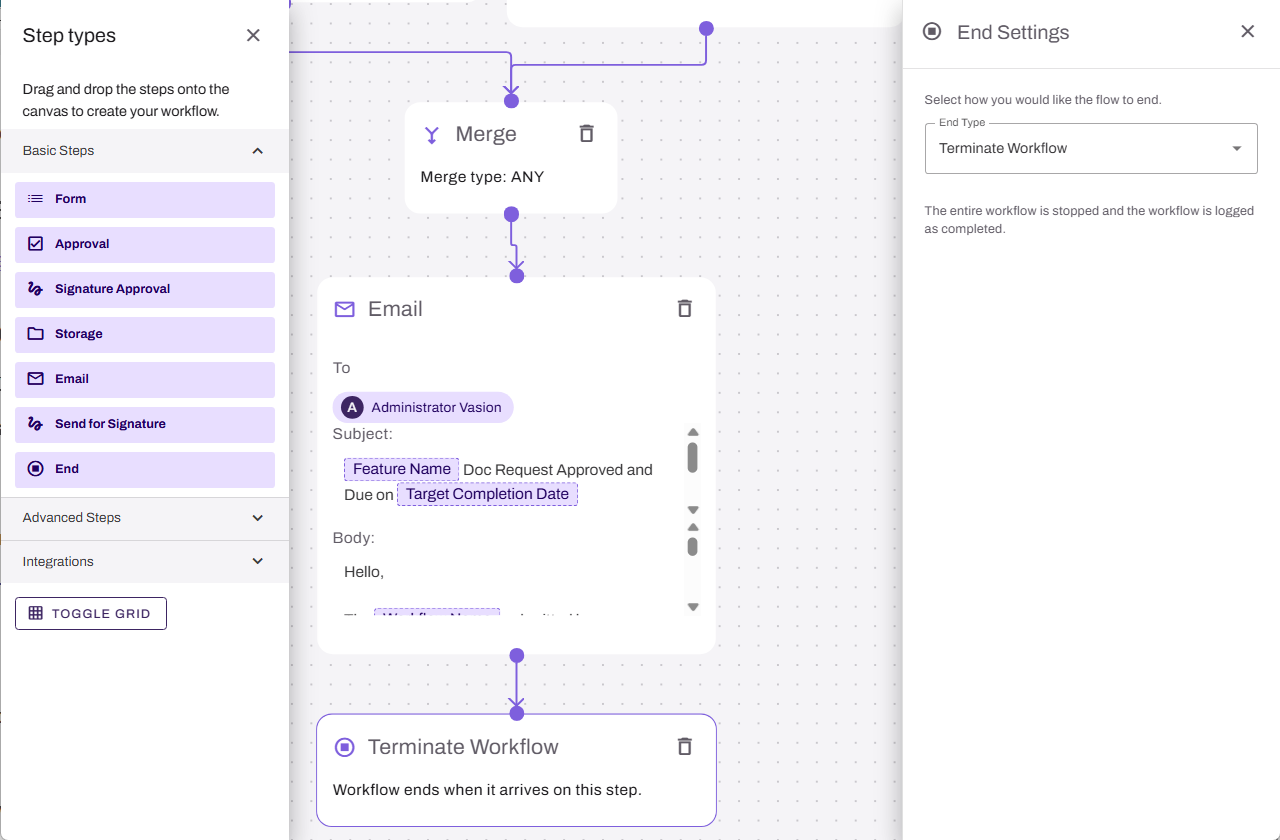
Use End Branch to close a completed path, such as an approved request. Use Terminate Workflow to stop the workflow immediately, such as when an approver rejects a request.
Next Steps
Refer to the following:
In this topic: