Start a Workflow
Last Updated: September 24, 2026
After you create, publish, and share a workflow, assign the workflow to users to begin the process.
Requirements
Review these Requirements before you start.
In addition to the general requirements, starting a workflow also requires the following:
- A published workflow. Refer to Save & Publish the Workflow for publishing a workflow.
Start a Workflow
There are multiple ways to initiate a workflow, depending on how you configured it.
Start an Assignment Workflow
For a workflow that starts with an assignment, you can manually initiate it on the Workflow: Business Process page.
To start a business process workflow, do the following:
- In the Admin Console, select Workflow in the left-side navigation, and select Business Process.
- Select the More menu
 next to the workflow you want to initiate.
 - Select Start Workflow.
- Enter a name for the workflow process in the Business Process Name field.
- Select Start Workflow.
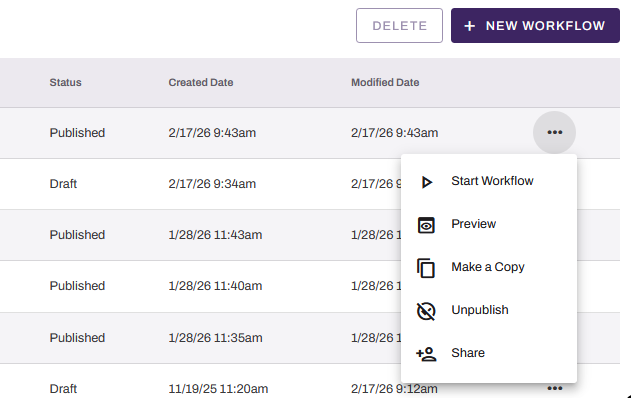
If the Start Workflow option is not available in the More menu , then the workflow must be initiated by another action. Select the View option to confirm how the workflow is initiated.
Start Automatic Trigger Workflows
Some workflows cannot be started manually from the workflow app. When configured with one of the automated triggers, the workflow initiates when that trigger occurs. The following trigger types are automated:
- Form Submission.
- Document Event.
- Signature Template.
- Background Workflow.
You cannot unpublish or delete a workflow after you start it.
In-Progress Workflows
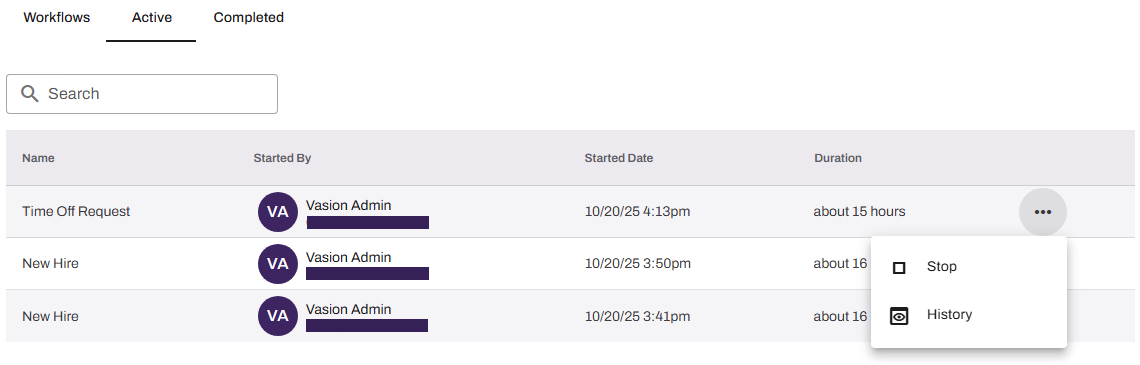
You can find started workflows on the Active tab. You can manually terminate the workflow at any time before the workflow is complete by selecting the Stop option from the More menu  .
.
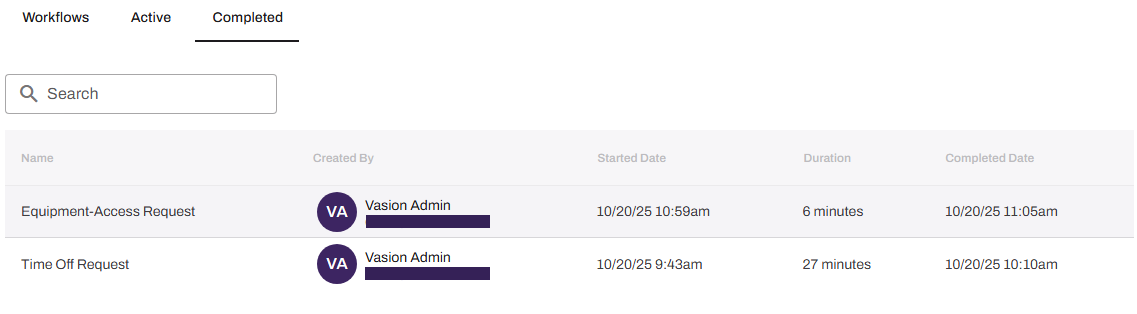
When all the workflow steps are complete, the workflow moves to the Complete tab, which shows the workflow's completion date.
Next Steps
Refer to the following:
In this topic: