Configure SAP Integration for Workflows
Last Updated: October 25, 2026
Learn how to connect the Vasion Platform to your organization's SAP S/4HANA Cloud Public Edition tenant so Workflows and AI Agents can look up SAP data and take accounts payable actions. An SAP administrator and a Vasion administrator each complete a one-time setup, and then each user connects their own SAP account.
Requirements
Before you begin, review the Requirements.
Configure SAP Integration for Workflows
Complete the following:
Admin Configuration
- Register the OAuth Application in SAP. Create the OAuth client so Vasion Automate can authenticate.
- Turn on SAP in the Vasion Platform. Enter your SAP tenant subdomain.
User Configuration
- Each user connects their account. Authorizes Vasion to act with each user's SAP permissions. Refer to Connect Account for more details.
1. Register the OAuth Application in SAP
Register the OAuth application in SAP S/4HANA Cloud Public Edition and follow this steps:
- In your SAP S/4HANA Cloud Public Edition administration console, create a new OAuth 2.0 client application.
- Set the grant type to Authorization Code with Proof Key for Code Exchange (PKCE) PKCE replaces or enhances traditional pre-shared secrets with a dynamic, one-time verification mechanism generated for each individual authentication request. It relies on three main components: 1. Code Verifier: A high-entropy, random secret string created by the client application for each request. 2. Code Challenge: A transformed (usually SHA-256 hashed and Base64URL-encoded) version of the code verifier that the application sends to the authorization server during the initial request. 3. Code Challenge Method: The mathematical transformation method used (typically S256)..
- Enable the following API scopes:
- Purchase Order Display (API_PURCHASEORDER_PROCESS_SRV)
- Supplier Invoice Processing (API_SUPPLIERINVOICE_PROCESS_SRV)
- Business Partner / Supplier Integration (API_BUSINESS_PARTNER)
If you are new to this process, see Communication Systems for an overview and Enabling Public OAuth Clients (PKCE) for Inbound Communication Scenarios. for configuration instructions in the SAP documentation.
2. Turn On SAP
To turn on SAP in the Vasion Platform, you need the client ID you set up in the previous steps and your SAP instance's subdomain.
Complete the following steps:
- Go to Admin
 Integrations, then select the Add button on the SAP card.
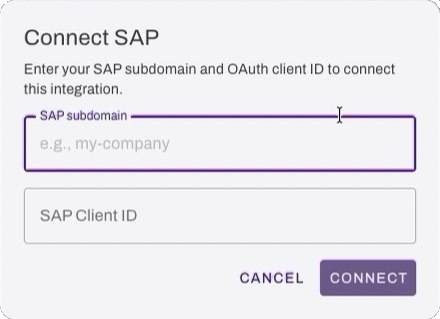
 - In the Connect SAP modal, enter the following:
- SAP subdomain: Enter your organization's SAP instance subdomain. For example, my-tenant
- SAP Client ID: Enter the client ID from the OAuth application you registered in SAP. For example: NAME_CLIENT_US.
-
Select Connect.
If you're not already signed in to SAP you may be asked for your account credentials.
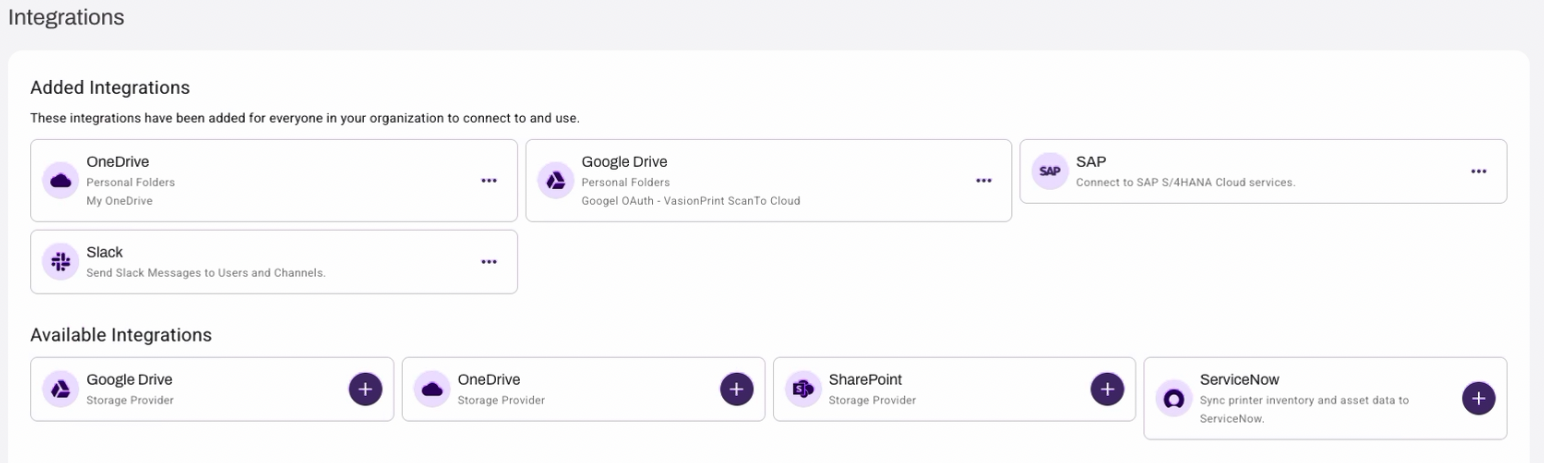
When the Vasion Platform is connected to SAP, the card displays in the Added Integrations section.
3. Connect SAP User Account
Each user who needs SAP access connects their own SAP account to the Vasion Platform. The connection uses the user’s SAP credentials, so Vasion applies that user’s SAP roles and permissions to every request. When a user creates an agent, or interacts with an agent or workflow, the agent reads from and writes to SAP only in the areas where that user has SAP permissions. If a user reports that an agent or workflow cannot access certain SAP data, verify the user’s roles and permissions in SAP.
Each user mus follow these steps to connect their account:
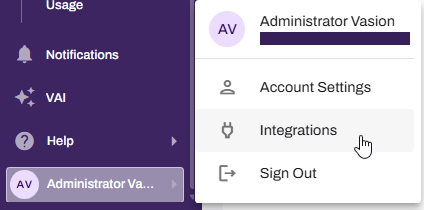
- User selects their avatar in the bottom-left corner.
-
User selects Integrations.
-
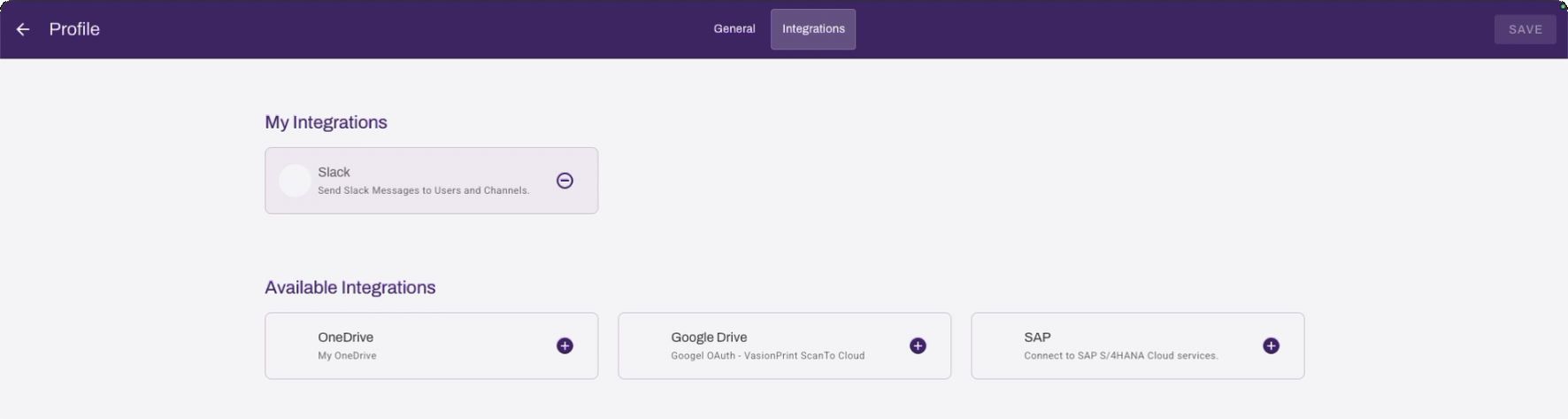
On the Integrations page, the user selects the Add button on the SAP card.
- In the SAP Sign In modal the user enters their credentials and authenticates their account.
-
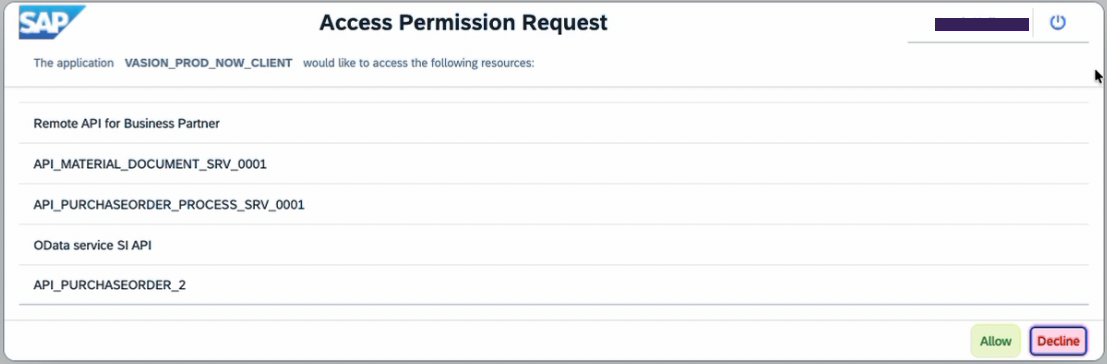
In the SAP Access Permission Request modal the user selects Allow.
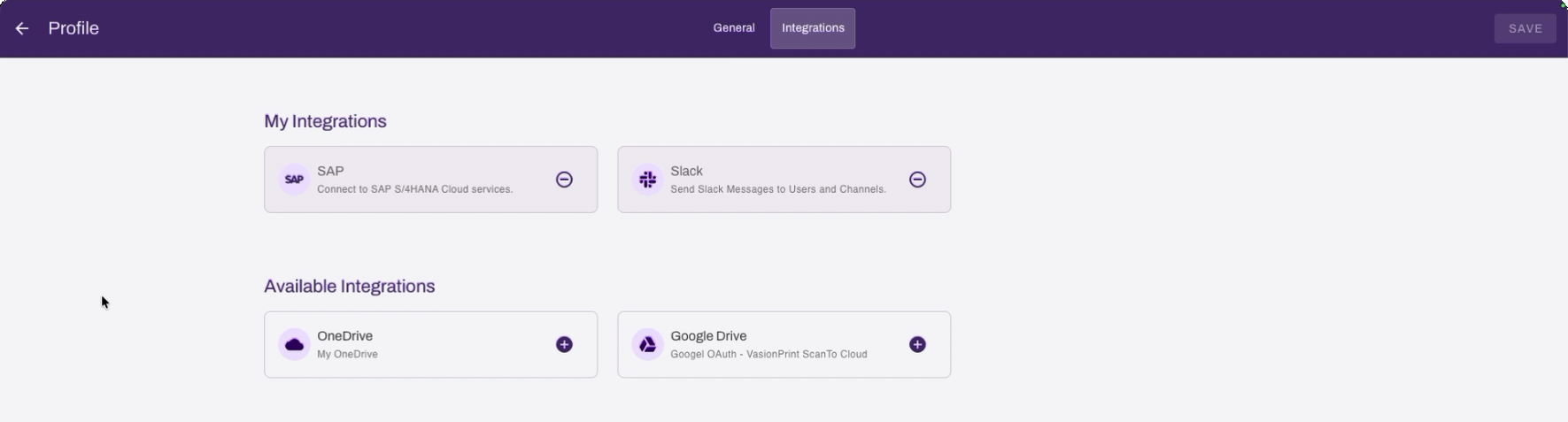
When the Vasion Platform user account is connected to SAP, the card displays in the My Integrations section.
Next Steps
- SAP Integration for Workflows. Learn what this integration does before configuring it
- Workflow Steps Reference:Learn more about SAP step cards for workflows.
- Vasion Artificial Intelligence (VAI) — use SAP actions from an AI Agent
Troubleshooting Help
In this topic: