Last Updated: June 26, 2024
Field Mapping
Field Mapping uses the value(s) in an object field to search for additional information associated with that object field and automatically populate other fields within the object. By taking advantage of this functionality, manual and repetitive data entry is reduced, thus reducing the possibility of errors due to typos or inconsistent entries, while making capturing of data more efficient.
For example: If we were capturing employee information, a user can enter in the employee ID. A database lookup would pull back and populate other fields on the object like the employee's first name, last name, department, etc.
Configure Lookups
You can select from an existing database or from Salesforce connections which fields you would like to map to specific objects.
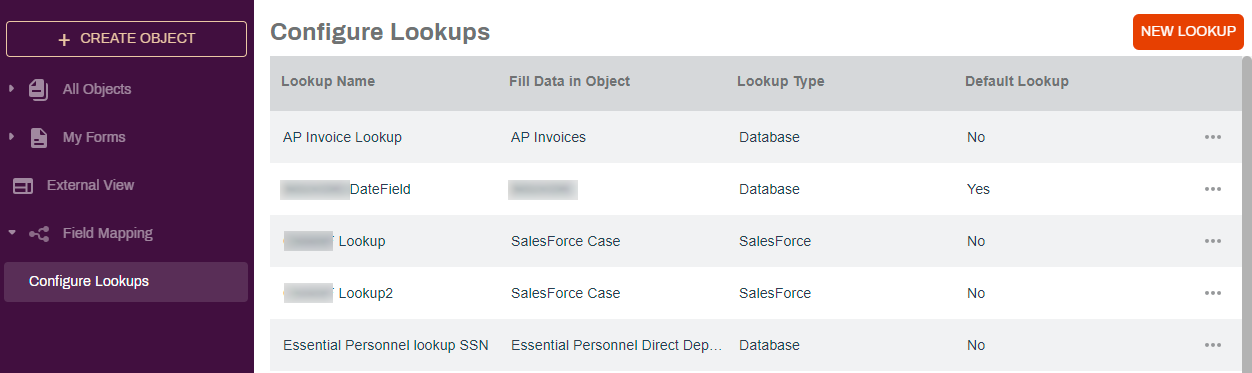
You can see existing lookups or create a new lookup by clicking on Field Mapping and then Configure Lookups in the Forms app.
Any existing lookups are listed in the page showing:
- Lookup Name — the name of the lookup
- Fill Data in Object — the name of the object used for the lookup
- Lookup Type — shows if the object is a database or a Salesforce lookup
- Default Lookup — shows if the lookup is the default lookup for the object
Database Lookups
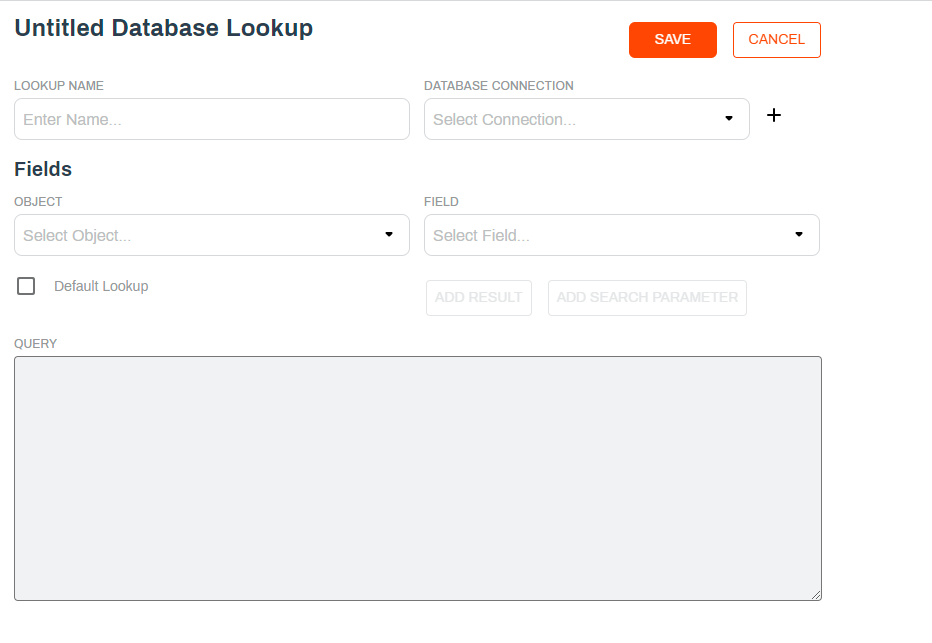
To create database lookups you should be familiar with SQL language syntax and have access to a database connection. For assistance with Database Lookups contact Product Support at support@vasion.com.
Requirements
To create a database lookup you need the following:
- A database connection
- An existing Vasion object
- Know the database fields you want to reference
- Knowledge of SQL language is helpful
Salesforce Lookups
Requirements
To create a Salesforce lookup you need the following:
- An existing Salesforce connection. For details on how to setup a connection see Salesforce Configuration.
- The name of the Salesforce object you want to connect. For details about Salesforce data see Salesforce help.
- Know which object fields you want to connect.
- An existing Vasion object.
Create a Salesforce Lookup
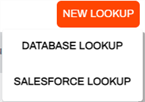
- From the Configure Lookups page click on the New Lookup button
-
Select Salesforce Lookup
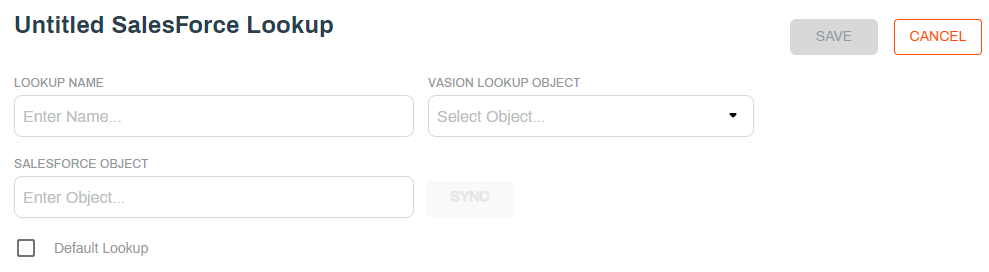
- Complete the following:
- Lookup Name — enter the name you want to use to identify this lookup
- Object — select the Vasion object.
- Salesforce Object — enter the name of the Salesforce object you want to use for the lookup.
- Click the Sync button to load the fields in a table format. See below for details about mapping the fields.
- Default Lookup — check the box if you want to make this lookup the default for the object.
- Click Save.
Mapping the Fields
The fields table displays the following information:
- Field — the Vasion object field name
- Salesforce field — use the drop-down to select the Salesforce field you want to map to the Vasion object field
- Search — check this box if you want to use the selected mapped field to search Salesforce as the key field for the lookup
To map the fields use the drop-down next to the Vasion object field you want to map and select the Salesforce field.
Check the box next to the field you want to use as the key field to search for data. When a user enters data into that object field and clicks the Lookup button the rest of the mapped fields populate with the corresponding Salesforce data.
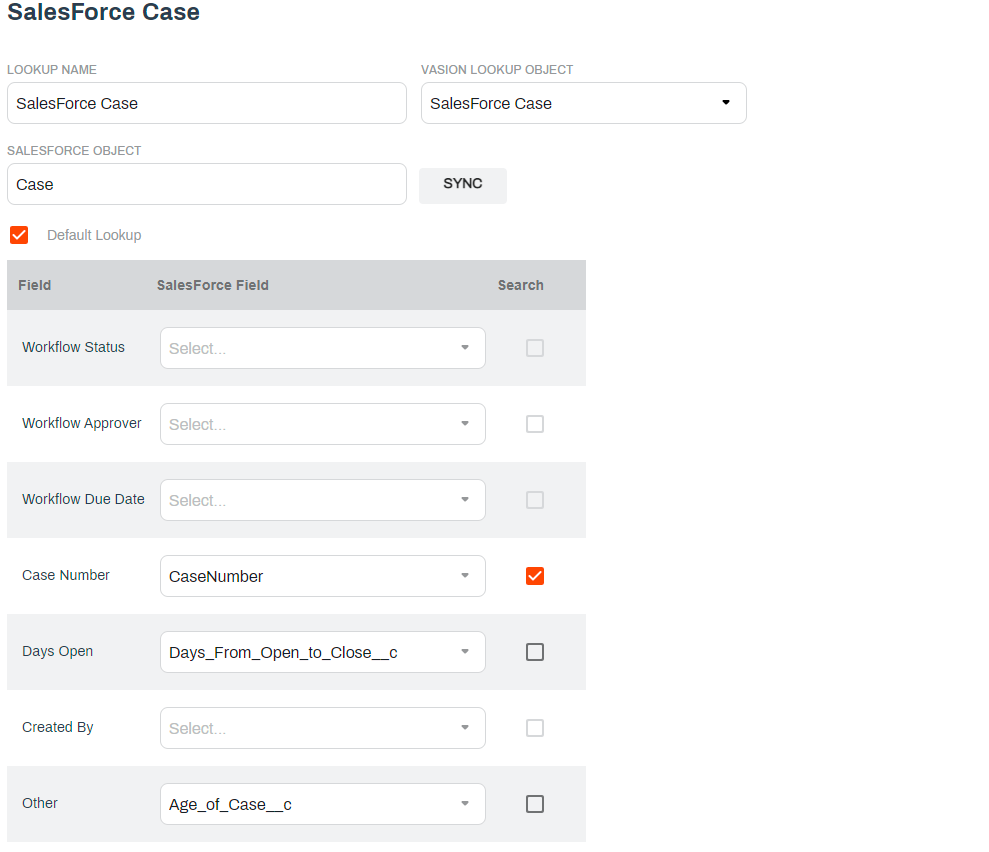
Access the Lookup button in the Workspace and Storage apps.
Edit a Salesforce Lookup
To make any changes to an existing Salesforce Lookup do the following:
- In the Configure Lookups page click on the More button of the lookup you want to edit.
-
Select Edit Lookup.
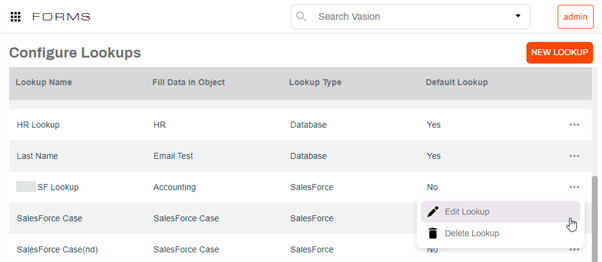
-
In the Lookup page make any necessary changes and click Save.
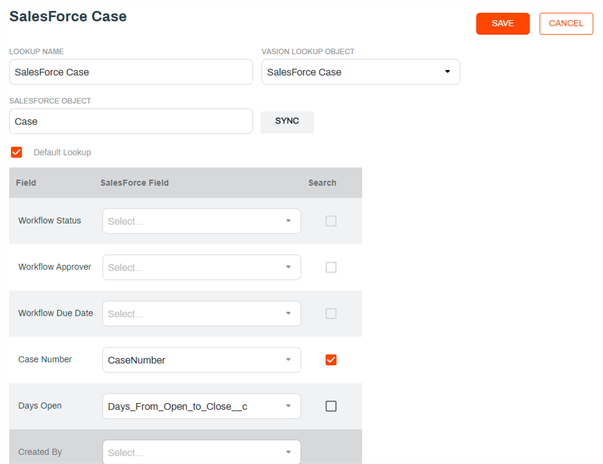
Delete a Lookup
- In the Configure Lookups page click on the More button of the lookup you want to edit.
-
Select Delete Lookup.
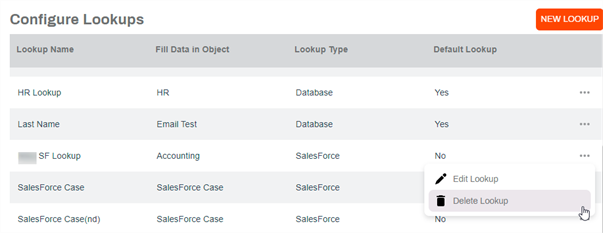
-
Select Yes in the confirmation modal.