Last Updated: June 26, 2024
Objects
In Vasion, an Object An Object is a group of related fields that can be applied to a document, workflow or form. The object fields are used to capture and index data that can be used to create forms, map to a document, and/or assign to a workflow. is a grouping of defined fields used to identify documents or database records. The object is used to categorize the data and documents that are stored in Vasion Automate Pro. Once you determine the category for your object, you create object fields to capture the data in a comprehensive manner to index The action of classifying and providing specific identification information for speedy document retrieval and search for documents quickly and easily.
Object Fields
The object fields are the fields into which you want to capture object data. If you looked at the object in a table data form, each object record is a row and the object field is the column header that captures specific information for that row or record.
Key Points
Here is some important information you should know about objects and fields.
- Object fields must have unique names. You cannot save two fields with the same name, even across objects.
- You can associate an object field with more than one object. See Add Existing Object Fields for details on how to do this.
Object Field Types
The following object field types are supported:
- Textbox — used for short, alphanumberic values.
- Dropdown — used to display predetermined values in a list from which a user can make a selection.
- Date — used to store date values. When this field type is used in a form, a date picker displays for the end user.
- Number — used for numeric values. This field type is required if you want to use the data entered for calculations. When this field type is used, two additional options become available:
- Show Decimal Places — selecting this option displays a period for the decimal point and lets the user specify the number of decimal places to display in the field.
Show Comma — this option displays comma separators every 3 decimal places in numbers larger than 999.
The object field stores only the numbers, not the formatting.
- URL — used to capture web addresses. This field type only allows input in the form of a web link.
- Email — used to capture email addresses. This field type only allows input of properly formatted email addresses. This type of field is required for Document Templates and Signature Templates to capture the signer's email address and associate it with a zone.
-
Checkbox — used to display predetermined values for selection by checking a box. This field type allows for multiple selections.
This type of field is used exclusively on forms and only displays in the document data view if selected values are saved to the object.
-
Radio Button — used to display predetermined values for selection by selecting a button. This field type only allows the selection of a single value.
This type of field is used exclusively on forms and only displays in the document data view if selected values are saved to the object.
- Currency — used to display monetary values.
- Signature Field — used to capture the form approver email address. This field type only allows input of properly formatted email addresses.
- Text Area — used to capture alphanumeric values in a large multi-line text box for larger data inputs.
- Address— used to do lookups for addresses entered and can save addresses as well as geolocation and other information.
When you create a new object, by default, the following system fields are predefined for the object:
- Workflow Status — used to display the status of the workflow. This field is automatically updated as the document moves through each workflow step.
- Workflow Approver — used to display the name of the person or group assigned to approve the current step
- Workflow Due Date — used to display the date the workflow is due, if it is configured.
- Workflow Initiator — used to display the name of the user who initiated the workflow by submitting a form or adding a document, if they are logged in. If the form is set to public access and does not require a user to log in, or if the document is added by an automation, the field displays "admin".
- Created By — used to display the name of the user who triggered the document creation, if they are logged in. If the document is created by submitting a form that is set to public access or by if the document is added by an automated import process, the field displays "admin".
The workflow engine uses these system fields for routing the document, updating the status and tracking date requirements. The fields are included by default because the field names and properties have to be consistent and the same all the time. The workflow fields are hidden by default. To make the fields visible in an object, click edit and deselect the Hidden field option. For more details about editing fields, see Edit an Object Field.
Field Settings
Several types of options are available and some options are based on the type of field you use.
General Settings
The following options are available for all fields:
- Hidden — check this box if you would like this field to be hidden. Only users assigned the Role to View Hidden Fields, are able to see this field or the data stored within it. This option can be used when you need to capture sensitive or confidential information that must be kept private.
- Mandatory — check this box to make the field mandatory. This option is typically used in forms to capture information and want to ensure the user inputs data. If a user doesn’t complete the field, they’ll see a prompt to do so before the form can be submitted.
-
Read Only — check this box to make the field read only and to prohibit changes to the data. This option can be used in fields that store system-generated data such as system date or fields that store data retrieved by running a lookup.

We recommend that any field you mark as Mandatory is not marked Hidden if a user is required to enter or update data to submit the form.
Additional Settings
The following additional options are available for each of the fields below.
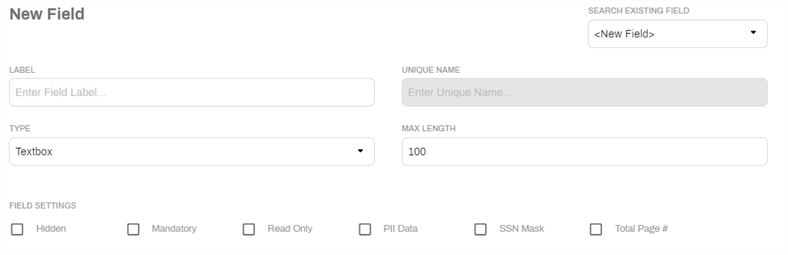
- Textbox — this type of field allows entry of alphanumeric characters that display in one single line.
- Max Length — enter the maximum number of characters that can be entered into this field.
- PII Any representation of information that permits the identity of an individual to whom the information applies to be reasonably inferred by either direct or indirect means. Further, PII is defined as information: (i) that directly identifies an individual (e.g., name, address, social security number or other identifying number or code, telephone number, email address, etc.) or (ii) by which an agency intends to identify specific individuals in conjunction with other data elements, i.e., indirect identification. Additionally, information permitting the physical or online contacting of a specific individual is the same as personally identifiable information. Data — select this option of the data to be entered in this field includes Personal Identifiable Information (PII).
- SSN Mask — select this field to set a social security number mask to set the field length automatically to a maximum length of 11 and applies a mask with hyphens for data input.
Total Page # — check this box when batching documents to automatically insert the total number of pages in the document.
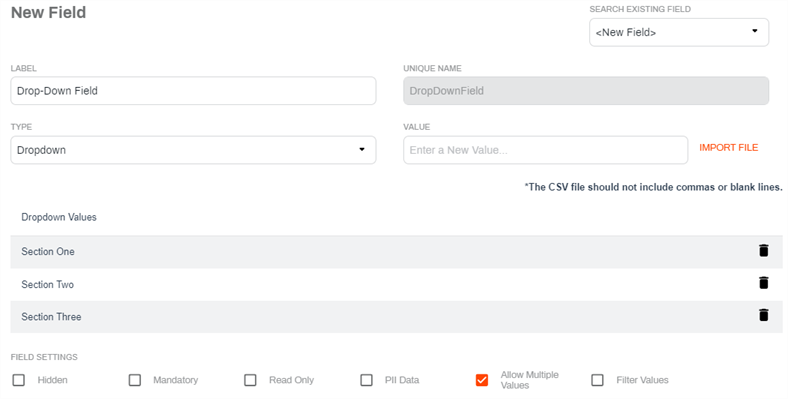
- Dropdown — this type of field is used on forms to help simplify data capture when user entry is required. It displays specific values from which a user can select to ensure data can be captured easily and consistently.
Value — enter each value from which you want the user to select. Every time you press the [Enter] key, the value is displayed in the area below. To delete a previously entered value, click on the trash
 icon. If you have a large number of options, you can quickly create the drop-down values by importing a CSV file.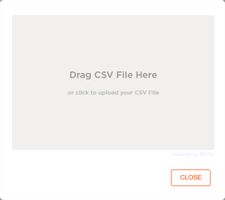
- PII Any representation of information that permits the identity of an individual to whom the information applies to be reasonably inferred by either direct or indirect means. Further, PII is defined as information: (i) that directly identifies an individual (e.g., name, address, social security number or other identifying number or code, telephone number, email address, etc.) or (ii) by which an agency intends to identify specific individuals in conjunction with other data elements, i.e., indirect identification. Additionally, information permitting the physical or online contacting of a specific individual is the same as personally identifiable information. Data — select this option of the data to be entered in this field includes Personal Identifiable Information (PII).
- Allow Multiple Values — check this box if you want the user to be able to select more than one value from the list.
Filter Values — check this box if you want to use the values from the current field list as a filter. You then have the option to select a dropdown field you have already set up.
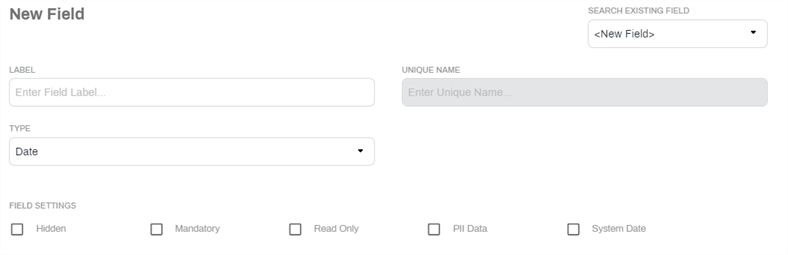
- Date Field
- PII Any representation of information that permits the identity of an individual to whom the information applies to be reasonably inferred by either direct or indirect means. Further, PII is defined as information: (i) that directly identifies an individual (e.g., name, address, social security number or other identifying number or code, telephone number, email address, etc.) or (ii) by which an agency intends to identify specific individuals in conjunction with other data elements, i.e., indirect identification. Additionally, information permitting the physical or online contacting of a specific individual is the same as personally identifiable information. Data — select this option of the data to be entered in this field includes Personal Identifiable Information (PII).
System Date — check this box if you want to automatically capture the date when the record is created.
- Text Area — this type of field allows entry of alphanumeric characters that display in multiple lines.
- Max Length — enter the maximum number of characters that can be entered into this field.
- PII Any representation of information that permits the identity of an individual to whom the information applies to be reasonably inferred by either direct or indirect means. Further, PII is defined as information: (i) that directly identifies an individual (e.g., name, address, social security number or other identifying number or code, telephone number, email address, etc.) or (ii) by which an agency intends to identify specific individuals in conjunction with other data elements, i.e., indirect identification. Additionally, information permitting the physical or online contacting of a specific individual is the same as personally identifiable information. Data — select this option of the data to be entered in this field includes Personal Identifiable Information (PII).