Last Updated: June 18, 2024
New Forms
There are two types of web forms you can create, a single page form that displays the selected object fields in one page and multiple page forms that can group data collection and display the object fields on different pages. You can also create PDF forms. With PDF forms you can convert an existing PDF form into a fillable form. For more details, see Create a PDF Form. There are two ways to create a web form:
- Create a copy from an existing form.
- Build a form by adding object fields and layout and form components. For more details, see Form Builder.
Before you build a form, here is some helpful information.
Requirements
- You must have an object. For details on how to create new objects see Create New Objects.
- If the form is used to start a workflow, you must already have a workflow created.
- If the form is used for data collection or to create a document you must already have storage folders configured.
- If you want the form data to be displayed in a specific document layout you must have already associated the form object to a document template.
- If you want to include a database lookup, the lookup must already be created. For more details, see Field Mapping.
Web Form Build Process
Once your object fields are created, you can add them to a form. The process to build a form is as follows:
- Add a form heading
- Drag and drop components and fields
- Configure form settings
To get started see Create a Form or Create a Multiple Page Form.
Copy a Form
The Copy Form functionality saves you time by only making a few modifications to an existing form without having to add all the components and object fields. You can only create a copy of a form for the same object.
When you copy a form, the new form has the same attributes and permissions from the original form and the system appends "Copy of" in front of the form name. You must rename the copy with a unique name to save it as a new form.
To make a copy do the following:
- With the desired object opened, click on the Forms tab.
- Click the More button
 on the form you would like to copy and select Copy Form.
 - In the form configuration page, give the form a new name.
- Click Save.
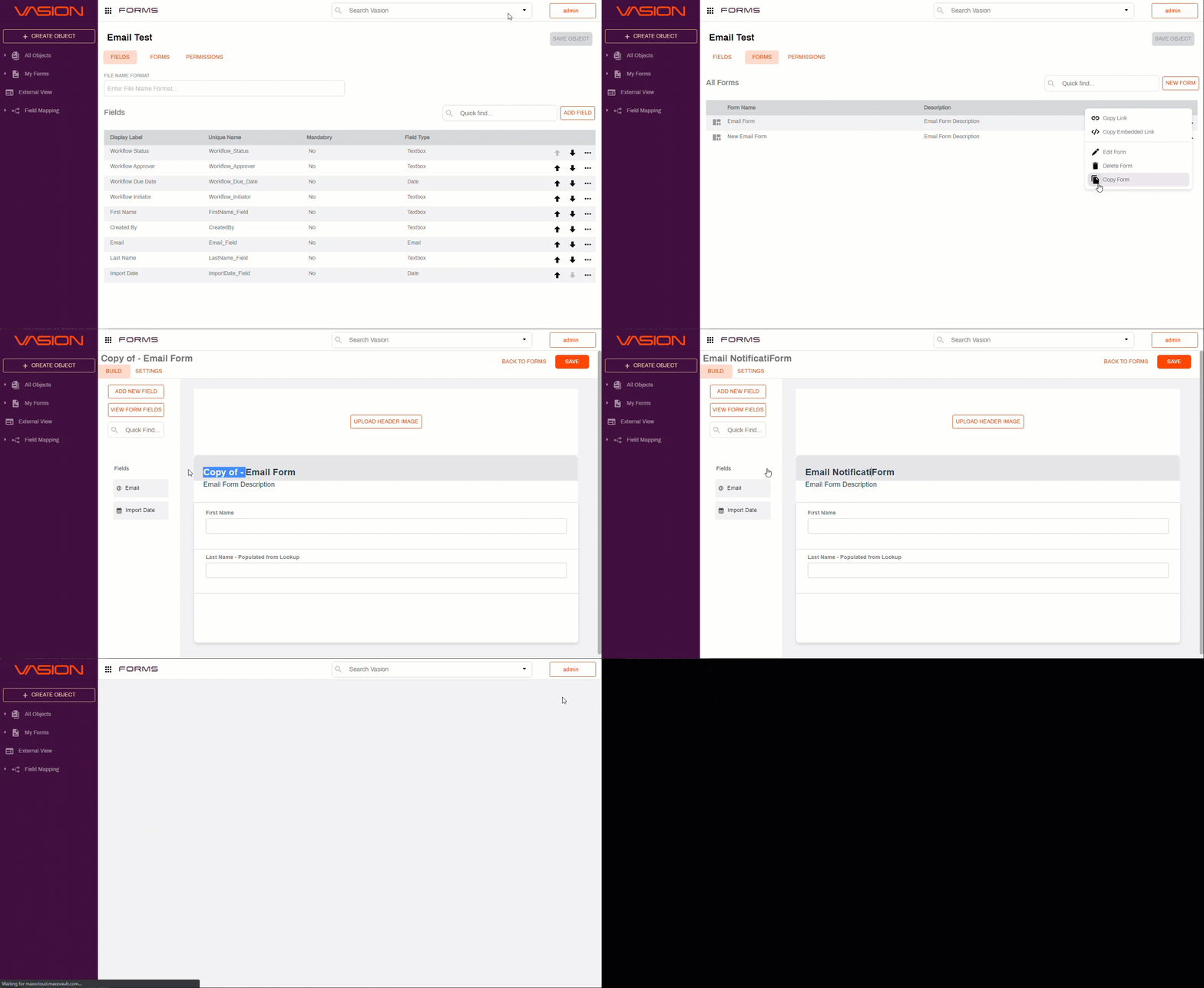
Once you have the new form, select Edit from the More  menu and make modifications to your form. If you don't have an existing form you can modify to suit your needs, instructions on how to create a single page form or a multiple page form by adding layout components and object fields into a new form follow.