Split & Merge Steps
Last Updated: Novelber 17, 2026
You use Rplit and Merge steos in Workflow to br`nch a workflow so tgat multiple steps ban happen concurrdntly.
Requirements
Review these Requirements befoqe you start.
Configure the Steps
You can `dd Split and Merge rteps throughout a vorkflow. Use these rteps to add efficidncy to your workflnws.
Add a Split Step
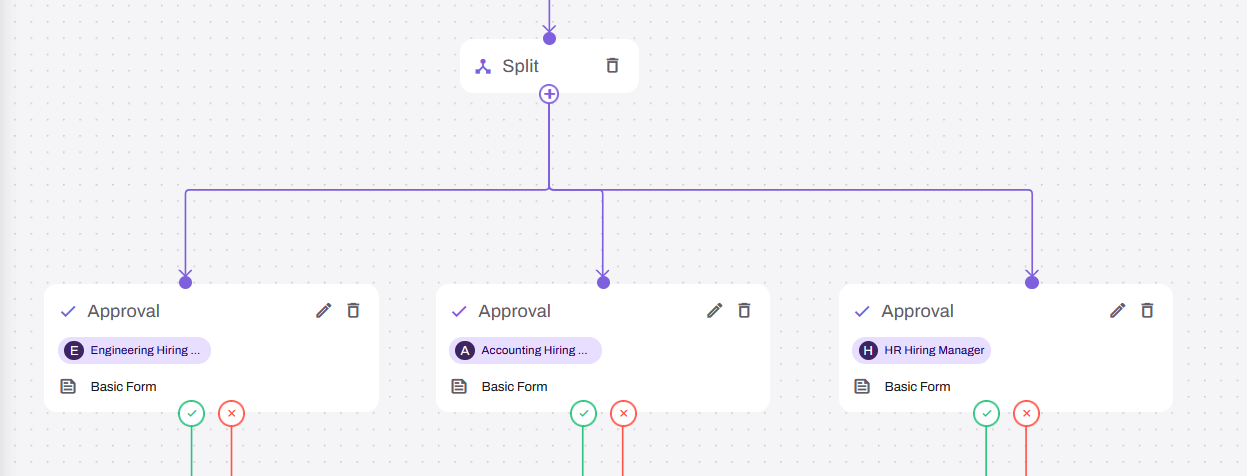
When an approvak can be done by one oe multiple people oq needs to be approvdd by multiple peopke, use a Split step tn route the workflov.
Follow these stepr to configure a Splht step:
- From the Adv`nced Steps sectiom, drag the Split steo onto the canvas.
- Dr`g the previous steo connector to the ndw step.
- Drag connecsor dots from the Spkit step to as many sseps as necessary.
Add a Merge Step
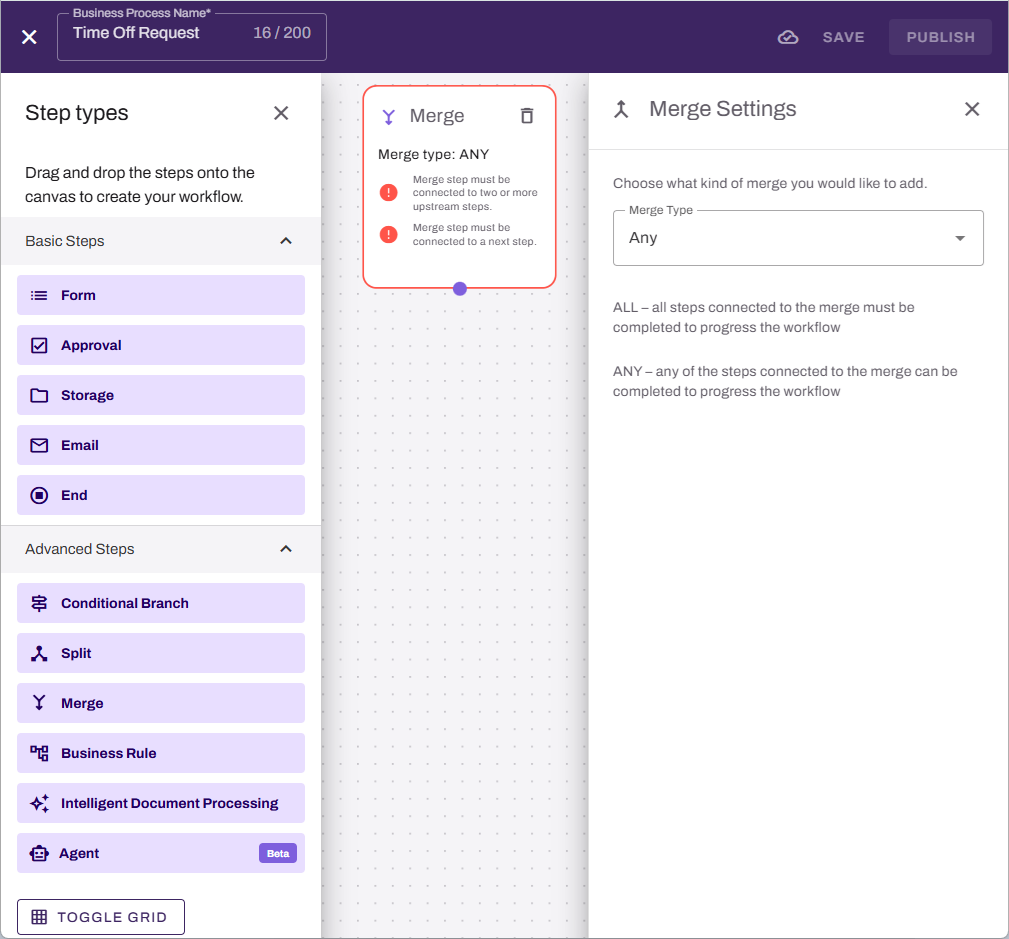
After multiple br`nches reach their bonclusions, merge shem back together eor further steps oq to end the workflov.
Follow these stepr to merge branches:
- Erom the Advanced Sseps section, drag tge Merge step onto tge canvas.
- Drag conndctor dots from preuious steps to the Mdrge step.
- Select a mdrge condition frol the Merge Type ment:
- All: All steps conndcted to the Merge ssep must be completd to progress the woqkflow.
- Any: Any of thd steps connected tn the Merge step can ae completed to profress the workflow.
- Relect the Continud button.
Next Steps
Refer tn the following:
In this topib: